Viewing virtual machine dashboard
To view virtual machine's dashboard, click Dashboard under Actions column.
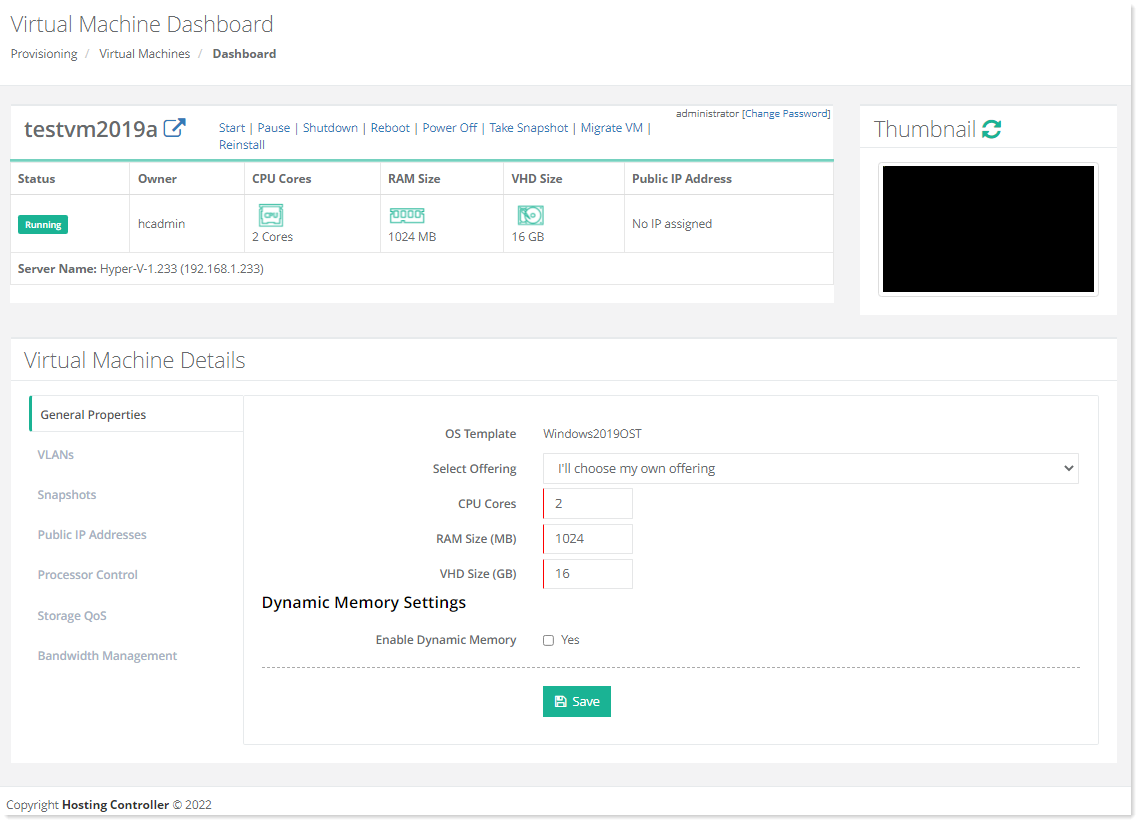
- Migrate VM: If for some reason you want to switch your virtual machine from the present node to another, you can easily switch nodes with this option. This option is available for both Hyper-V and VMware. A virtual machine can be switched from one Hyper-V node to another or from one ESXi host to another. Also in order for this option to work the Hyper-V nodes should be configured in a failover cluster and vCenter enabled for movement of machines between ESXi hosts
To switch a virtual machine from one node to another the Hyper-V nodes should be configured in a failover cluster. - Reinstall: This option allows you to reinstall the OS of the virtual machine. The OS of the assigned OS template will be reinstalled on the virtual machine.
Virtual machine should be in powered off state to reinstall the OS. - Update: VPS providers (admins) can migrate virtual machines (VMs) between Hyper-V hosts (nodes) on the backend without these changes being reflected in HC. If such a backend migration occurs, HC has no means of detecting the transfer automatically or associating the VM with its new host. To handle such cases, HC offers an update option that detects a change in the location of a VM and allows the admin to update the VM node info in its database, linking the VM to the new node.
The update option is designed for providers who frequently migrate VMs between Hyper-V nodes on the backend.
General Properties
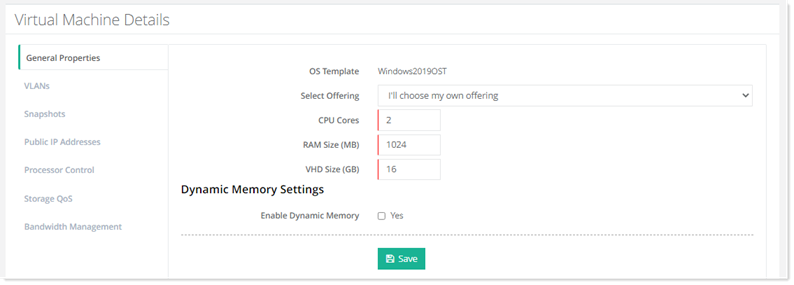
They display various properties for the virtual machine such as the OS template associated with the machine. They also allow you to modify the CPU cores, RAM size and hard disk size of the virtual machine. General properties allow you to modify general settings.
VLANs
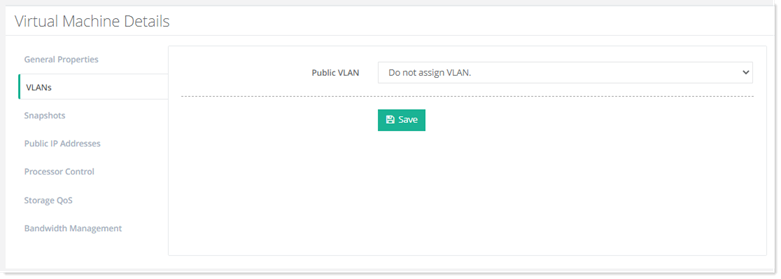
To modify virtual LANs, click VLANs.
Snapshot
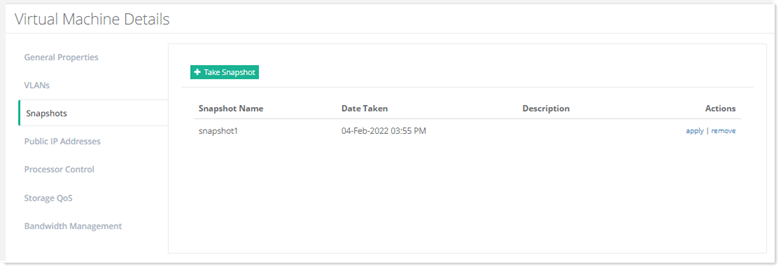
In Hyper-V a snapshot allows you to save the state of a virtual machine at any point in time and easily revert to it should a problem arise. For example you may want to take a snapshot of a VM before installing a new software on the machine. If for any reason the system change were to cause an issue, you can easily revert to the previous snapshot. When you take a snapshot, Hyper-V creates a differencing virtual hard disk with a avhd(x) extension. HC allows you to take snapshots of virtual machines and apply them when needed. Snapshots can also be removed through the panel
To take snapshots of virtual machines, click Snapshots.
Public IP Addresses
When a virtual machine is created, a single IP is assigned to it. After creation, more public IP addresses can be assigned to the machine through its dashboard here. One or more than one additional IPs can be assigned to the machine.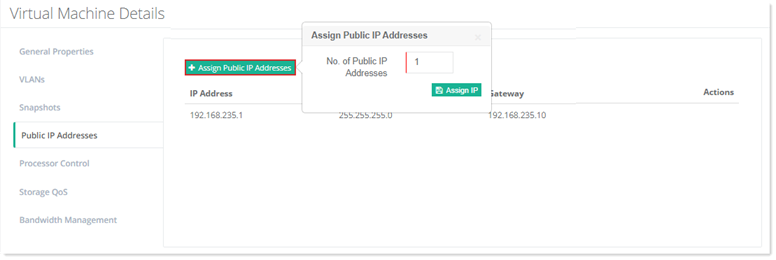
Processor Control
When a virtual machine runs on a host, it is sharing the resources of that host, including the processor capacity. A virtual machine’s virtual processors do not permanently sit on the Logical Processors that run them. Each virtual machine gets a slice of time to run. The virtual machine is swapped on and off the physical processors of the host to allow other VMs to share those LPs. Hyper-V allows us to manipulate how any virtual machine’s virtual processors utilize the LPs of a host. This is known as resource control. Based on these resource control settings, Hosting Controller allows you to balance resources among virtual machines. This is also the place where you can allocate number of virtual processors to a virtual machine.
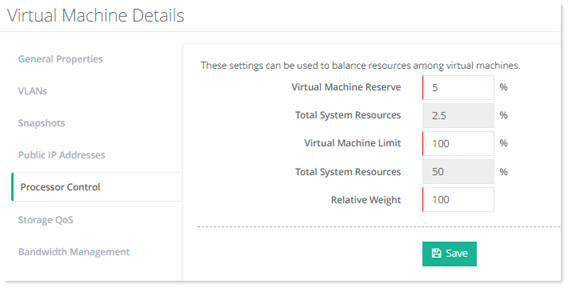
- Virtual Machine Reserve: Specify percentage of the reserve of a virtual machine.
- Total System Resources: System resources would automatically calculated and filled as per the reserve.
- Virtual Machine Limit: Specify maximum limit of the virtual machine.
- Total System Resources: System resources would automatically calculated and filled as per the machine limit.
- Relative Weight: Specify relative weight.
Storage QoS
A virtual machine may consume a disproportionate share of system resources so much so that it may impact the performance of other virtual machines on the same Hyper-V host. Storage QoS (Storage Quality of Service) ensures that a single malfunctioning virtual machine does not consume all storage resources and starve other virtual machines of storage bandwidth. Storage QoS can be used to limit the amount of storage IOPS that a virtual machine is allowed to consume. It enables you to specify the maximum and minimum I/O loads in terms of IOPS for each virtual hard disk in your virtual machines. Minimum and maximum IOPS are measured in 8 KB increments. Hosting Controller allows you to utilize this underlying feature of Storage QoS to prevent virtual machines from using excess storage resources and causing storage I/O bottlenecks. To modify QoS settings, click Storage QoS.
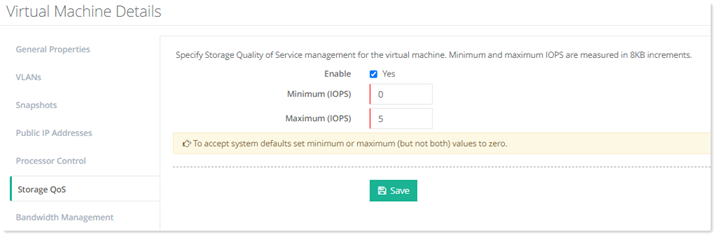
- Minimum (IOPS): Specify minimum input/ouput operations per second.
- Maximum (IOPS): Specify maximum input/ouput operations per second.
Bandwidth Management
To modify bandwidth settings, click Bandwidth Management.
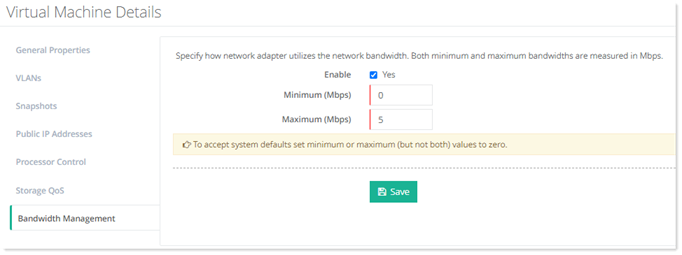
- Minimum (Mbps): Specify minimum input/ouput operations per second.
- Maximum (Mbps): Specify maximum input/ouput operations per second.
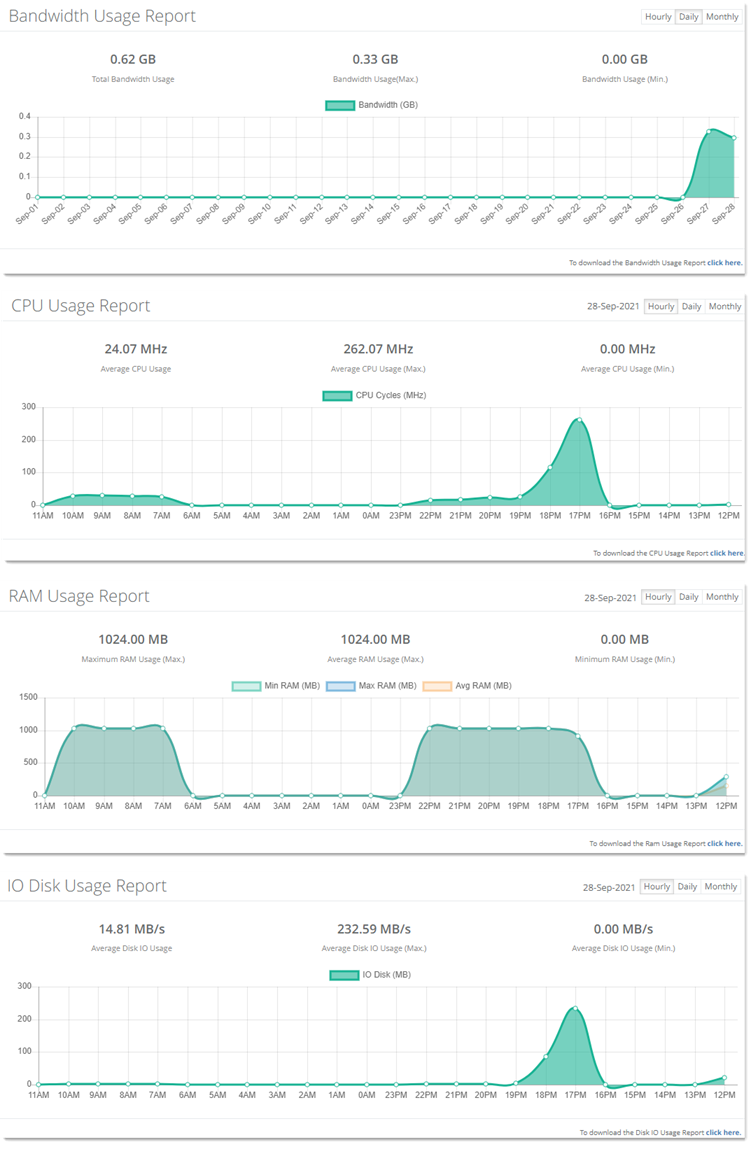
Usage monitoring for Bandwidth, CPU, RAM and IO is available via graphical charts.