
| Product Documentation
Hybrid Control Panel (v10)
Adding an IaaS Server
Pre-reqs:
- The supported hypervisor in the On-premises Windows category is Microsoft Hyper-V.
- HC agent must be installed on Hyper-V host. To learn how to install an HC agent, see HC Agent Installation.
- Software Requirements
Windows Server 2019/2016/2012/2008 and 2012 R2 Standard x64 Edition or above with Hyper-V role. Hyper-V Server 2008 is also supported. We recommend Windows Server 2019/2016/2012/2008 and 2012 R2 Datacenter Edition which allows unlimited number of virtual machines without additional licensing. You may lease Windows Server 2019/2016/2012/2008 and 2012 R2 Datacenter Edition with Hyper-V from your data center or dedicated server providers.
It is recommended to have a clean install of x64 edition of Windows Server 2019/2016/2012/2008 and 2012 R2 to be able to use the Hyper-V technology. - Hardware Requirements
64-bit system with hardware-assisted virtualization enabled (AMD processor with AMD-V technology or Intel processor with Intel-VT technology) and data execution prevention (DEP) is required.
To add an IaaS server, specify Server Information and click Check Connectivity. Once you are connected successfully, only then you can add an IaaS server. The supported hypervisor in the On-premises Windows category is Microsoft Hyper-V. A Hyper-V host will be added here.
Hyper-V host is the physical machine that hosts the virtual servers. It hosts the management OS and provides the resources, including CPU, memory, storage, and networking for virtual machines.
For more information on how to add a Hyper-V server, see Hyper-V Infographic.
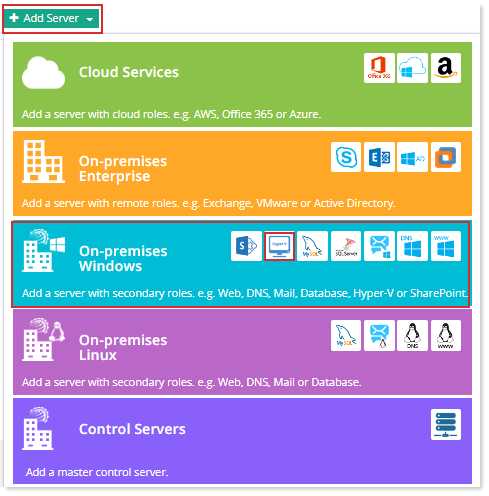
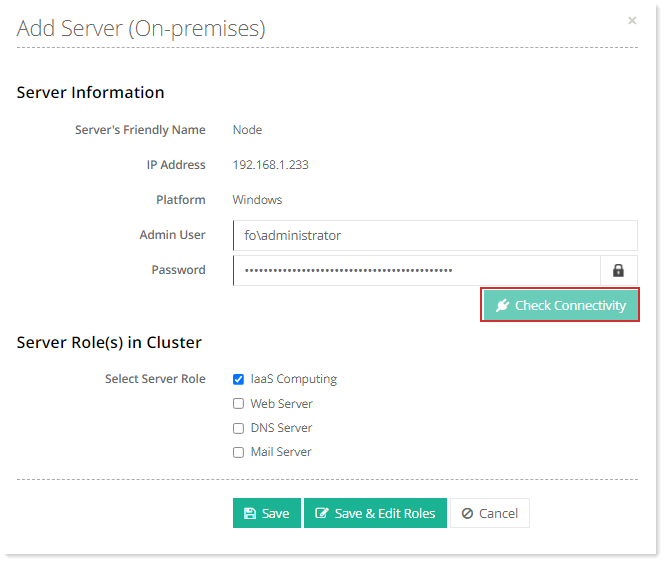
- Check Connectivity: The check connectivity button sends a WMI call to the Hyper-V host that establishes a connection between Hosting Controller and the Hyper-V host.
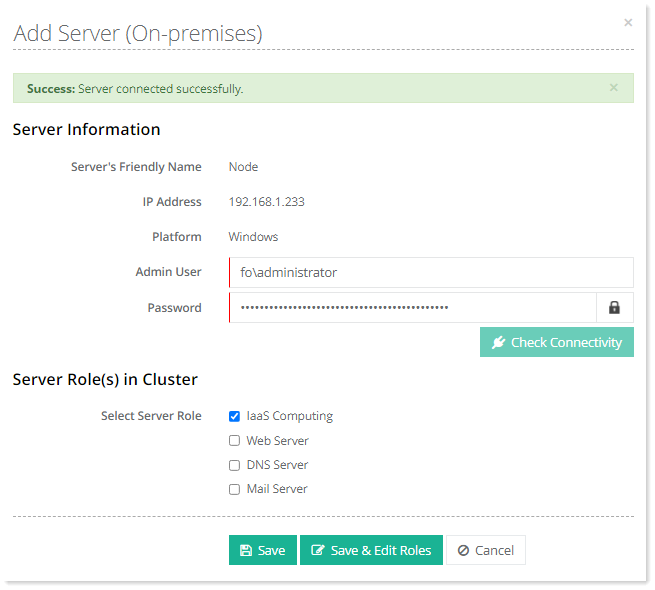
Click Save & Edit Roles. Specify required information for IaaS Server.
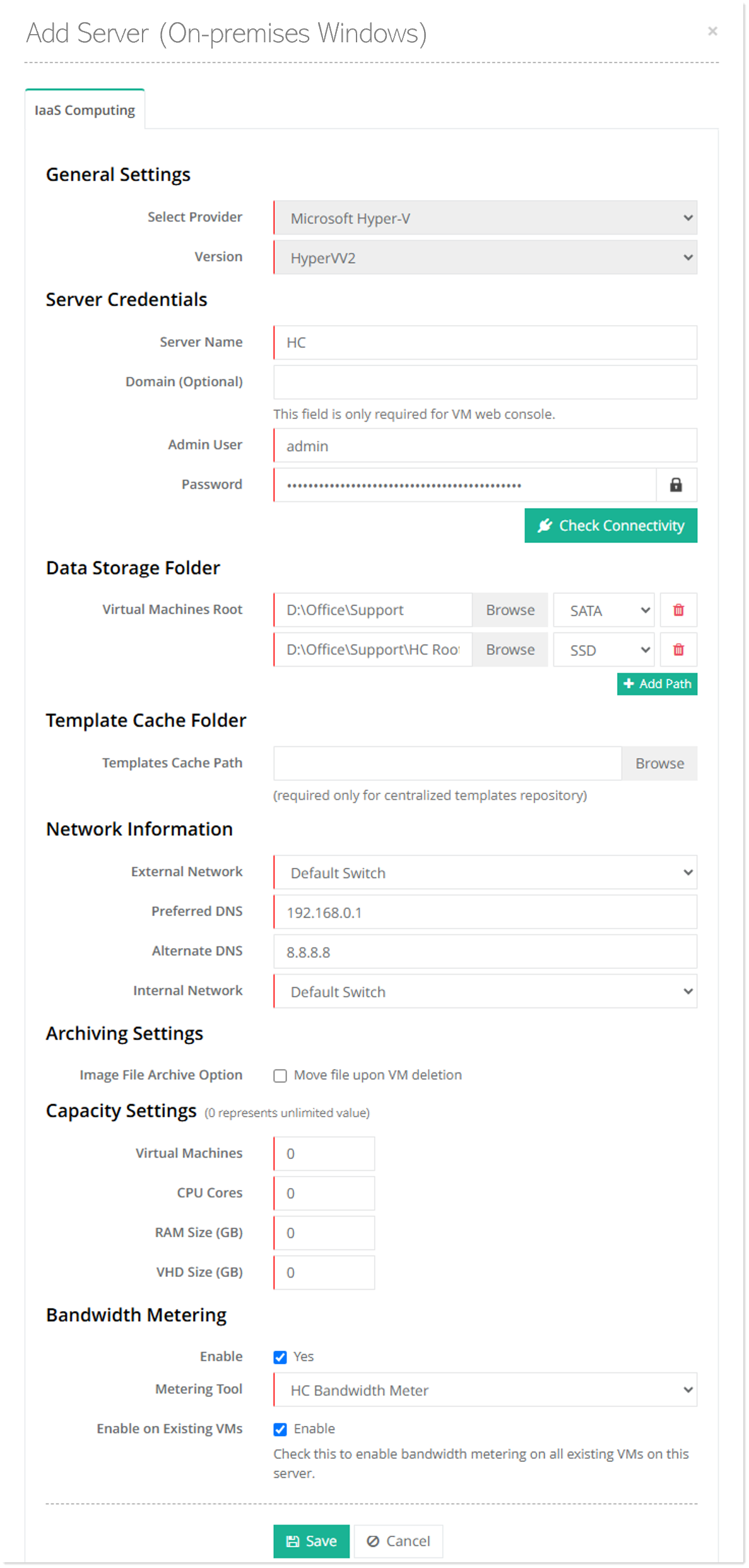
General Settings
- Select Provider: The supported hypervisor in the On-premises Windows category is Microsoft Hyper-V. HC must be installed on the Hyper-V host.
- Version: Select version from the drop-down list.
Server Credentials
- Server Name: Type the hostname of the server.
- Domain: Type the domain name. This is optional. This field is only required if the Hyper-V host is a domain member machine. If the Hyper-V host is a member of a domain, the VM web console feature will work only if the domain is mentioned.
- Admin User: Specify the credentials of a domain administrator.
- Password: Type password for the domain\administrator.
Data Storage Folder
- Virtual Machines Root: It specifies the storage location of all virtual machines created by HC.
- SSD: It identifies the storage path as SSD-based storage. This is appropriate when higher disk performance is required.
- SATA: It identifies the storage path as SATA-based storage. This can be used for general-purpose or lower-performance VM workloads.
Template Cache Folder
- Templates Cache Path: For scenarios where OS templates are required to be stored and fetched from a central location, Hosting Controller provides the option of central repositories. These central repositories can be maintained on separate Windows servers. In case of Hyper-V, admins can fetch .vhdx files from this central location and copy them to the Hyper-V node (configured in the panel). The Templates Cache Path represents the path on the Hyper-V node where the OS templates are copied. The benefit of Templates Cache Path is that if customer is using central repository for the first time then .vhdx file is copied from the central location. However if a second time the same OS machine is to be created, the call is not sent to the central repository, rather the OS template is directly fetched from the saved copy on the Hyper-V node thus saving time.
Network Information
A virtual switch is a software application that allows virtual machines to communicate with each other. Hyper-V assigns virtual network adapters to virtual machines. These virtual adapters communicate directly with the virtual switch. There are three types of virtual switches in Hyper-V:
- External: This type of switch links a physical Network Interface Card (NIC) located on the Hyper-V host to a virtual one. It gives virtual machines access outside of the host i.e. to the physical network the Hyper-V host is connected to.
- Internal: This switch allows communication only between virtual machines on the Hyper-V host and between the virtual machines and the Hyper-V host. It does not bind virtual network adapters to physical ones and therefore does not provide connectivity to a physical network.
- Private: This switch allows communication only between virtual machines on the Hyper-V host.
HC allows you to specify the settings for these virtual switches.
Archiving Settings
- Image File Archive Option: By default when a virtual machine is deleted from Hyper-V Manager, it deletes the virtual machine from the list of the virtual machines but the virtual hard disk file remains on the default storage path. In order to customize the behavior for better management, the vhdx file for the deleted machine can be moved to a designated folder. Later if a customer asks to restore its deleted virtual machine, it can be done easily by restoring the virtual machine using the virtual hard disk file. For more information, see How to enable archiving for virtual hard disk files.
- Move file upon VM deletion: This specifies whether the vhdx files need to be moved to a designated folder.
- Archive Folder Path: This is the folder path where the vhdx files need to be moved, in case of a designated folder.
Capacity Settings
These are the overall limits applied to your Hyper-V node. These limits represent the sum of all VMs on a single Hyper-V node. For instance if you have three VMs on a single Hyper-V node and you have fixed the maximum available limit for RAM at 10 GB then the three virtual machines can be assigned 4 GB, 4 GB and 2 GB RAM respectively. Their sum cannot go above 10 GB.
- Virtual Machines: This limit specifies the number of virtual machines that can exist on this Hyper-V node. For instance, a limit of 5 virtual machines means that this Hyper-V server can have a total of 5 VMs on it. A value of 0 denotes an unlimited number of VMs. This server limit has a higher priority than the quota limit defined in a service plan. For instance, if the server limit defined here is 5 VMs and the admin (by mistake) sells a plan to a customer with a limit of 8 VMs, Hosting Controller will not let the customer make more than 5 VMs and will throw an error on the creation of the 6th VM.
Bandwidth Metering
For bandwidth metering Hosting Controller uses Hyper-V Bandwidth Meter by http://www.hoststools.com . Bandwidth reports (created by Hyper-V Bandwidth Meter) are provided to view with Hosting Controller.