| Product Documentation
Hybrid Control Panel (v10)
Creating a mailbox
A mailbox signifies a storage where email messages are delivered. A mailbox is identified by an email address.
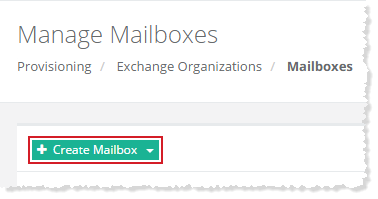
To create an Exchange mailbox, click + Create Mailbox and specify required information to proceed.
|
Mailbox Types
|
A Mailbox can be created in three different ways in terms of Mailbox type such as User Mailbox, Shared Mailbox and Linked Mailbox. Also, it can be created in two different ways in terms of users such as with a new AD user or with an existing one. For details, refer to the following sections:
User Mailbox
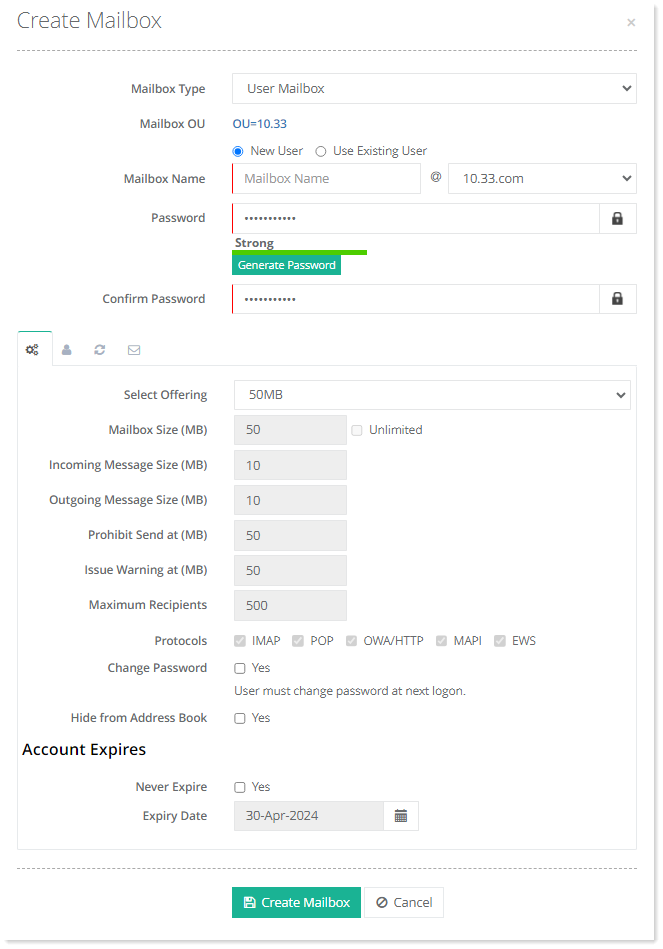
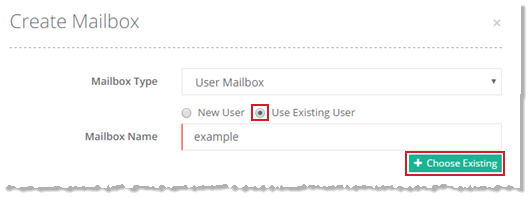
Select User Mailbox from the drop-down list box and specify information to proceed.
New User:
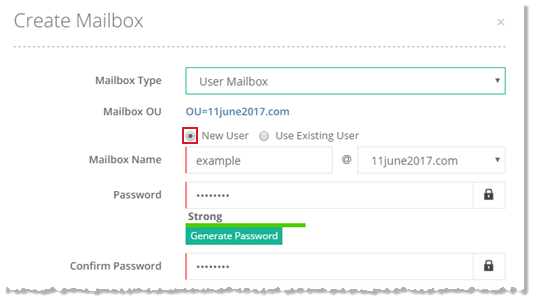
To create a mailbox with a new Active Directory user, click New User and specify details to proceed.
Existing User:
To create a mailbox with an existing Active Directory user, click Use Existing User and select user to proceed. When using an existing user, Hosting Controller enables a mailbox against that user.
Shared Mailbox
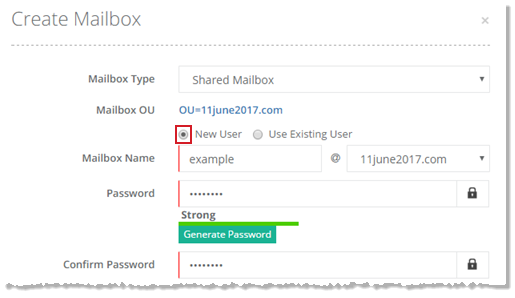
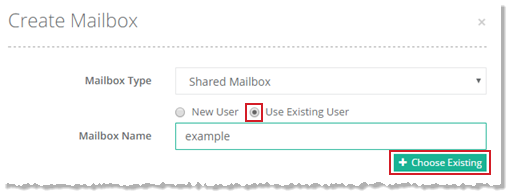
Select Shared Mailbox from the drop-down list box and specify information to proceed.
New User:
To create a mailbox with new user, click New User and specify details to proceed.
Existing User:
To create a mailbox with existing user, click Use Existing User and select user to proceed.
Linked Mailbox
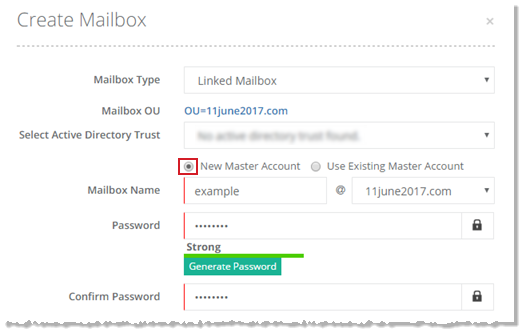
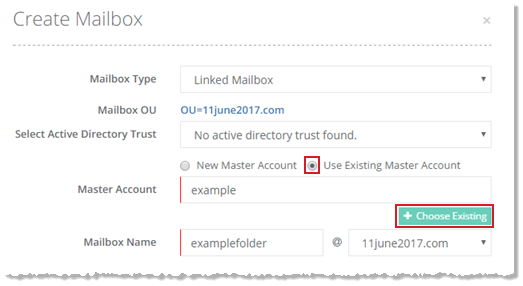
Select Linked Mailbox from the drop-down list box and specify information to proceed.
New Master Account:
To create a mailbox with new master account, click New Master Account and specify details to proceed.
Existing Master Account:
To create a mailbox with existing master account, click Use Existing Master Account and select user to proceed.
Advanced Settings
Click  to specify some advanced level configurations. Hosts can either choose to offer their own offerings or select the resources of a composite resource. Any composite resource specified as default, will display first as the default choice. For information on how to specify a composite resource as default, see Default Composite Resources.
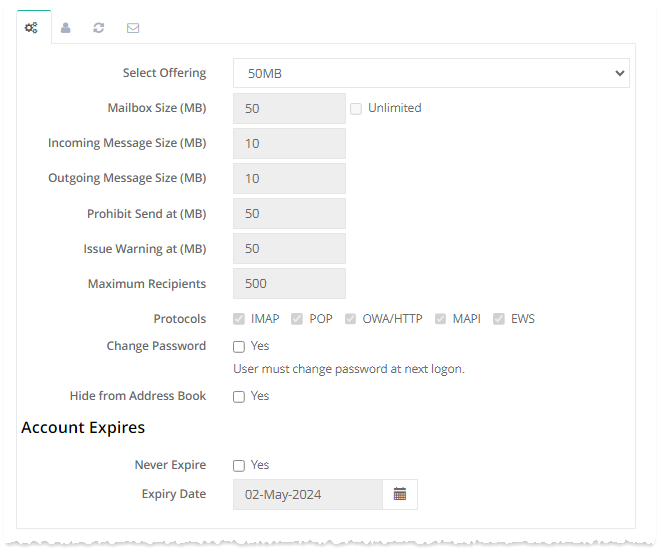
- Select Offering: A tenant admin can offer its own offering or may select from various other pre-defined composite resources. The tenant admin can upgrade or downgrade its offering by moving between different CRs. If any of the resources in a CR, are already in use the offering can not be downgraded.
- Change Password: If enabled, this option forces the mailbox user to change its password on next logon into OWA.
- Hide from Address Book: The tenant admin can hide a user from all the address lists. If a user is hidden from the address lists, its mailbox will not be visible in all address lists and GALs. It will still be able to receive email messages, but other users will not be able to find the particular user in address lists.
- Account Expiry: Some mailboxes are often needed only temporarily. To minimize security risks and to make Active Directory environments more secure, the Active Directory accounts for such mailboxes need to expire when no longer needed. Windows Active Directory offers an account expiry feature whereby an expiration date for an Active Directory account can be specified. Utilizing this feature, Hosting Controller allows admins to specify expiries for mailbox user accounts.
- Never Expire: This option, if checked, ensures that the account never expires.
- Expiry Date: This allows you to specify an expiration date for the Active Directory account. The account expires at the end of the specified date.
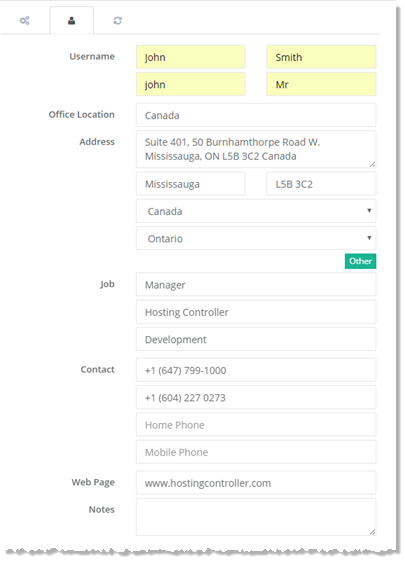
User Profile
Click  to specify user information as:
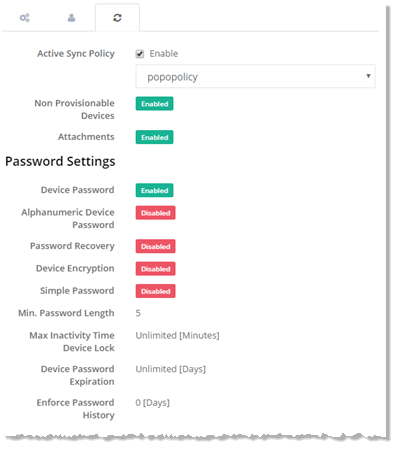
Active Sync Settings
Click  to enable active sync settings. Select Enable check box and then policy from the drop-down list box as:
OWA Policy Settings
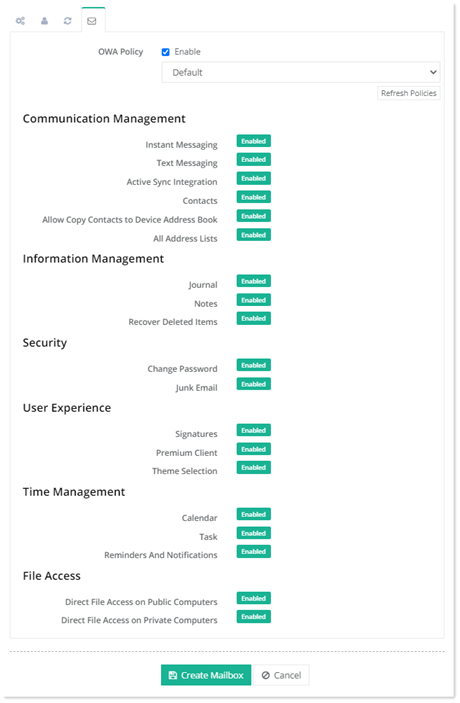
Click  to enable OWA policy settings. Select Enable check box and then policy from the drop-down list box as: