| Product Documentation
Resources
HC10 Configuration with Exchange 2013 and 2016
1) Introduction
Hosting Controller Exchange module is tightly integrated with Microsoft Exchange Server to ensure provisioning of all the required features for the service providers to deploy and manage Exchange Hosting over any type of infrastructure.
This article provides information regarding minimum system requirements for installing Exchange 2013 & 2016 and configuring it with Hosting Controller. In addition, it comprehensively lists steps to install Hosting Controller, its user hierarchy and all required configurations for provisioning Exchange.
2) Minimum System Requirements for Exchange 2013
Hosting Controller is your one stop shop to efficient management of Exchange 2013. It not only allows hosting companies and service providers to manage their Exchange 2013 offerings under one roof but also lets them segregate their tenants into compact containers. This section of the document provides a clear picture of exactly what you need to setup Exchange 2013 servers. If you are new to Exchange 2013 please view the following link to have a better understanding of the system requirements:
https://technet.microsoft.com/library/aa996719(v=exchg.150).aspx
3) Exchange 2016 and what’s new in it
The latest addition to the Microsoft Exchange line is the Exchange Server 2016 and it brings with it the promise of a more collaboration focused approach. In order to remain in line with this greater objective, a number of previous components, features and functionality have been discontinued or altered in Exchange 2016.
3.1) Discontinuation of the Client Access Server (CAS) role
The most visible transformation from Exchange 2013 to 2016 is the removal of the Client Access Server (CAS) role. Now this role has been replaced by Client Access services that run on the Mailbox server role. The Mailbox server role assumes a more central position in the overall Exchange 2016 architecture.
3.2) Minimum System Requirements for Exchange 2016
The minimum system requirements for installing Exchange 2016 can be viewed at the below link:
https://technet.microsoft.com/en-us/library/aa996719(v=exchg.160).aspx
4) Integration of Exchange 2016 with Hosting Controller
As always Hosting Controller has earned the distinction of being one of the foremost Cloud automation solutions providing synergic integration of Exchange 2016. Besides taking advantage of a wide array of inbuilt communication features, it adeptly presents a multi-tiered; web based provisioning solution to On-Premises and Cloud service providers. Though emphasis still remains on segregation of tenants and curtailing of the total cost of infrastructure ownership, Hosting Controller automation for Exchange 2016 encourages its users to adopt Remote Management.
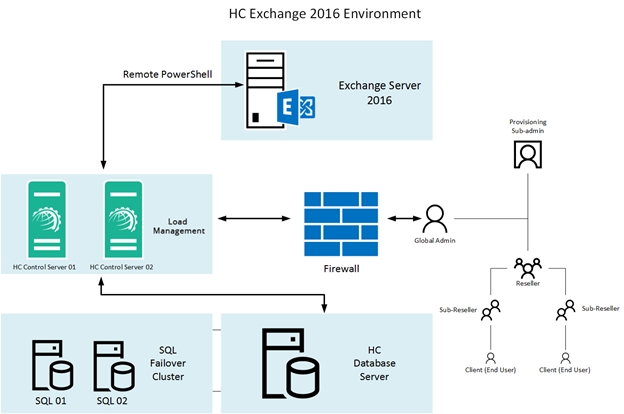
The Exchange Remote Management feature necessitates Exchange servers independent of a Hosting Controller software installation and ensures communication only through remote PowerShell commands. This implementation provides the benefit of a completely clean and isolated Exchange infrastructure, without the unnecessary burden of extra software.
5) HC10 Control Server
Control Server is the server on which Hosting Controller is installed and this Control Server in turn communicates with the actual Exchange servers via remote PowerShell. The Control Server carries the HC Primary installer and constitutes the backbone of HC10. It's responsible for provisioning, database, system and task scheduler operations.
6) Minimum System Requirements for Hosting Controller
Once your Exchange Servers are ready it’s time to install Hosting Controller on the Control Server. MSSQL is the major pre-requisite for storing Hosting Controller backend database and for its frontend IIS webserver coupled with Microsoft .NET Framework 4.5 or above is required. For further information regarding Hosting Controller’s prerequisites, please refer to the link below:
7) Installing Hosting Controller
Download the Primary installer from the following link:
http://hostingcontroller.com/Hosting-Software-Downloads/Windows-Hosting-Automation.html
Then apply it on your Control Server. The installation itself is fairly simple. It permits a setup wizard to run and allows users to follow a step by step installation procedure. As stated previously HC10 should only be installed on the Control Server.
No installation is required on the Exchange servers and the Control Server will communicate with Exchange servers through remote PowerShell commands. This not only makes the communication simple but also reduces the overhead of software installation on Exchange itself. It also reduces the cost for multiple servers’ setup as you can manage Exchange via only one machine.
HC10 installation guide and pre-configurations required for setting it up with SQL and IIS can be viewed below:
Installation Guides and Configuration Details
8) Configurations required on Exchange server to connect with HC
There are certain after-install configurations required on the Exchange server as well. They form a vital part of the process and should positively be performed in order to run HC successfully with Exchange. The following are the configurations to be performed:
8.1) Enabling Remote Power Shell
As per Microsoft recommendations Hosting Controller communicates with Exchange 2013 and 2016 via Remote Power Shell. PS Remoting should be enabled on Exchange CAS server (in case of 2013) and MBX server (in case of 2016).
Follow the steps to enable Remote Power Shell as:
- RunEnable-PSRemoting command in Exchange Management Shell.
- Enable BASIC authentication on Exchange PowerShell virtual directory in the IIS Manager under Default Web Site.
- Ensure that the user providing his credentials has “Remote PowerShell” enabled
- get-user userName |fl RemotePowerShellEnabled
PS: userName = replace it with actual user name i.e. Administrator
If above cmd shows RemotePowerShellEnabled as False then execute below command.
-
- set-user Administrator -RemotePowerShellEnabled $True
8.2) Domain Admin User
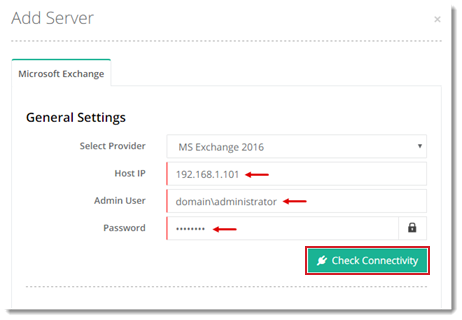
Any privileged user having rights to communicate with Exchange remotely over PowerShell must be specified in HC panel in order to establish a valid connection between the HC and Exchange machines. You can specify Domain Admin or any other privileged user credentials as shown in the screenshot below: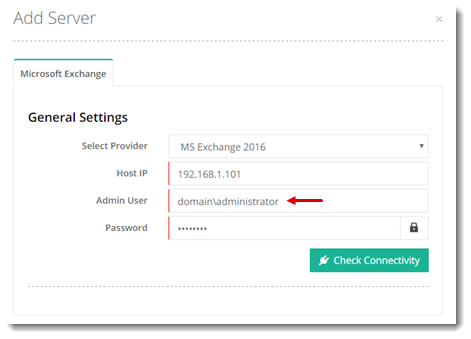
9) Understanding HC10 User Structure
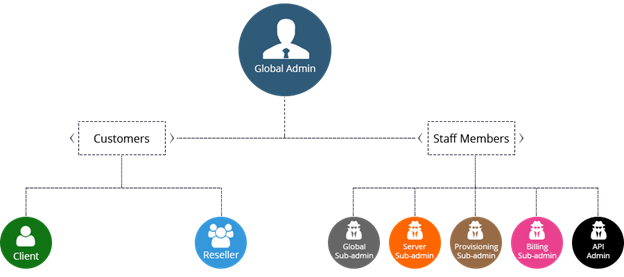
Unlike previously, HC10 is no more limited to just three tiers. It extends support to an N-tier user architecture complete with the management and control of Admins, Resellers, Sub-Resellers and Clients. The Resellers can further have Sub-Resellers beneath them and this chain can extend all the way down to the nth level.
HC10 also holds the provision for horizontal Staff Members. These Staff Members represent various departments within an organization. Hosting Controller allows the delegation of administrative tasks to these relevant departments within a single organization. Every Staff Member is confined to his own set of rights and privileges and may not overstep his authority. Staff Members are distinct from Customers and have their own interfaces.
10) Configuring the Panel
To configure the panel follow the steps as stated for quick and easy Exchange server configuration:
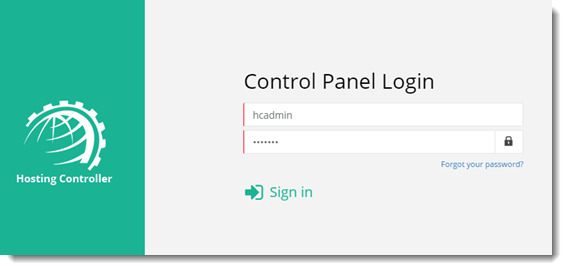
- Log on to HC10 panel as an administrator.
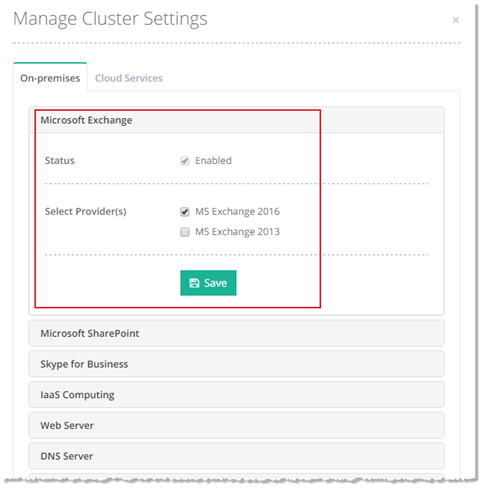
- To enable Exchange server, click at top right corner of HC10 panel and then go to the Server Manager >> Cluster Settings. Under On-premises tab and Microsoft Exchange section, select Enabled It enables the Exchange server. Select Provider(s) as required and click Save to proceed.
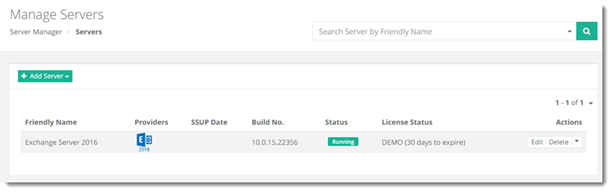
- To add a friendly server to the cluster, go to the Server Manager >> Servers. Click Add Server >> On-premises and specify required information to proceed.
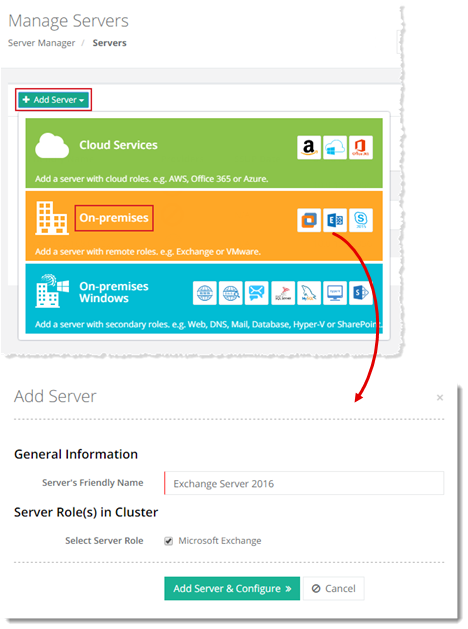
This is a hypothetical server with a Friendly Name, without any physical existence. It only serves as an identifier in the panel. In reality the Control Server communicates with the actual Exchange server directly via Remote PowerShell. - Specify IP of the actual Exchange server and credentials for a domain\administrator Then verify the connection.
- HC automatically extracts information from Exchange server that can easily be modified later.
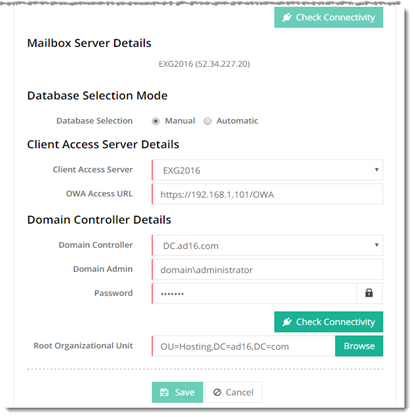
- Exchange server is configured and ready to use.