| Product Documentation
Resources
HC10 Configuration with SharePoint
1) Introduction
SharePoint is Microsoft’s revolutionary content management system. It enables groups to setup a centralized and password protected space for document sharing. Having appropriate permissions users can have a go at storing, downloading and editing documents with profound ease. HC SharePoint automation allows end-to-end automation and management of Microsoft SharePoint Server enabling web based creation of SharePoint sites, sub sites, users, groups and convenient segregation of SharePoint users into separate containers. In short, it provides an out of the box interface to Microsoft’s most popular collaboration technology.
HC10 SharePoint automation supports the following versions:
• SharePoint 2019
• SharePoint 2016
• SharePoint 2013
• SharePoint Foundation 2013
However this article provides the best practices for configuring and using HC10 with SharePoint 2019, 2016 and 2013.
2) System Requirements
2.1) Minimum System Requirements for SharePoint 2019
SharePoint 2019 allows for two installation scenarios. Server farm with a single server in the farm and server farm with multiple servers in the farm. HC10 supports both scenarios. System requirements for SharePoint 2019 can be viewed at: https://docs.microsoft.com/en-us/SharePoint/install/hardware-and-softwarerequirements-2019.
2.2) Minimum System Requirements for SharePoint 2016
SharePoint 2016 allows for two installation scenarios. Server farm with a single server in the farm and server farm with multiple servers in the farm. HC10 supports both scenarios. System requirements for SharePoint 2016 can be viewed at: https://docs.microsoft.com/en-us/SharePoint/install/hardware-and-softwarerequirements.
2.3) Minimum System Requirements for SharePoint 2013
SharePoint 2013 offers several installation scenarios. These include Standalone Install, single-server farm installations and multiple-server farm installations. However Hosting Controller supports only single-server and multiple-server farm installations. Standalone Install is not supported. The minimum Hardware and Software requirements for setting up single-server or multiple-server farms can be viewed at: https://docs.microsoft.com/en-us/sharepoint/install/system-requirements-forsharepoint-2013.
3) Setting up SharePoint for Hosting Controller
A few important considerations are to be taken into account before commencing SharePoint installation. These form the crux of Hosting Controller’s integration with SharePoint and are necessary for a seamless working:
• Hosting Controller does not support a Standalone installation of SharePoint. In order to make it work with Hosting Controller, the SharePoint server should essentially be part of an Active Directory (A.D.) domain. The server must join an A.D. domain before a SharePoint install.
• Windows internal database (MSDE) should not be used for SharePoint installation. The use of SQL Server is recommended instead.
• Both SharePoint and SQL Server configuration should be made via the same domain\administrator account. An installation performed via a local system account may confront access denied errors. However, if you do not wish to use a domain\administrator account follow the guidelines here.
• This domain\administrator should have permissions over both SharePoint and SQL with SharePoint user and site creation privileges.
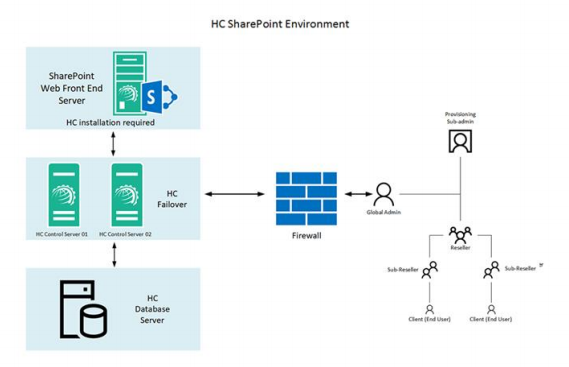
• Port 8796 should remain open for communication between HC Control Servers and SharePoint Web Front End servers. To learn more about ports, see Common firewall ports.
4) Minimum System Requirements for Hosting Controller
Once your SharePoint Servers are ready it’s time to install Hosting Controller. MSSQL is the major pre-requisite for storing Hosting Controller backend database. The other minimum Software and Hardware requirements for installing HC10 can be viewed here.
5) Hosting Controller SharePoint Deployment Scenario
HC10 should be installed on the SharePoint Web Front End server (WFE). A single-server farm cannot have more than one SharePoint servers in the farm whereas a multiple-server farm can have more than one SharePoint servers. As there is only one server in a singleserver farm, it by default will host HC installation however in a multiple-server farm HC should be installed on servers with the Front End Web role. The HC10 Control Server communicates directly with the SharePoint Web Front End servers to provision SharePoint sites and users.
6) Installing Hosting Controller
Download the Agent installer from the following link: https://hostingcontroller.com/Hosting-Software-Downloads/HC-Service-Packs.html and apply it on the SharePoint Web Front End. The installation itself is fairly simple. It permits a setup wizard to run and allows users to follow a step by step installation procedure. The HC10 Control Server will then communicate with this SharePoint Web Front End to provision SharePoint sites and users.
To view the installation procedure, see HC Agent Installation.
7) Understanding HC10 User Structure
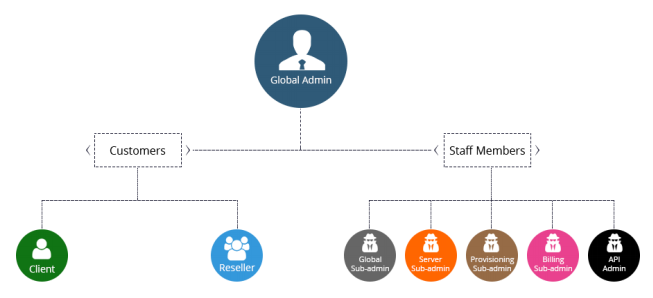
Unlike previously, HC10 is no more limited to just three tiers. It extends support to an Ntier user architecture complete with the management and control of Admins, Resellers, Sub-Resellers and Clients. The Resellers can further have Sub-Resellers beneath them and this chain can extend all the way down to the nth level. HC10 also holds the provision for horizontal Staff Members. These Staff Members represent various departments within an organization. Hosting Controller allows the delegation of administrative tasks to these relevant departments within a single organization. Every Staff Member is confined to his own set of rights and privileges and may not overstep his authority. Staff Members are distinct from Customers and have their own interfaces.
8)Configuring the Panel
To configure the panel follow the steps as stated for quick and easy SharePoint server configuration:
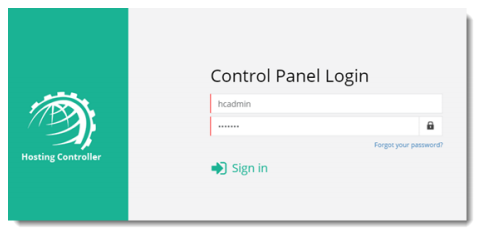
- Log on to HC10 panel as an administrator.
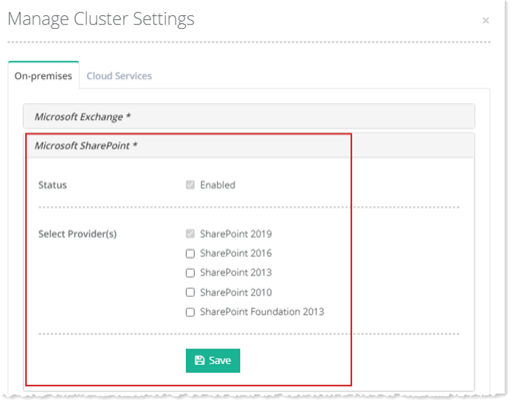
- To enable SharePoint server, click
 at top right corner of HC10 panel and then go to the Server Manager >> Cluster Settings. Under On-premises tab and Microsoft SharePoint section, select Enabled checkbox. It enables the SharePoint server. Select provider(s) as required and click Save to proceed.
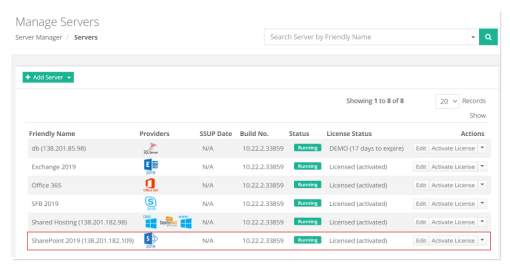
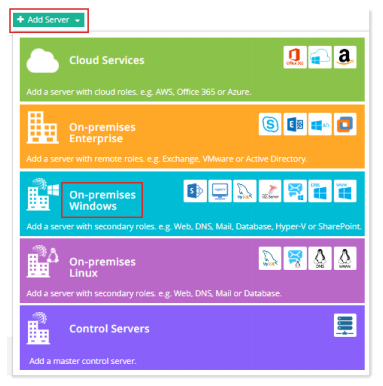
- To add a friendly server to the cluster, go to the Server Manager >> Servers. Click Add Server >> On-premises Windows to proceed.
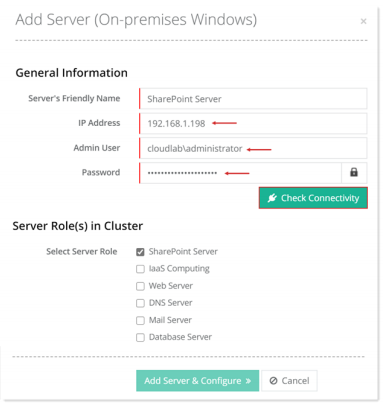
- Specify a friendly name and IP of the SharePoint Web Front End server. The credentials here are for a domain\administrator user. Under Server Role(s) in Cluster section, select role as SharePoint Server. Verify the connection.
- HC automatically extracts information from SharePoint server that can easily be modified later.
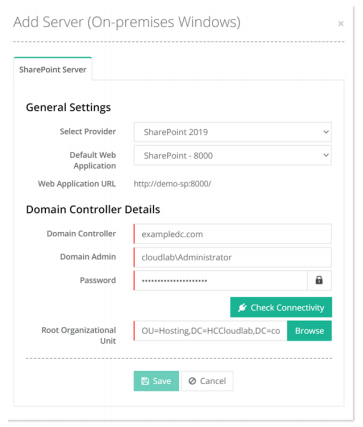
- SharePoint server is configured and ready to use.