
| Product Documentation
AD Connect Sync
Synchronizing to Various IAM Targets
You can enable an organization to setup automatic synchronization between on-premises AD and one or more public IAM systems including:
- Amazon AWS
- Microsoft 365
- Microsoft Azure
- Google Cloud Platform
- Any Other Cloud Hosted Active Directory

AD Connect Sync makes available various web service URLs (connectors) to synchronize users, groups, group membership and passwords between local master Active Directory environments and different public cloud IAMs. AD Connect Sync will be responsible for sending data to the provided URLs. After that it will be the connector’s responsibility to perform functions accordingly.
For the convenience of customers, we have provided some open source sample applications. These sample connector API's are written in NodeJs. The API code needs to be deployed in IIS. After deploying the connector code you can connect with the target server by providing the connector URL and security key
Steps to Configure AD Connect Sync Connector’s API in IIS
- Install NodeJS from this URL: https://nodejs.org/en/
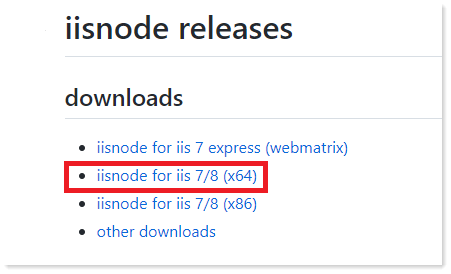
- Install Node Module for IIS (iisnode for IIS 7/8) from this URL: https://github.com/azure/iisnode/wiki/iisnode-releases
- Install URLRewrite2 from this URL: https://www.iis.net/downloads/microsoft/url-rewrite
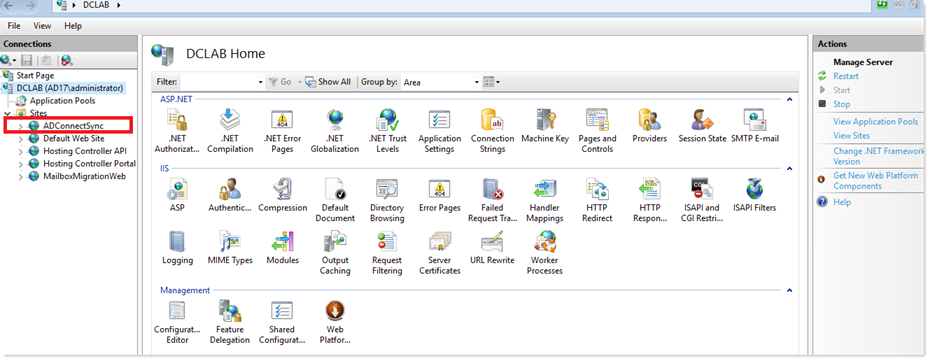
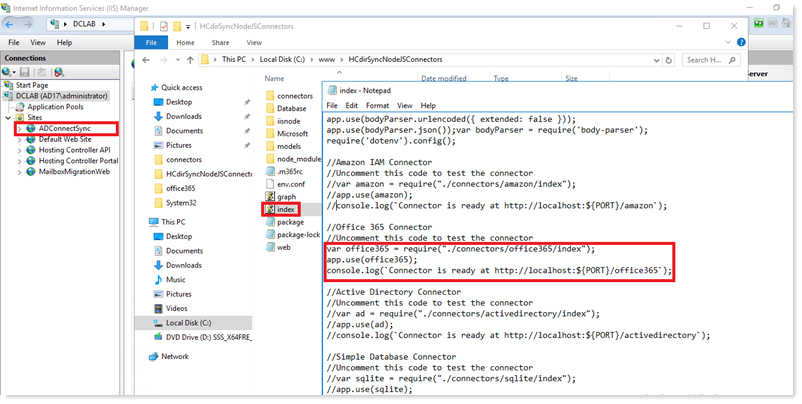
- Add a website in IIS and bind site to physical path of AD Connect Sync connector’s API sample code.
-
- See the sample connector extracted in C:\www\HCdirSyncNodeJSConnectors for ADConnectSync connector webapplication.
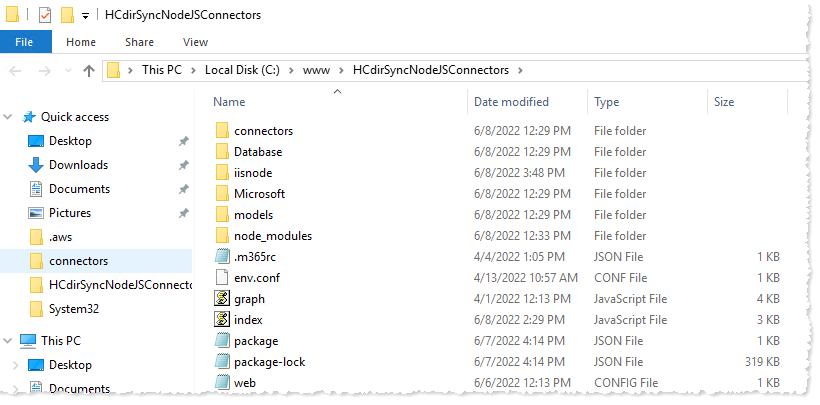
- See the sample connector extracted in C:\www\HCdirSyncNodeJSConnectors for ADConnectSync connector webapplication.
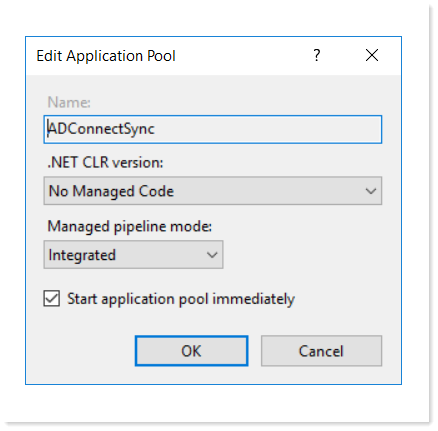
- Set your application pool .NET CLR Version to “No Managed Code”.
Sample Connector for Microsoft 365
Below are the steps for applying the sample connector code for Microsoft 365:
- Install MSOnline Module using PowerShell command: “Install-Module MSOnline”.
If packageProvider exception is thrown upon installing MSOnline module then set PowerShell tls 1.2 using the PowerShell command given below:
[Net.ServicePointManager]::SecurityProtocol = [Net.SecurityProtocolType]::Tls12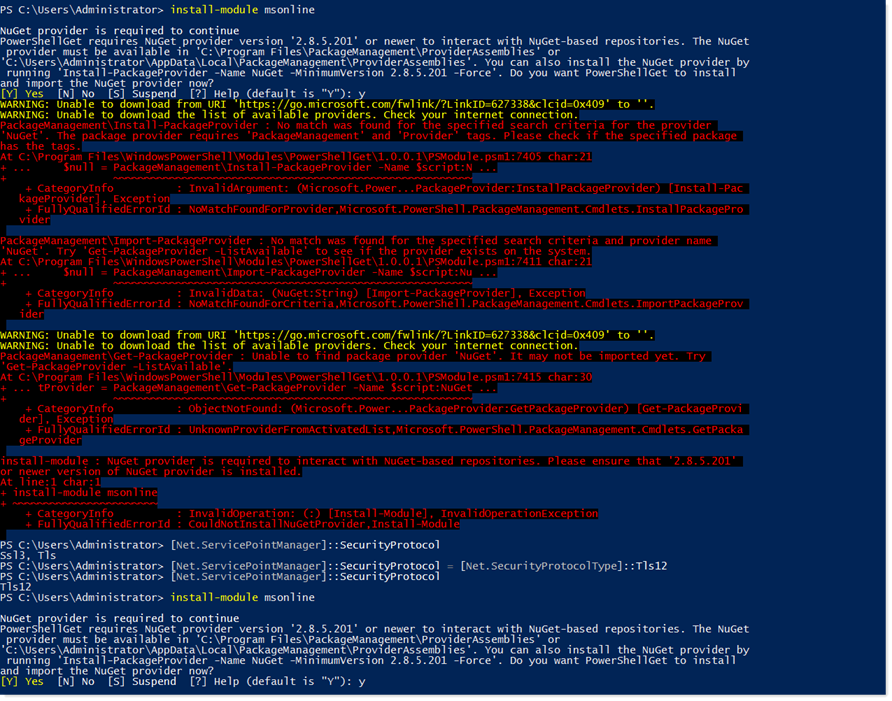
- Uncomment Microsoft 365 code from C:\www\HCdirSyncNodeJSConnectors\index.js.
- Specify the credentials for Microsoft 365 Global Administrator of your Microsoft 365 Customer in config.json file located at: C:\www\HCdirSyncNodeJSConnectors\connectors\office365\config.json.
- Open Cloud AD Settings tab in AD Connect Sync.
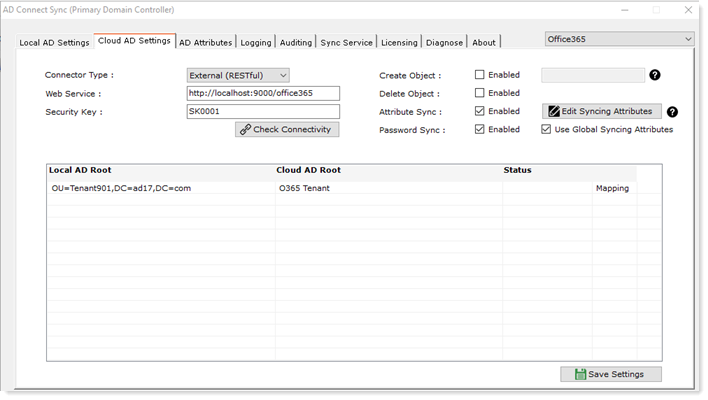
- Select Connector Type as External (RESTful)
- Enter Web Service e.g. http://localhost:9000/office365
- Enter Security Key “SK0001” (This security key is set in auth.js file located in sample connector: C:\www\HCdirSyncNodeJSConnectors\connectors\auth.js and can be modified with any custom value).
- Check Connectivity and after successful connectivity with Microsoft 365, users will start to sync from On-Premises Active Directory to Microsoft 365.
The RESTful manual, with all the methods in a connector, can be found here. It can be used by any customer to write its own connector for syncing with an external system.