| Product Documentation
Efflux Migrator
Prepare/Move Batch
The migration process commences with the hitting of the Prepare a Batch button.
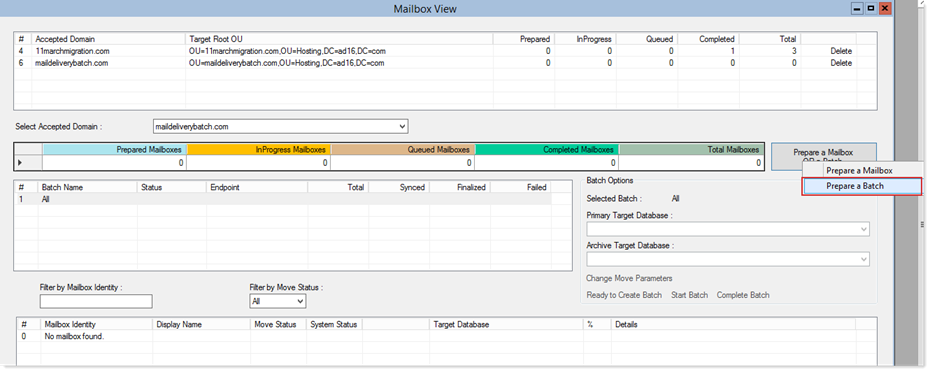
Preparing and moving a batch through Efflux follows a particular sequence. Following is the full sequence of events in the Prepare / Move batch process:
- Specify a CSV file
The CSV file contains UPN suffixes of user mailboxes. UPN suffix should be set with its mailbox primary domain e.g. domain.com. If the format is correct the mailboxes will start listing in “Mailbox Identity” box below. Now click “Prepare Batch” button to prepare a batch.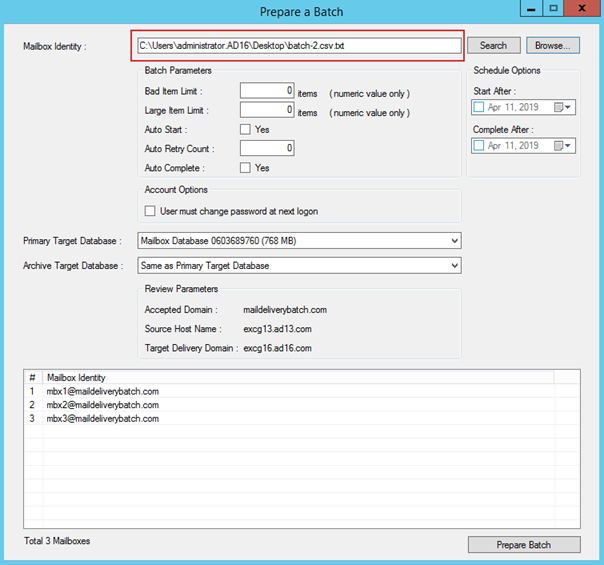
- Batch file creates in Efflux
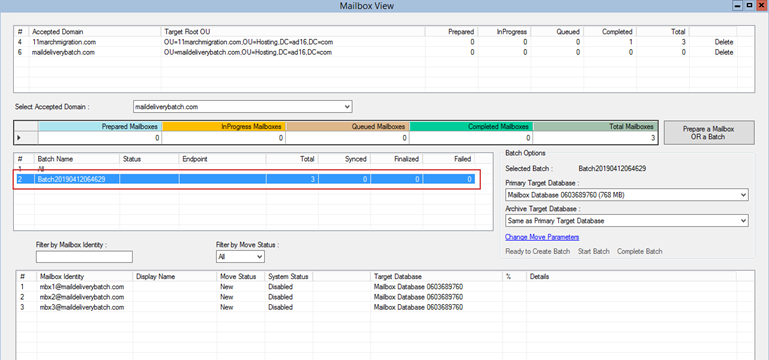
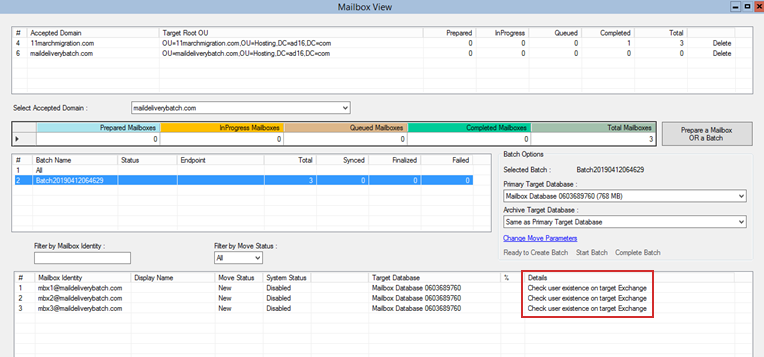
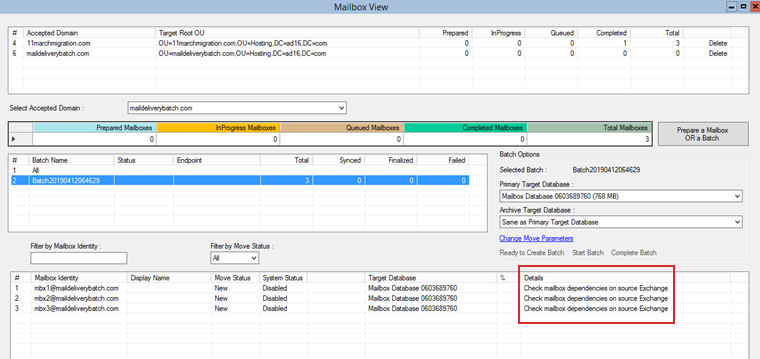
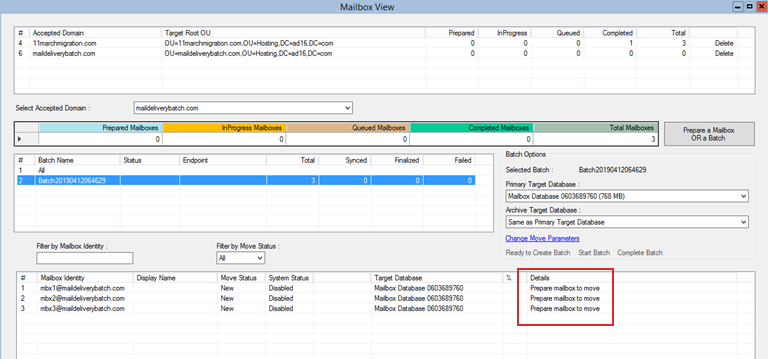
“Prepare Batch” button creates a batch file in Efflux and starts preparing mailboxes. The preparing sequence involves the following:
-
Check user existence on target Exchange
-
Check mailbox dependencies on source Exchange
-
Prepare mailbox to move
-
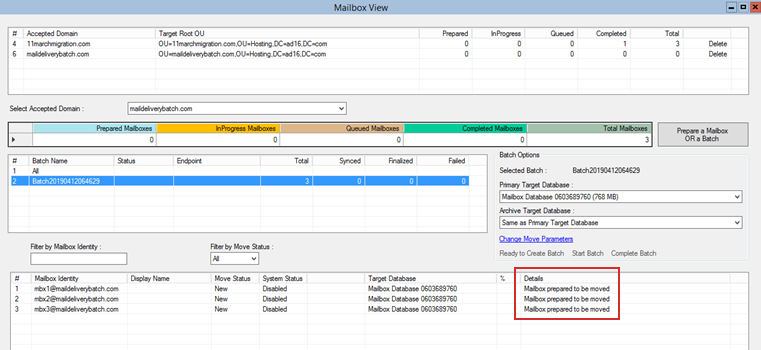
Mailbox prepared to be moved
-
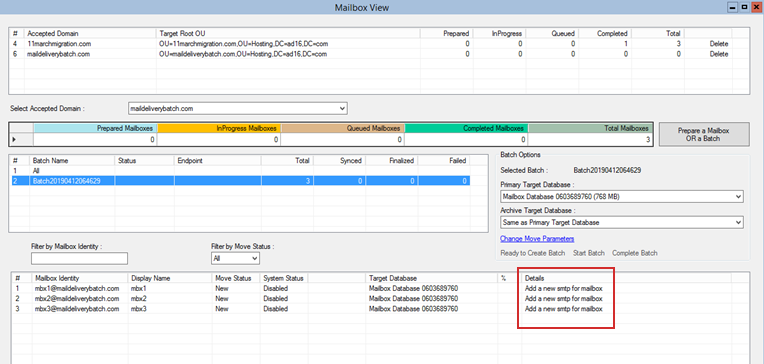
Add new SMTP for mailbox
-
- Batch prepared in blue
Once all the mailboxes in the batch have been prepared, the color of the batch turns blue and the “Ready to Create Batch” button is enabled. Now you may proceed to create an endpoint of the batch by clicking the button.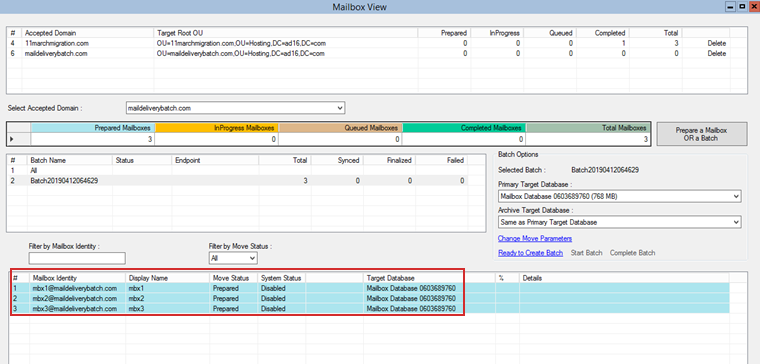
- Start batch
As soon as you create the batch the “Start Batch” button enables. Now you can proceed to start the batch. The status of the batch is in a stopped state at the moment. Once you click the “Start Batch” button its status turns from stopped to starting. This means that the batch has started.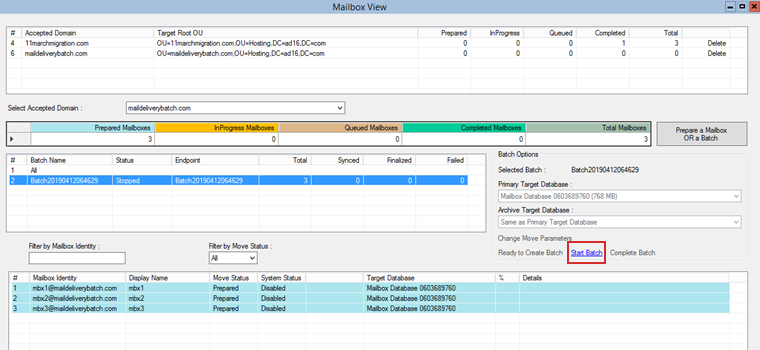
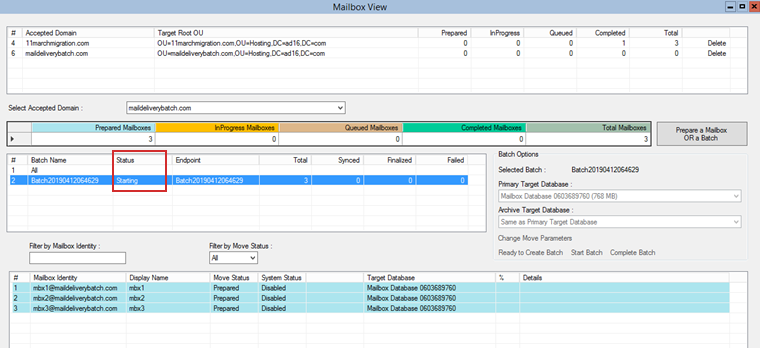
- In progress
Gradually the batch status enters the syncing status and the color changes from blue to orange. Until the batch status turns from syncing to synced, the “Complete Batch” button will remain grayed out.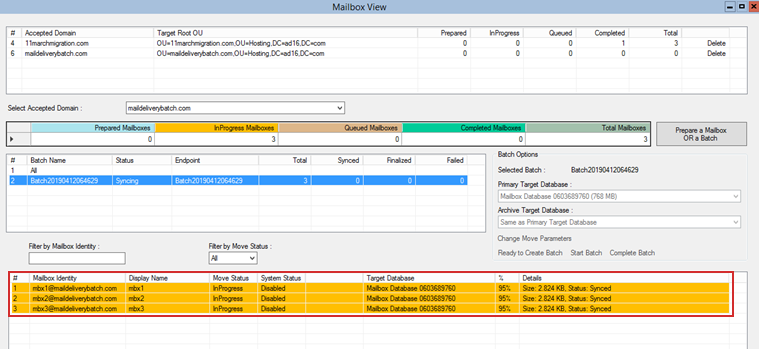
- Complete batch
Now that the “Complete Batch” button is active, click it to finalize the batch.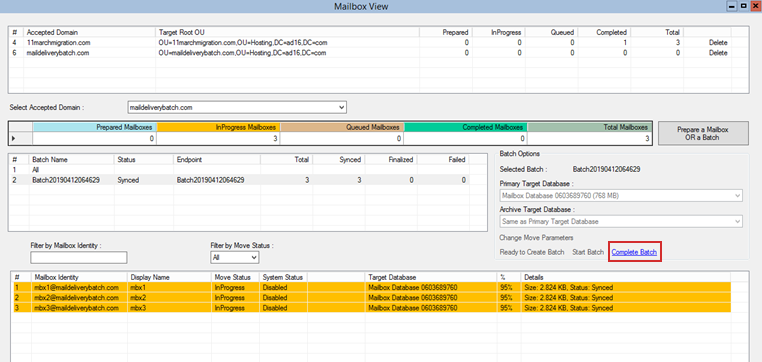
- Batch status completed
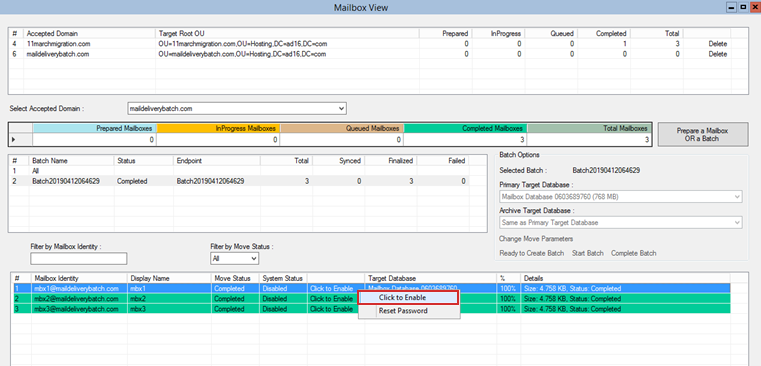
Once the mailboxes have migrated, the batch status changes from “Completing” to “Completed and “Click to Enable” button appears.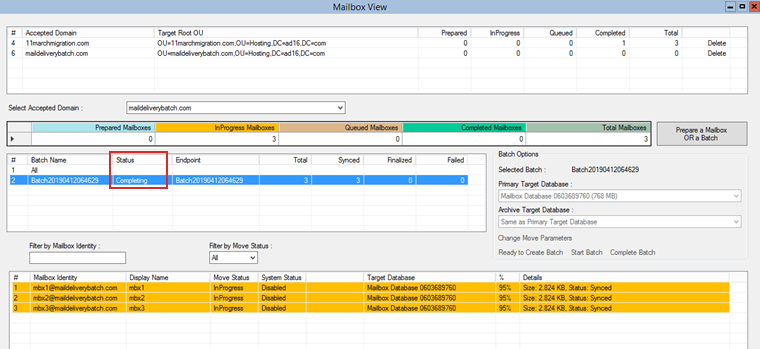
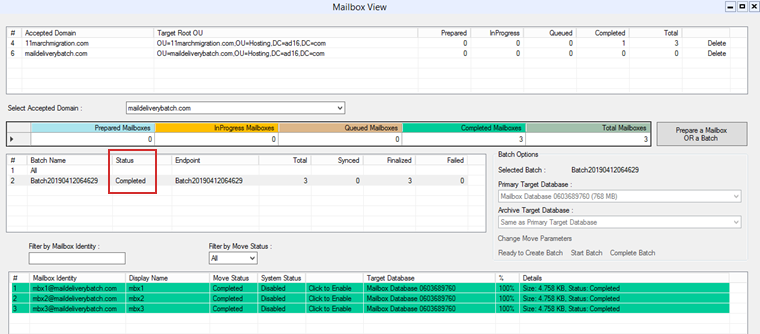
- Click to enable
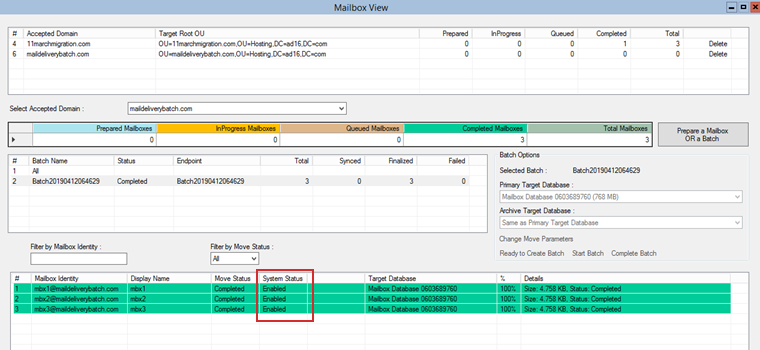
Click the “Click to Enable” button in front of each mailbox to enable the mailbox in AD.