
| Product Documentation
Efflux Migrator
Understanding Prepare Mailbox Interface
Mailbox Identity
The first step in preparing a mailbox is specifying its SMTP address. This can be done by clicking the Search button and fetching the mailbox from a dropdown.
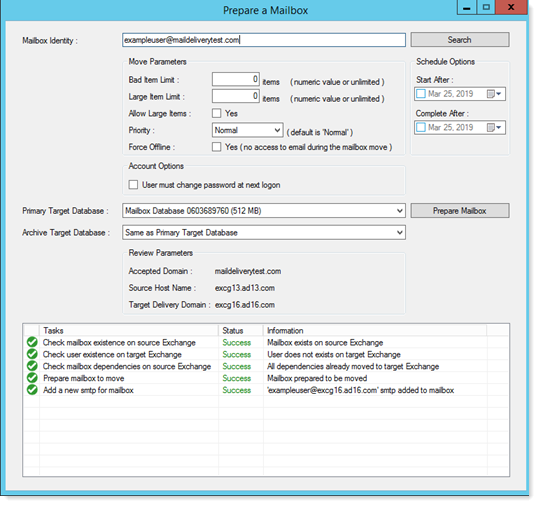
Move Parameters
There are certain parameters that can be defined before a move. Efflux allows defining these parameters for a mailbox move.
Bad Item Limit
A bad item is an item in a mailbox that the Mailbox Replication Service (MRS) considers corrupt or malformed in some form when it attempts to process it. If the MRS encounters bad or corrupted items while moving a mailbox, it halts operation with an error. In order to explicitly tell MRS not to stop on encountering a bad item, you need to specify a bad item limit. This limit or threshold specifies the maximum number of corrupted items that are allowed in the mailbox before the move request fails.
Large Item Limit
A large item is a message in the source mailbox that exceeds the maximum message size that's allowed in the target mailbox. If there is a large item in the source mailbox, the move request will fail. To prevent the move request from failing, you need to define a large item limit. Therefore large item limit parameter specifies the maximum number of large items that are allowed before the move request fails. The default value for the parameter is 0, which means the request will fail if any large items are detected. A value larger than 0 means the request will proceed regardless of the large items. The large items will be left behind.
Allow Large Items
Enabling this checkbox will allow all the large items in a mailbox, to be ignored and left behind while moving.
Enabling the checkbox will gray out the above Large Item Limit field.
Priority
This parameter specifies the order in which the move request should be processed in the request queue. Requests are processed in order, based on server health, status, priority, and last update time.
Valid priority values are:
-
- Lowest
- Lower
- Low
- Normal (This is the default value.)
- High
- Higher
- Highest
- Emergency
The priority parameter is available only for on-premises Exchange.
Force Offline
The force offline option forces the mailbox move to be performed in offline mode. In this mode the user has no access to email during the move.
Account Options
This gives the security setting for the mailbox.
User must change password at next logon
You may not want the users to use their old passwords on the target mailboxes. Change password option forces users to logon with a new password after the move. When the users log onto the new target domain they are required to change their passwords at first logon.
Schedule Options
These are the various scheduling options for the migration.
Start After
Migration can be scheduled to start after a particular date.
Complete After
Migration can be scheduled to complete after a particular date.