These settings are only available to the Portal Admin (global admin).
To configure settings for different kinds of logs, navigate to Logs.
Logs sometimes may fall out of sync with the actual operations and updated logs may not reflect in the interface. ADSSP provides a refresh feature whereby logs can be refreshed immediately to display the correct entries. To refresh any Log screen, click  to refresh/update the logs.
Portal Audit Logs
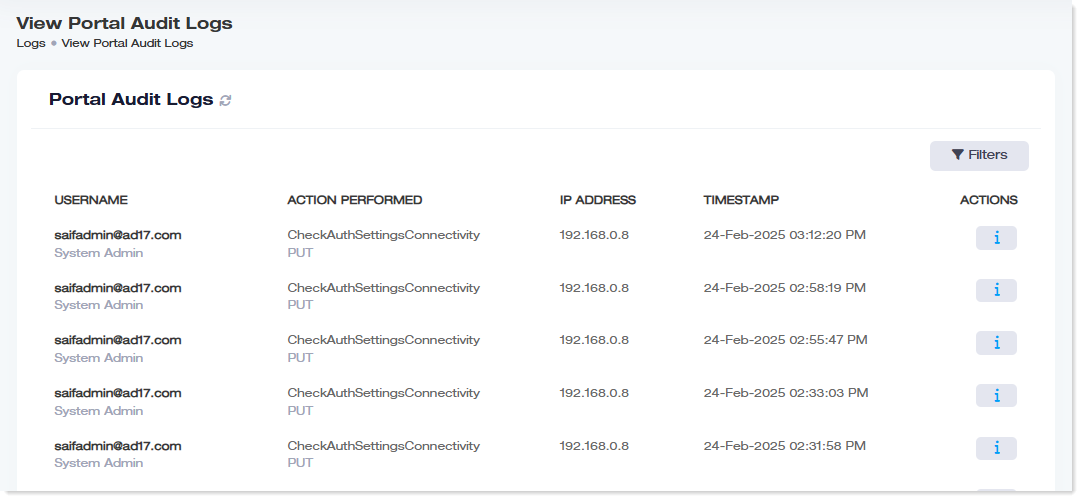
These logs give all the CRUD (Create, Read, Update, Delete) operations performed by admins in the ADSS Portal. For example, if a Portal Admin adds an OU Admin to the ADSS Portal, the action will be logged in audit logs. The logs give the username, the action performed, the IP address of the machine through which the action was performed, and the time stamp.
To view all the activities performed by the admins in the AD Self-Service Portal, click Logs >> Portal Audit Logs.
|
View Portal Audit Logs page shows the following information:
- Username: It gives the User Principal Name (UPN) and the user role of the admin performing the operation.
- Action Performed: It shows the CRUD operation performed by the admin.
- IP Address: It gives the public IP address of the machine through which the operation was performed.
- Timestamp: It gives the date and time of the action.
- Actions: They show the details of the operation.
|
Agent Audit Logs
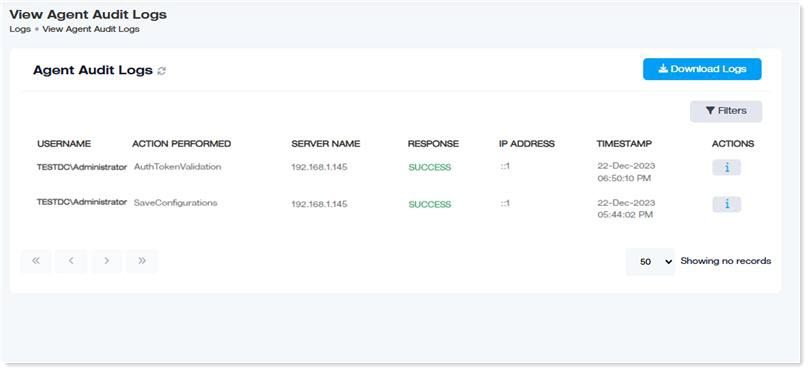
To view all the activities performed by the agent in the AD Self-Service Portal, click Logs >> Agent Audit Logs.
|
View Agent Audit Logs page shows the following information:
- Username: It gives the Down-Level Logon Name (User Logon Name) of the admin performing the operation.
- Action Performed: It shows the operation performed by the admin.
- Server Name: It shows the friendly name of the mediation server or one of the domain controllers of the private entity (depending on where the agent is installed).
- Response: shows the status (response) of the operation such as success/failure.
- IP Address: It gives the public IP address of the machine through which the operation was performed.
- Timestamp: It gives the date and time of the operation.
- Actions: They show the details of the operation.
|
To view the logs in detail, click Download Logs. They will be downloaded in CSV format.
Exceptions
Exceptions log all the problems that arise during the working of ADSS Portal. Exception logging makes troubleshooting easier. Exception logs include the exception message, the ADSS component where the exception originated like portal, agent, etc., and the service layer of the component.
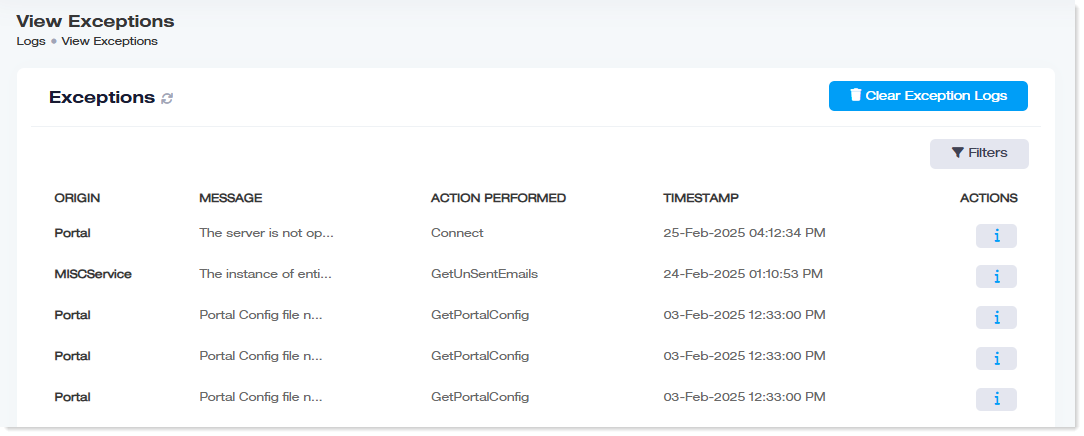
To view all the exceptions in the AD Self-Service Portal, click Logs >> Exceptions.
|
View Exceptions page shows the following information:
- Origin: It gives the ADSS component where the exception originated such as portal, agent, hub, or inner service.
- Message: It gives the exception message that is output when the exception occurs.
- Action Performed: It indicates the name of the last action performed.
- Timestamp: It gives the date and time the exception occurred.
- Actions: They show the details of the exception.
|
Login History
Login history in AD Self-Service Portal gives useful information about different admins and AD users who access the system. It gives the username of the user who logged in, the login source, whether the login attempt was successful, or failed, the date, and time of logging in, etc. This helps in tracking user logins.
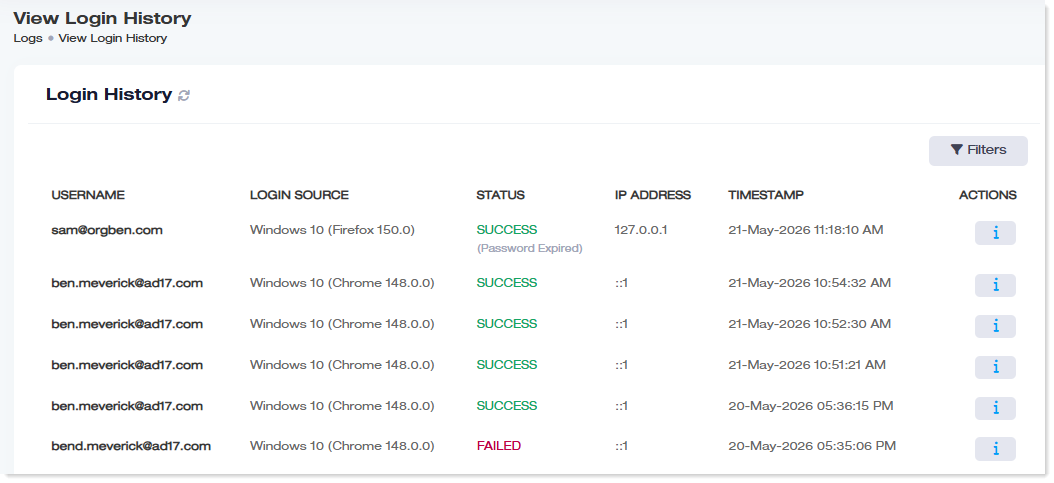
To view login history, click Logs >> Login History.
|
Login History page shows the following information:
- Username: This is the UPN of the admin or AD user that logs in to the ADSS Portal. The user logs in with its UPN rather than its email.
- Login Source: This indicates the browser through which the login was made.
- Status: This indicates whether the login attempt was successful, or unsuccessful.
- IP Address: This is the IP address through which the login was made.
- Time Stamp: This indicates the date and time of login.
- Actions: These record all the actions performed by the user during the time it was logged in.
|