
| Product Documentation
AD Self Service Portal
Enrolled Users
Active Directory users can enroll themselves for self-service. ADSS allows users to answer one or more security questions to enroll themselves. Once they are enrolled in the software, they can manage their AD accounts.
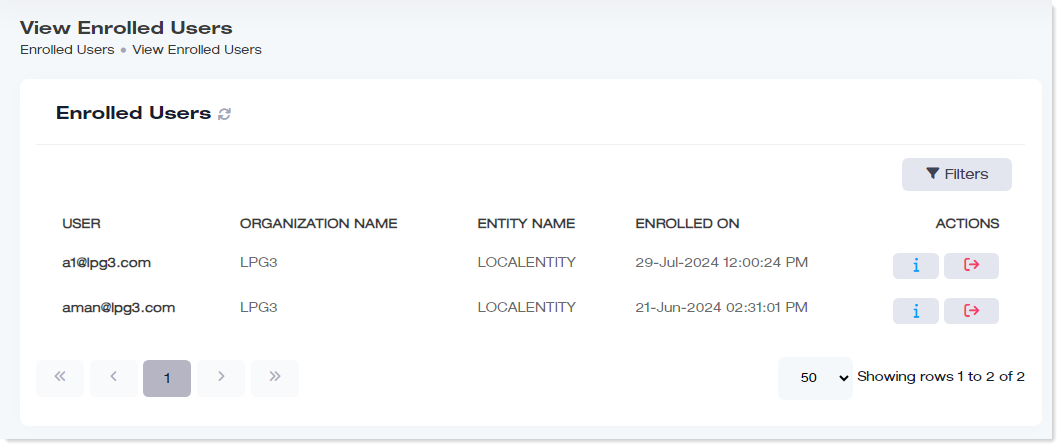
To manage enrolled users, navigate to the left menu, under the Main section, and click Enrolled Users
|
View Enrolled Users page shows following information:
|
Actions
Actions column, allows admin to view users' details and disenroll them as required.
View Details
To view details, click  under Actions column.
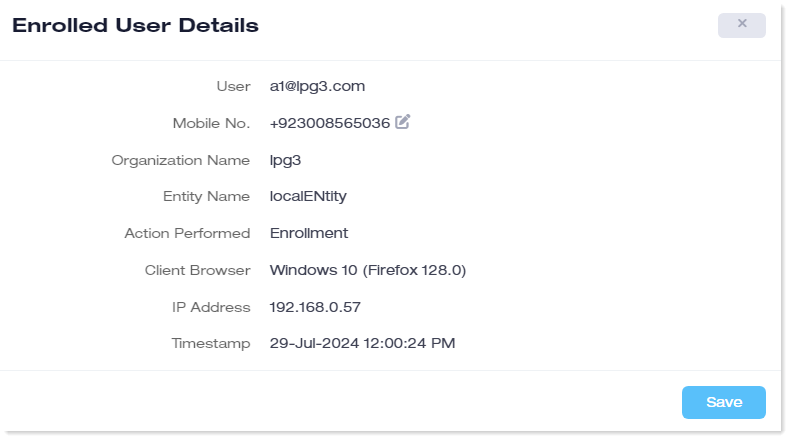
- User: This is the AD user that has enrolled itself for self-service. The field displays its UPN.
- Mobile No: This is the mobile number of the user. Only the Portal Admin (global admin) can view and edit the number. Lower-level admins cannot view or edit the number.
This mobile number is reflected only in the ADSS database. It is not synchronized over to the Active Directory. - Organization Name: This is the organization (OU) of which the user is a part.
- Entity Name: This is the Active Directory of which the user and organization are a part. It is a friendly name for the Active Directory
- Action Performed: This gives the type of action performed by the user. The action performed in this log will always be “Enrollment”.
- Client Browser: This gives the browser used by the user on its machine to enroll itself.
- IP Address: This gives the IP address of the machine being used by the user.
- Timestamp: This indicates the date and time of enrolment.
Disenroll Users
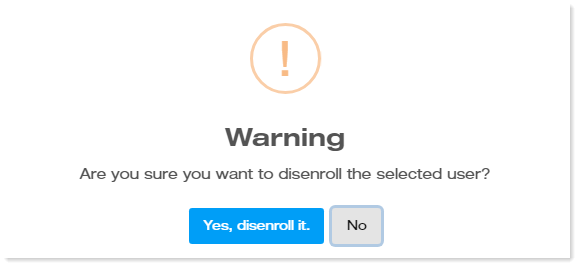
To disenroll users, click  under Actions column.
Search an Enrolled User
To search any enrolled user, click Filters. Specify name to search the required enrolled user.