
| Product Documentation
AD Self Service Portal
Security
AD Self-Service Portal provides ways to ensure security.
To configure security settings, navigate to the top menu and click Security
Two-Factor Authentication
Two-factor authentication (2FA) or multi-factor authentication (MFA) as it’s sometimes called, is an additional layer of security for your login. Against the backdrop of an ever-changing security situation, securing login only through passwords is not enough. With 2FA users provide two different authentication factors to verify themselves. Besides the first typical factor i.e. the password, users can provide a second factor such as a one-time-password (OTP) to login to AD Self-Service Portal. 2FA makes user accounts more secure and minimizes the chances of cyber attacks.
To ensure two-factor authentication, navigate to the top menu and click Security >> Two-Factor Authentication.
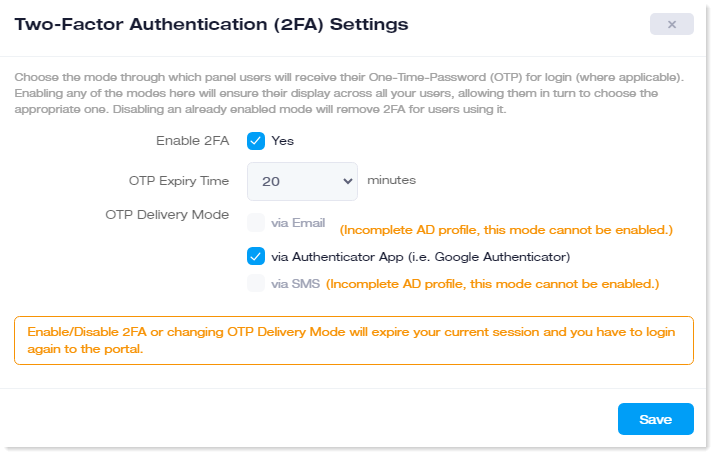
- Enable 2FA: If you want to enable 2FA, select the Yes check box.
Enabling/Disabling 2FA or changing OTP Delivery Mode will expire your current session and you will have to log in again. - OTP Expiry Time: If 2FA is enabled, ADSS Portal admins will not be able to login without a valid OTP. After it is received, it remains valid for a certain time. If it is not used within that time, it expires. Here you may specify (in minutes), the time limit to its expiry.
- OTP Delivery Mode: ADSS Portal admins can receive their OTP through Email, Google Authenticator, or SMS. Here you may choose the mode through which they will receive their OTP. Enabling any of the modes here will ensure their display across all your admins, allowing them in turn to choose the appropriate one. Disabling an already enabled mode will remove 2FA for users using it.
- Email: OTP can be received via Email. In case this option is selected, OTP will be received on the Email specified in the admin's Active Directory profile.
This mode cannot be enabled if the Active Directory profile for the admin is incomplete. - Google Authenticator: Google Authenticator is a mobile app. OTP can be received on users’ Google Authenticator app.
- SMS: OTP can be received via SMS. In case this option is selected, OTP will be received through an SMS sent to the phone number specified in the user's Active Directory profile.
This mode cannot be enabled if the Active Directory profile for the admin is incomplete.
- Email: OTP can be received via Email. In case this option is selected, OTP will be received on the Email specified in the admin's Active Directory profile.
System Auth Settings
AD Self-Service Portal provides a secure web Interface to be accessed by the Portal Admin, Entity Admin, and OU Admin. The Portal Admins and Entity Admins will be authenticated from the portal Active Directory. This is the same Active Directory, the setting for which is taken during the installation of the ADSS Portal. Portal Admins and Entity Admins will be created as security groups in this portal Active Directory and members of these groups can log in to ADSS Portal with their credentials. These settings provide the Domain Controller details for the portal Active Directory that authenticates the upper two admins.
Additionally, admins can authenticate through Azure. If you choose to authenticate admins via Azure AD, ensure that the same users also exist in Azure.
To configure system authentication settings, navigate to the top menu and click Security >> System Auth Settings.
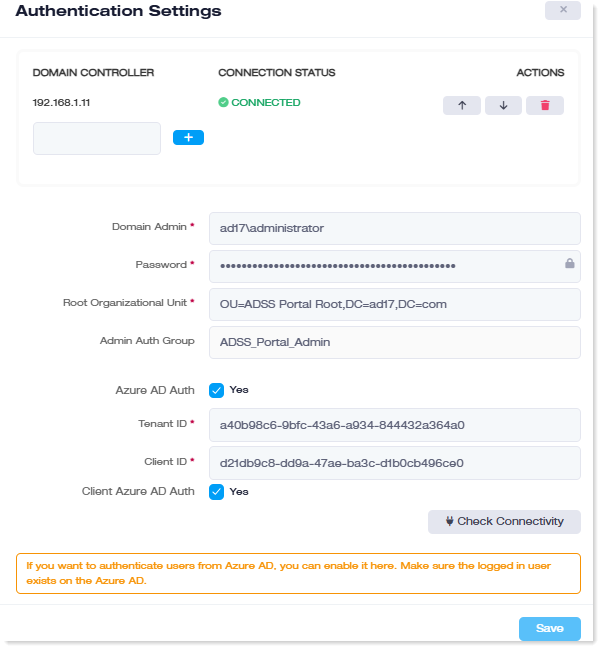
- Domain Admin: The domain\administrator account for the Domain associated with the Domain Controller.
- Password: Password for the domain\admin.
- Root Organizational Unit: The root OU under which admin security groups (Portal Admins and Entity Admins) are created. Any members of these groups can log in with their respective AD credentials.
- Admin Auth Group: The security group of which the Portal Admin (global admin) is a member.
For users to log in through Azure, the same users must exist in both Azure AD and the respective on-premises AD. - Azure AD Auth: Companies may require admin authentication through Azure. AD Self-Service Portal allows admins to log in and get authenticated through Azure. To enable Azure Active Directory authentication, select the Enable checkbox.
- Tenant ID: This is a unique identifier used to identify a specific directory (tenant) within the Azure AD.
- Client ID: This is a unique identifier used to identify, authenticate, and grant tokens to a specific application within the Azure AD. It is also used by Azure AD to authorize requests made by that application.
- Client Azure AD Auth: Besides admins, AD users (clients) can also authenticate through Azure. To enable Azure Active Directory authentication of users, select the Enable checkbox.