
| Product Documentation
AD Self Service Portal
Private Entities
Private entities are Active Directories that are not discoverable on the network of the portal machine. They are remote Active Directories managed by ADSS. To manage such Active Directories, it’s necessary to deploy an ADSS agent in each remote Active Directory. The agent will be responsible for authenticating and connecting private (remote) entities with the ADSS Portal.
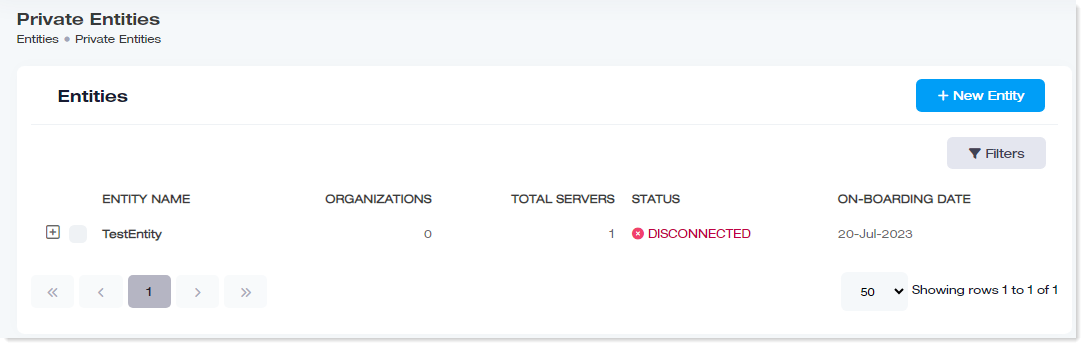
To manage entities, navigate to the left menu, under the Main section, and click Private Entities
|
Manage Entities page shows following information:
|
Search an Entity
To search any entity, click Filters. Specify name or suffix to search the required entity.
Add New Entity
All new Active Directories looking for self-service must be onboarded to ADSS first. Once the entities have been onboarded only then can they be managed by ADSS. When onboarding an entity, a token is generated and copied, and pasted into the agent interface for connecting the ADSS agent with the ADSS portal.
To add a new entity, click + New Entity. Specify the required information and click Save.
- Entity Name: This is a friendly name for the private Active Directory. It can be any easy name of choice.
- Server Name: Provide a friendly name for the agent server (mediation server). This is the server where the ADSS agent is installed. The agent server should be part of the network of the private Active Directory.
- Save & Generate Token: After clicking “Save & Generate Token” an authentication token is generated which is then used in the ADSS agent interface for connecting the agent server with the ADSS portal.
- Send Token: Type the email address of the recipient in case the token needs to be sent via email.
- Copy Auth Token: Copy the token in case you need to paste it into the agent interface on the agent server (mediation server).
Edit a Private Entity
After an entity has been added it can be modified.
To modify details of any entity, click  under Entity Name column, it expands options to manage the required entity. To update name of the selected entity, click Edit, modify name and click Save to proceed.
Send Credentials of an Entity
The token can also be emailed to a recipient.
To send the auth token of any entity to someone, click under Entity Name column, it expands options to manage the required entity. To send Auth Token, click Send Credentials, specify the recipient’s email address, and click Send to send the credentials to the specified recipient.
Manage Policies
To manage the policies of the entity, click under Entity Name column, it expands options to manage the required entity. To manage the policies of the selected entity, click Policies. To learn more about policies, see Manage Policies.
Manage Organizations
To manage organizations, click under Entity Name column, it expands options to manage the required entity. To manage organizations of the selected entity, click Organizations.
Delete a Private Entity
To remove any private entity, click under Entity Name column, it expands options to manage the required entity. To delete the selected entity, click Delete.
Entity Servers
These are the servers where the ADSS agent is installed. These agent servers (mediation servers) connect the private entity with the central ADSS portal. An Active Directory (private entity) can have more than one agent server for high availability. If one agent server goes down, the agent can start communicating from the other highly available server. The first agent server is added at the time of adding a new private entity to the ADSS portal. More agent servers can be added later.
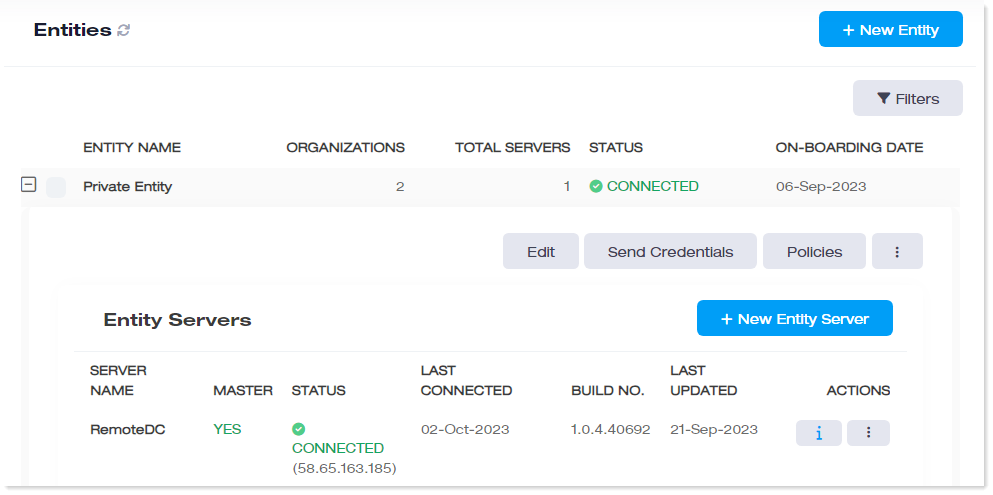
To manage entity servers, click under Entity Name column.
|
Entity Servers section shows the following information:
|
Add a New Entity Server
To add a new entity server, click under Entity Name column, then + New Entity Server. Specify the required information and click Save & Generate Token.
- Entity Name: It shows the name of the private entity (private Active Directory).
- Server Name: Type a friendly name for the agent server.
- Save & Generate Token: Clicking “Save & Generate Token” generates an authentication token. Copy the token and paste it into the agent interface on the new agent server (mediation server).
View Entity Server
To view entity server, click under Entity Name column, and then  under Actions column.
- Server Name: It shows name of the server.
- Entity Name: It shows name of the entity.
- Auth Token: It is the authentication token.
- Send: It sends the authentication token.
- Copy Auth Token: It copies the authentication token.
Refresh Status
To refresh status, click under Entity Name column, and then  under Actions column. Click Refresh Status to refresh the status.
Revoke Token
The token can also be revoked. Revoking a token will disconnect the agent server from the ADSS portal.
To revoke token, click under Entity Name column, and then under Actions column. Click Revoke Token to revoke the token.
Connection History
Connection history is a sort of connection/disconnection log. It logs dates and times for all successful connections and disconnections made by the agent server.
To check connection history, click under Entity Name column, and then under Actions column. Click Connection History to check the connection history.
Delete Entity Server
To remove entity server, click under Entity Name column, and then under Actions column. Click Delete to remove the entity server.