
| Product Documentation
AD Self Service Portal
Enrollment Login Screen
ADSS Portal presents a separate interface for AD users to enroll and manage their accounts. They can login into this interface with their AD credentials. The AD credentials include the:
- User Principal Name (UPN)
- Password
If your admin (Portal Admin) allows you to authenticate through Azure Active Directory in the Security settings defined at the portal level, you can also authenticate through Azure AD. However, to authenticate through Azure, your user must exist in Azure Active Directory. To authenticate through Azure, click the Sign in with Microsoft Authenticator button.
The URL for the separate interface looks somewhat like https://yourip:8778/client/login.
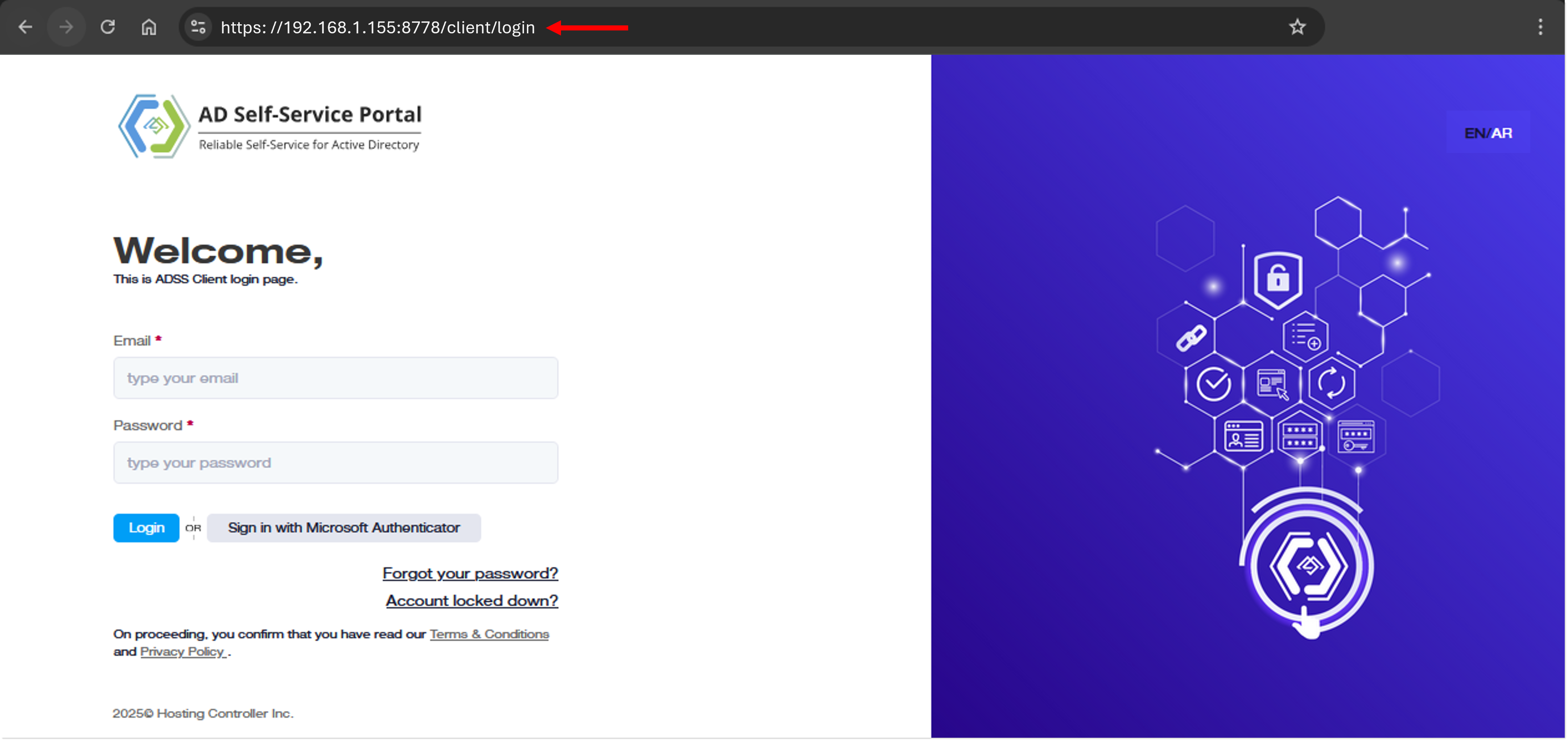
- Email: Type in the email address. This is the User Principal Name (UPN) of your Active Directory user in an email address format.
- Password: Type in the password of the user.
- Forgot your password: If you forget your password, you can reset it using this option. The reset process follows the Multi-Factor Authentication (MFA) policy defined at the entity level. For example, if system security questions are configured as a verification method, the ADSS Portal will prompt you with a system-defined question. Upon providing the correct answer, you will be allowed to reset your password without needing to enter the old one.
- CAPTCHA: The ADSS Portal allows you to enable CAPTCHA as an added security measure on the enrollment login screen. To activate this feature, modify the PortalConfig file located at: X:\Program Files\ADSS Portal\Configs.
- EN/AR: This allows users to select language between English and Arabic.