| Product Documentation
AD Self Service Portal
Enrolling through Authenticator App
Active Directory users can enroll themselves for self-service through the Google Authenticator or the Microsoft Authenticator app. Any of these authenticator apps can be installed on a mobile device/smartphone, and a QR code can be scanned to obtain a verification code. This code can then be entered into the ADSS portal to identify yourself. Once verified, you will be enrolled.
The following are the steps the AD user should follow when enrolling through an authenticator app:
- Open the client interface.
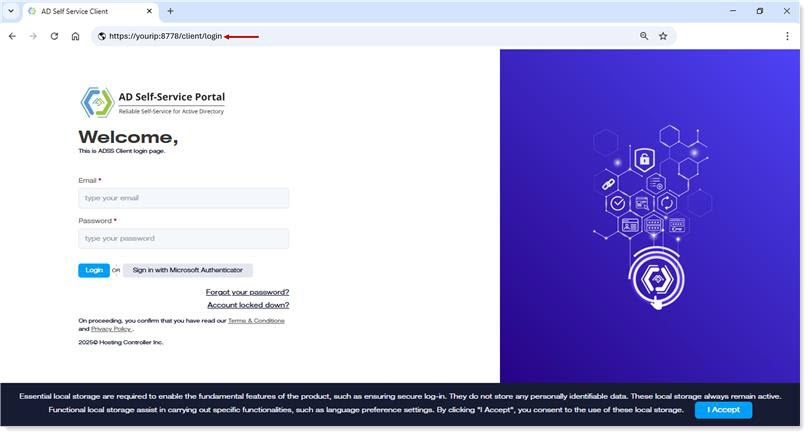
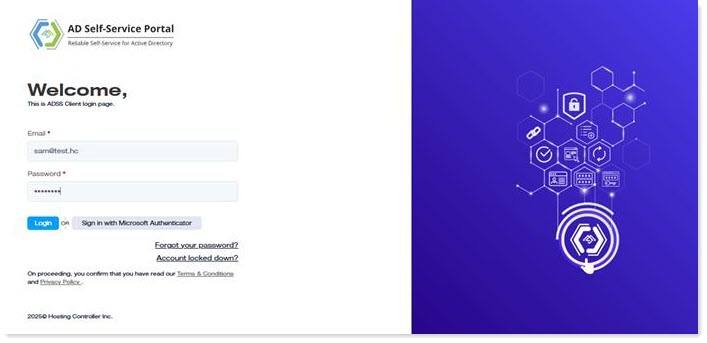
- Log in to the ADSS Client with your AD credentials. The credentials include your UPN and password. Alternatively, you may also authenticate through Azure. To sign in with Azure credentials, your user must exist in Azure Active Directory.
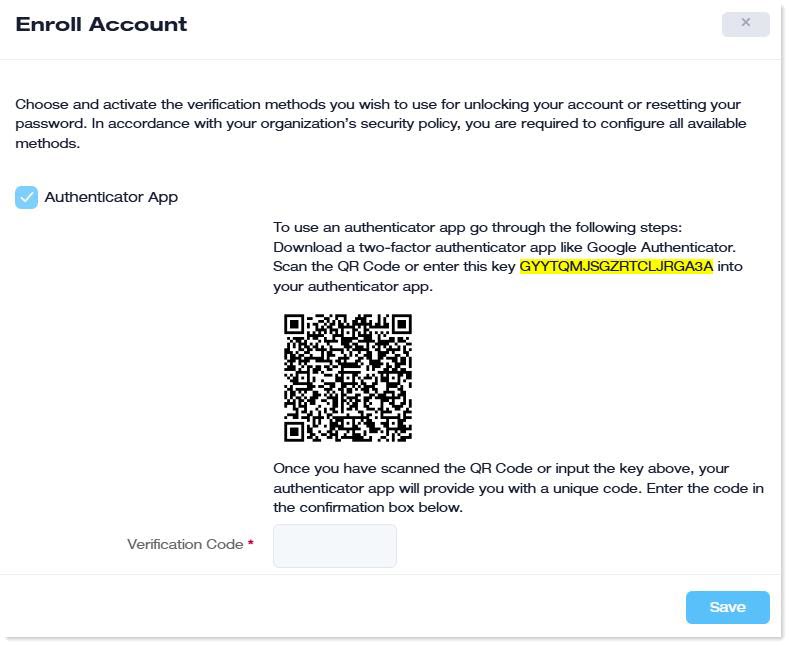
- On the next screen, scan the QR code with your mobile device. You will receive a code on your mobile device. Insert the code in the Verification Code box in the ADSS portal. You will need to follow the same procedure for all future self-service actions, including password resets and account unlocks
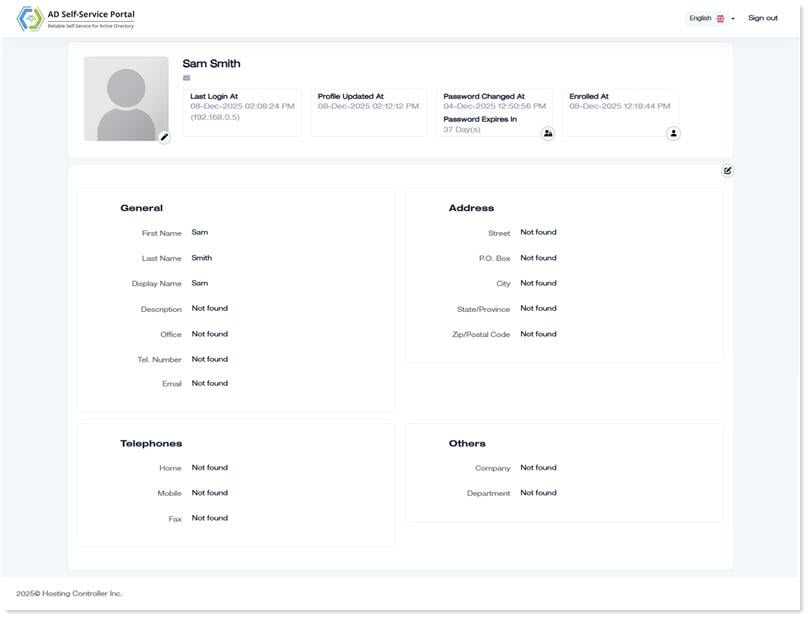
- Your user will be enrolled for self-service.
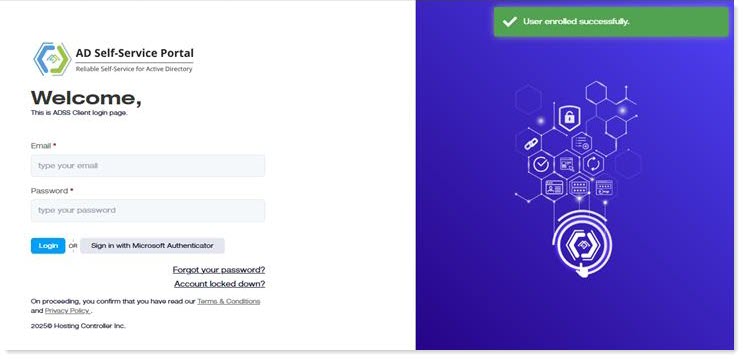
- Re-login to the account.
- Now you can update your user profile, change your password, or update your profile picture.