
| Product Documentation
Hybrid Control Panel (v10)
Adding a Web Server
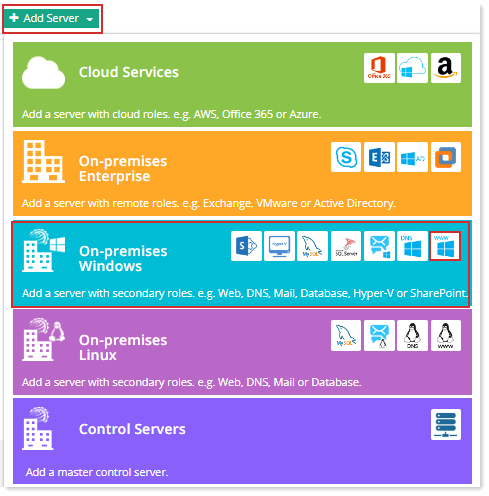
Prior to add a Web server, make sure you have enabled the server roles under Cluster Settings. If you have not configured it yet, please configure it now to proceed further.
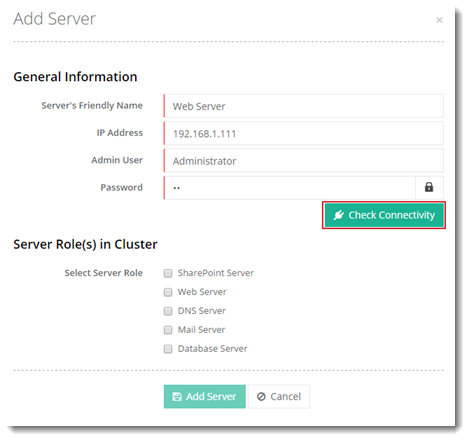
To add a web server, specify General Information and click Check Connectivity. Once you are connected successfully, only then you can add a web server. IIS is the designated web server for the Windows category. For more information on how to add a web server, see Web Infographic.
Fields marked in red are required fields and cannot be left empty.
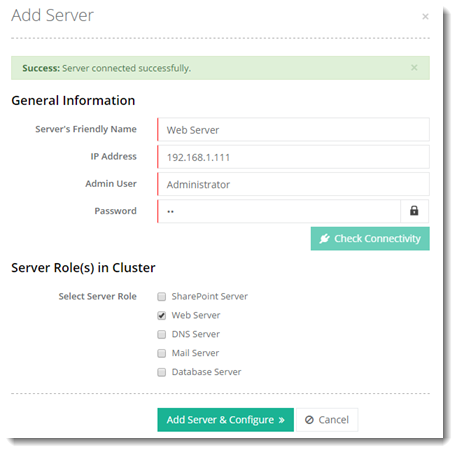
Click Add Server & Configure. Specify required information for Web Server.
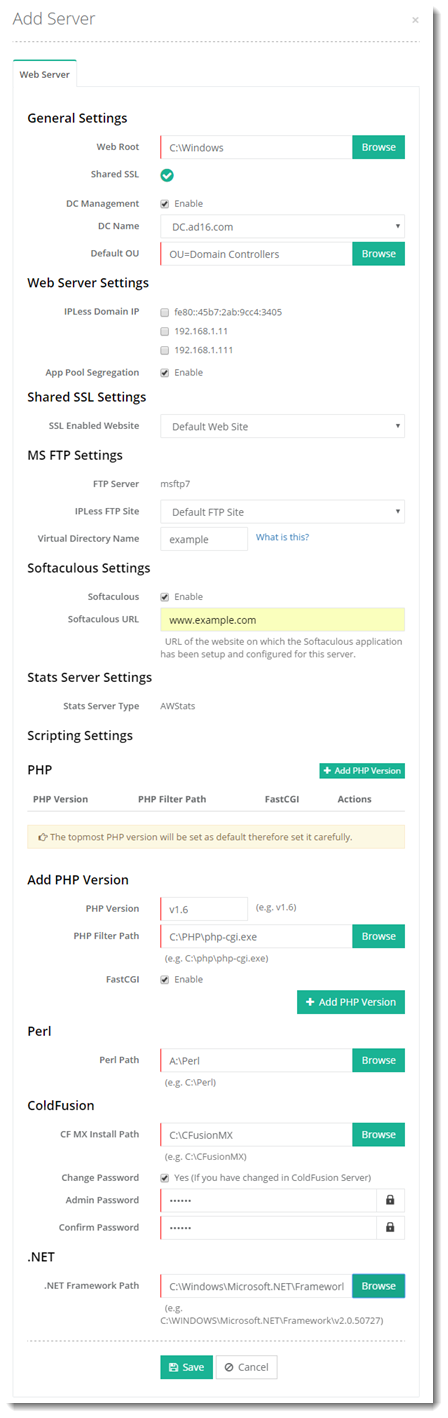
- Web Root: Web Root is the path where HC creates folders for websites. The hierarchy followed is X:\Webspace\domain.com. 'domain.com' folder contains four sub-folders:
- .www
- .special
- .log
- .db
- Shared SSL: A shared SSL certificate enables Internet Service Providers (ISPs) to provide SSL encryption and business authentication to Web business customers, but without the need to issue unique digital certificates to each hosted customer. The service offers ISPs the convenience and streamlined management of a single specially licensed SSL digital certificate to share among multiple hosted websites. The field shows whether it is enabled/disabled for the server to be added.
- DC Management: If Domain Controller Management is enabled, the Customers (Resellers and Clients) will be Active Directory users rather than HC database users.
- DC Name: A Domain Controller can be selected from the drop-down list.
- Default OU: Organizational unit (OU) is like a directory, where you can place users, groups and computers. If you enable Domain Controller Management, HC will treat the specified O.U. as the default O.U. for user creation.
- IPLess Domain IP: IPLess Domains are domains sharing the same IP.
- App Pool Segregation: [Description would be available soon]
- SSL Enabled Website: In order to offer Shared SSL you need to install an SSL certificate on any of your domains in IIS and specify it as a default/parent SSL enabled website. Other websites would then share this certificate. SSL Enabled Website signifies this default/parent website and should be selected from the drop down.
- Automated SSL (Let's Encrypt): Let’s Encrypt is a free, automated, and an open certificate authority (CA). It gives users the digital certificates they need in order to enable HTTPS (SSL/TLS) for their websites, for free. HC gives you the option to install free SSL using Let's Encrypt for its Windows platform. For more information on how to use Let’s Encrypt with HC, see How to configure Let's Encrypt for Windows.
- Account Email: Email address specified while installing certbot client on the web server machine.
- Automatically Install on New Websites: HC will automatically install Let's Encrypt on new websites, if this option is enabled. Let's Encrypt will only be installed on those websites which are registered (live).
- FTP Server: Signifies the FTP server. HC10 supports FTP 7 and later versions.
- IPLess FTP Site: An IPLess FTP site is required to isolate FTP user sessions to their home directories with the same name as that of the FTP user account. The users see only their FTP root location and are restricted from navigating higher up the directory tree. An IPLess FTP site can be selected from the drop down.
- .NET: Select any of the .NET versions. Selecting any of the versions will make it the default version of .NET used by Hosting Controller.