| Product Documentation
Hybrid Control Panel (v10)
Managing OS Templates
OS template is simply a master virtual machine (a .vhdx file) with a pre-installed Operating System. It may also contain some pre-configured applications. This virtual machine serves as a template for creating other virtual machines.
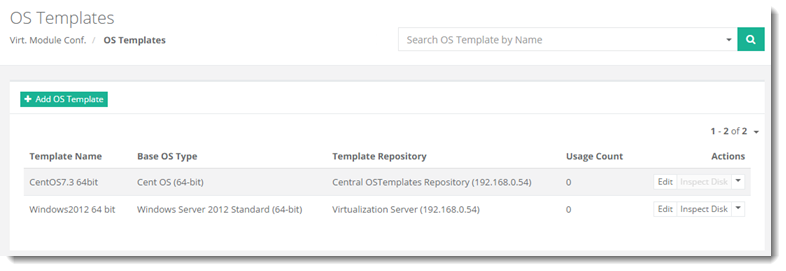
To manage OS templates, from top right corner of your screen, click  and then go to Virtual Module Configuration >> OS Templates.
|
OS Templates page shows all the available templates for the selected server and additional information as:
|
Adding an OS Template for Hyper-V
To add an OS Template, click +Add OS Template and specify required information:
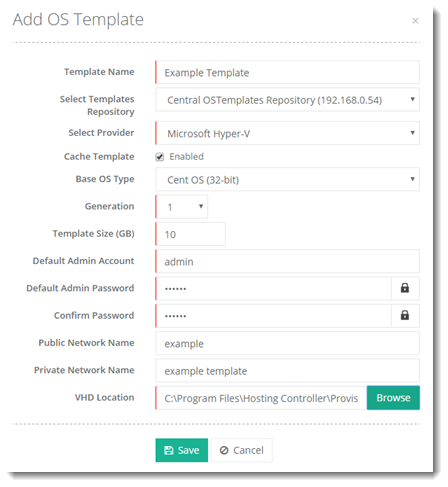
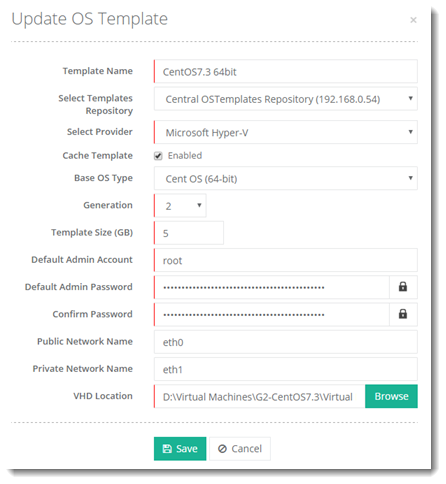
- Template Name: Specify a friendly name for the template. This is a name for your own understanding and can be any easy name.
- Select Templates Repository: Select a repository server for the template. Some cases warrant a central location for OS templates. Hosting Controller allows admins to maintain their OS templates at a central location on a separate Windows server. In the case of Hyper-V, the .vhdx files can be fetched from this central location and copied to the Hyper-V host.
- Base OS Type: Select a Base OS Type for the template. Hosting Controller associates an OS template with a base OS type. While creating a virtual machine if you specify the base OS type, Hosting Controller automatically fetches the appropriate OS template. For example, if you select CentOS (32-bit) here, it will associate this base OS type with the template.
- Generation: Select the generation. Generation determines the virtual hardware and functionality that is presented to the virtual machine. In previous versions of Hyper-V, there was only one generation of virtual machine but starting with Windows Server 2012 R2, you can create two types of virtual machines such as Generation 1 and Generation 2.
- Default Admin Account: Specify the login credentials for the OS template. This includes the default administrator account.
- Default Admin Password: Specify the password for the administrator.
- Confirm Password: Confirm the password.
- VHD Location: Browse and select the master virtual machine, the vhdx file, to be used as the OS template. This master virtual machine will serve as the template for creating further virtual machines.
Adding an OS Template for VMware
To add an OS Template, click +Add OS Template and specify required information:
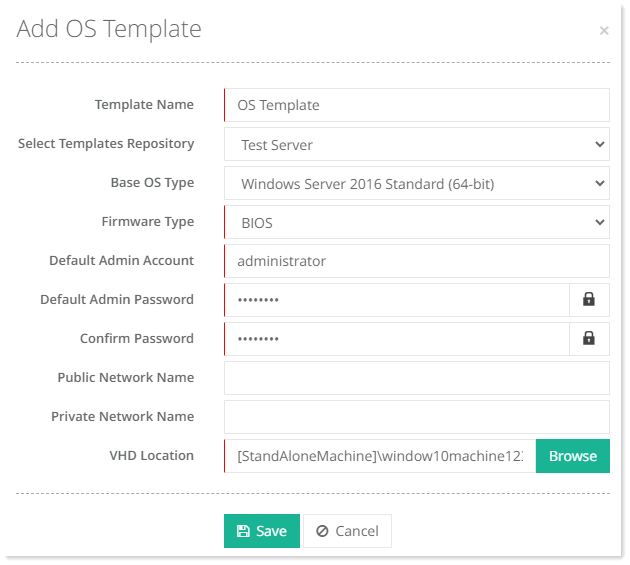
- Template Name:Specify a friendly name for the template. This is a name for your own understanding and can be any easy name.
- Firmware Type: Select a type of firmware to be used on the VM. There are two types of firmware to choose from; one is called BIOS (Basic Input/Output System), and the other is called EFI (Extensible Firmware Interface).
Editing an OS Template
To modify an OS Template, click Edit under Actions column and modify information as required.
Inspecting Disk
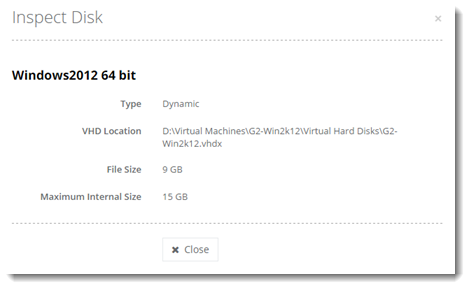
To inspect a disk, click Inspect Disk under Actions column.
Deleting an OS Template
To remove an OS Template, click Delete under Actions column.