| Product Documentation
AD Connect Sync Plus
Notifications
To configure the notification settings of the AD Connect Sync Plus Portal, navigate to Notifications.
Event Templates
Actions that require notifications or alerts to be sent out to users (admins) through emails, SMS, or in-app notifications have predesigned and ready-to-use email templates in AD Connect Sync Plus Portal. However, these templates may be customized by the Portal Admin according to its requirements.
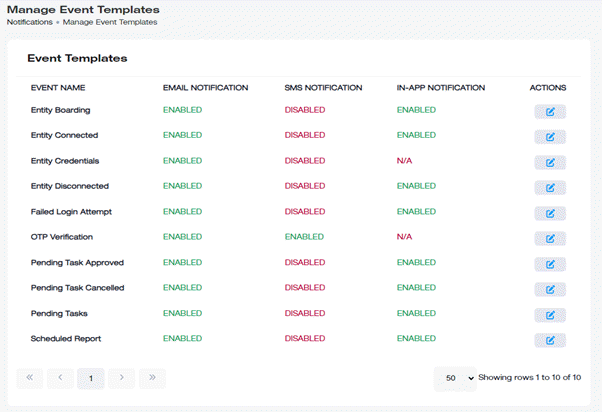
To modify information regarding event templates, click Notifications >> Event Templates.
|
Manage Event Templates page shows following information:
|
Edit Event Template
To modify event templates, click  under Actions column and modify the information as required.
Event notifications can be sent out to users through email. To send them through email, notifications through email need to be enabled.
- Enabled: Enable the ‘Yes’ check box if you want to send notifications through email.
- Subject: Define the subject for the emails. Mails will be sent with this phrase in the subject.
- Send Copy To: If a copy needs to be sent to another email address, define it here.
SMS
Notifications can also be sent out through SMS. To send them through SMS, notifications through SMS need to be enabled.
- Enabled: Enable the ‘Yes’ check box if you want to send notifications through SMS.
- Send Copy To: If a copy needs to be sent to another phone number, define it here.
- SMS Body: Give the notification text in the body textbox.
In-app Notification
Notifications can be displayed in the notifications section (top right corner) in the application interface. To display them in the top right corner, In-app notifications need to be enabled.
Notification Delivery Settings
Event notifications can be sent out to users through email and SMS. To modify settings related to delivery notifications, click Notifications >> Notification Delivery Settings.
Email Delivery Settings
AD Connect Sync Plus Portal employs SMTP settings of a mail server to send event notifications through email.
To configure email delivery settings, click Email Delivery Settings.
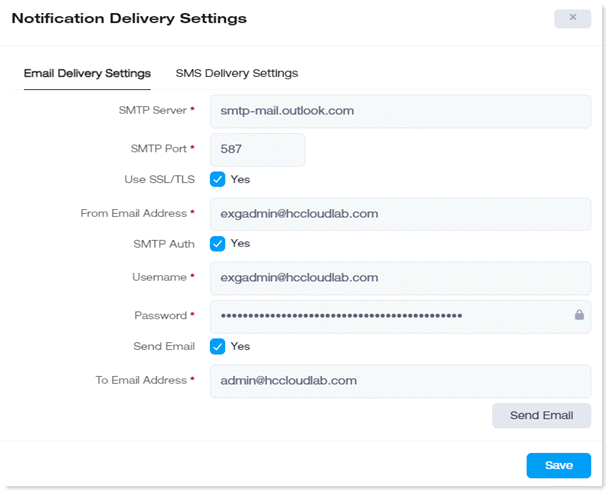
- SMTP Server: It is the SMTP address of the mail server.
- SMTP Port: Provide the port of the SMTP server. This usually is 25.
- Use SSL/TLS: Select this check box if you want to send emails securely. Mails sent over an SSL connection are encrypted and impossible to read in transit. AD Connect Sync Plus Portal also supports TLS, which is simply an updated, more secure, version of SSL.
- From Email Address: This is the address from which the recipients will receive emails.
- SMTP Auth: This option, if selected requires the mail server to authenticate emails. The user specified for sending emails has to identify itself and after successful authentication emails are transmitted.
- Username: The Username of the specified user that must identify itself.
- Password: Password of the specified user that must identify itself.
- Send Test Email: You can also test your email delivery settings. Test mail can be sent to make sure that the emails are being delivered.
- To Email Address: Specify the recipient for the test email.
SMS Delivery Settings
To configure SMS delivery settings, click SMS Delivery Settings.
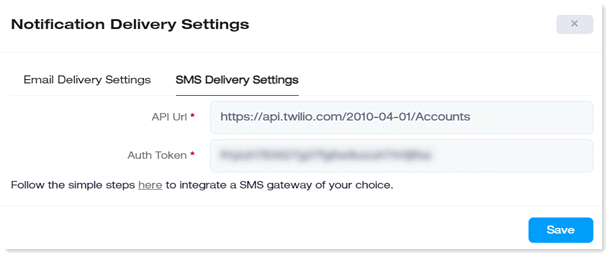
- API URL: This URL will point towards the server where your SMS API is placed and is performing its functions from.
- Auth Token: This is an authentication token for the SMS API. Without the authentication token, the API cannot perform its functions as intended.
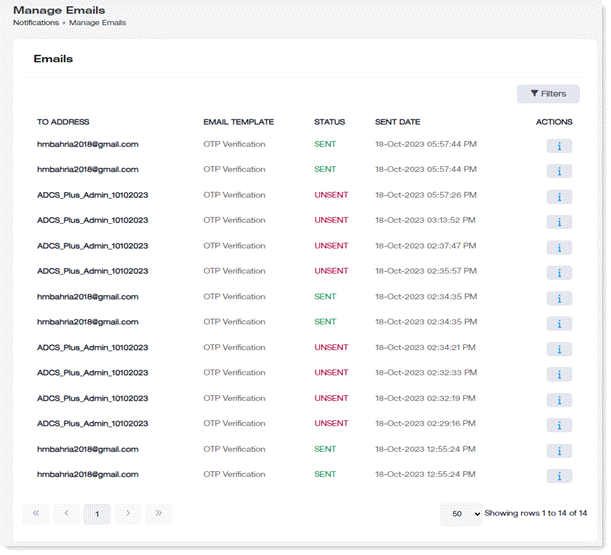
Sent/Unsent Emails
While sent emails are emails that have been delivered to the recipients, unsent emails are a list of all those emails which are sent but not delivered to the recipients yet. To modify settings related to sent and unsent email, click Notifications >> Sent/Unsent Emails.