| Product Documentation
AD Connect Sync Plus
ADCS Plus Portal Installation
Before installing the ADCS Plus Portal, RabbitMQ needs to be installed and configured on the server as a pre-requisite. For details, see RabbitMQ Setup.
The ADCS Plus Portal can be installed either on a standalone machine or a DC. The machine where the Portal will be installed will serve as the Control Server for the ADCS Plus solution. The Control Server can either be a physical machine or a virtual machine.
Installation Process
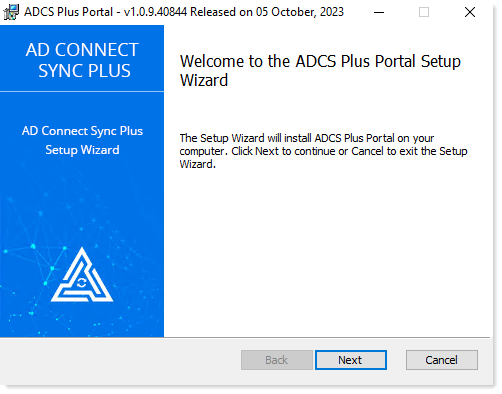
- Select and run . Click the Next button on the Welcome screen to proceed.
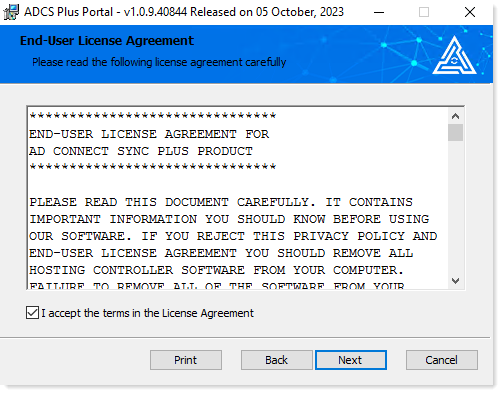
- Read the license agreement carefully before proceeding any further. After reading the license agreement, check the I accept the terms in the License Agreement checkbox, and then click Next to proceed.

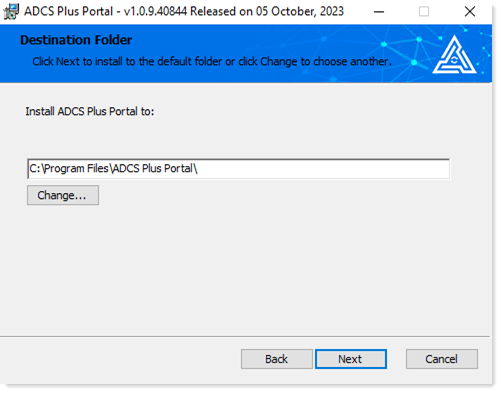
- Specify the installation path and click Next to proceed.
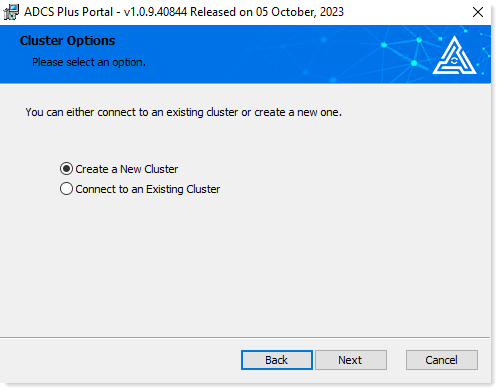
- Select the required cluster type and click Next to proceed. Choose the option “Connect to an Existing Cluster” only if you are installing on a second Control Server machine for High Availability purposes.
- Select the required database type and click Next to proceed. Select the option “Use a Blank Database” if you have manually added a database in SQL Server.
ADCS Plus Portal hosts its database in Microsoft SQL Server.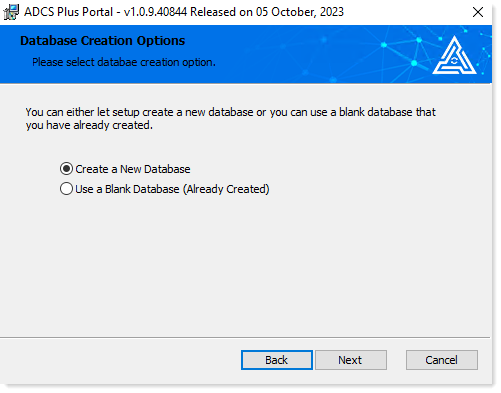
- Type database server connectivity information and click Next to proceed. Specify the “Database Server Name or IP”, “Database Name”, “Database Admin User” (username), and “Password".
ADCS Plus Portal hosts its database in Microsoft SQL Server.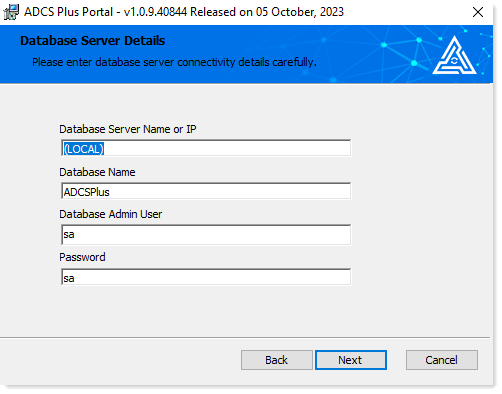
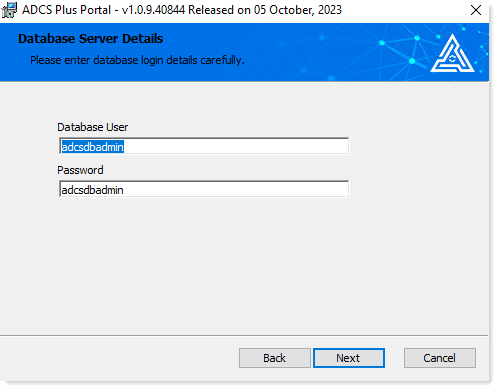
- Type database user’s credentials. Click Next to proceed.
- Type domain controller connectivity details. Click Next to proceed.
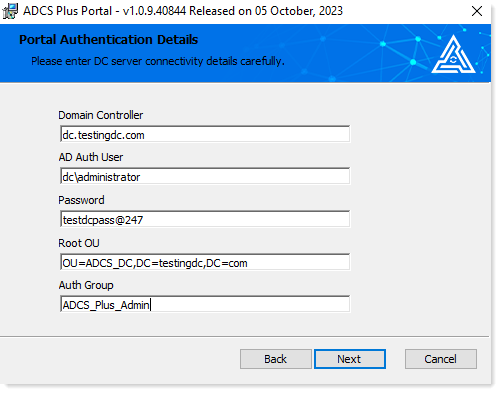
- Domain Controller: Type either an IP address or FQDN of the DC.
- AD Auth User: Type Domain Admin username.
- Password: Type password of the Domain Admin.
- Root OU: Specify the location where Portal Admin & Entity Admin Auth Groups (Security Groups) will be created by ADCS Plus Portal.
- Auth Group: Give the security group for the Portal Admin.
- Type RabbitMQ Server details. Click on Next to proceed.
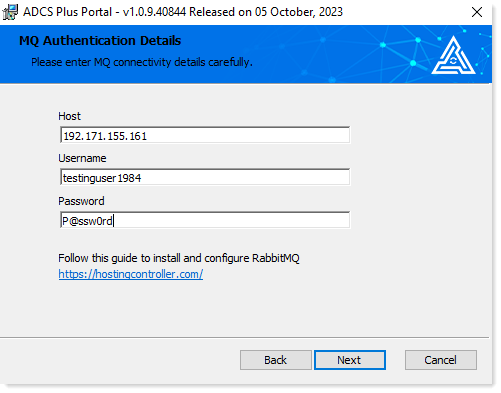
- Host: Type the IP address of the machine on which RabbitMQ is installed and running.
- Username: Type username of user with Management roles in RabbitMQ.
- Password: Type password for RabbitMQ user.
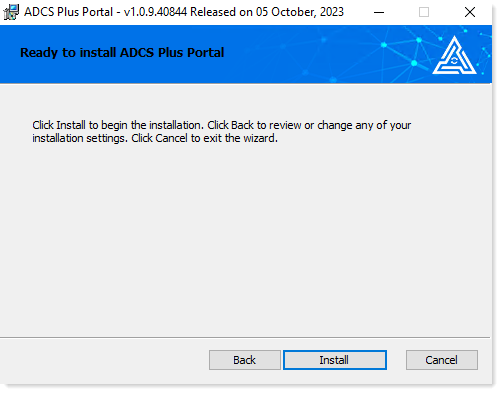
- Click Install to start the installation process. It may take a few minutes.
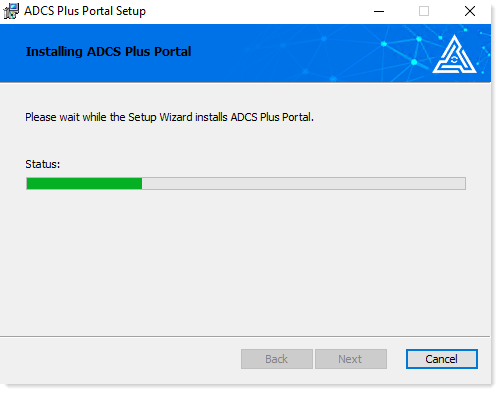

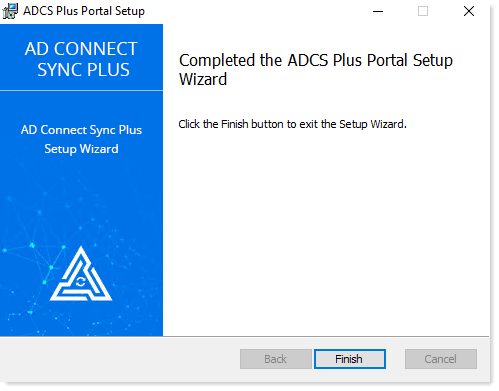
- Click Finish to complete the installation of ADCS Plus Portal.