
| Product Documentation
AD Connect Sync Plus
Entities
An entity is an organization or business unit housing its own Active Directory. Organizations seldom expose their Active Directories to the Internet and keep them private. AD Connect Sync Plus introduces the concept of mediation for such Active Directories. Mediation servers within the networks of the source and target Active Directories act as bridges between the domain controllers and the control server, largely sparing domain controllers of any unwarranted exposure. A mediation server transmits identity data from the source Active Directory to the control server and the control server then forwards the data to the mediation server at the other end.
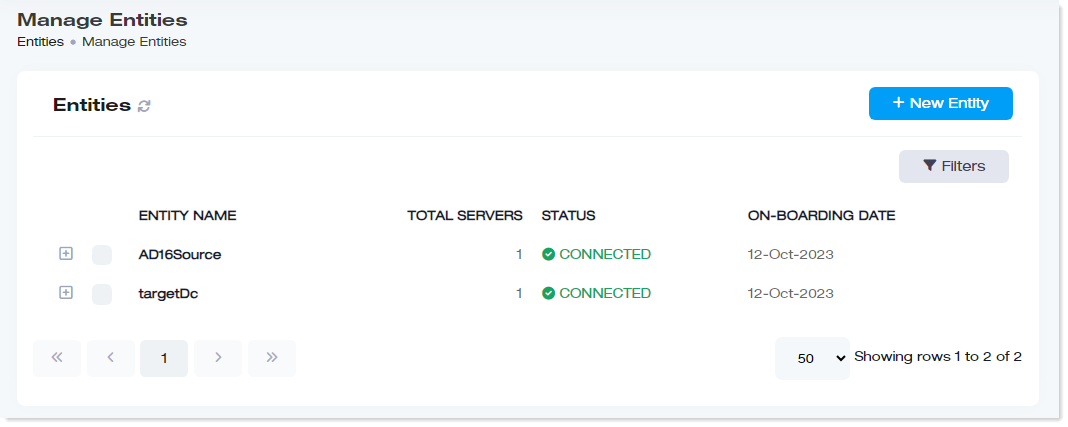
To manage entities, navigate to the left menu, under the Main section, and click Entities.
|
Manage Entities page shows following information:
|
Search an Entity
To search any entity, click Filters. Specify name or suffix to search the required entity.
Add New Entity
To add a new entity, click + New Entity and specify the required information and click Next. On the next screen, specify server information and click Save & Generate Token.
- Entity Name: Type name of the entity to be added.
- Password Syncing: To enable password syncing, select the Enabled checkbox.
- Object Syncing: To enable AD object syncing, select the Enabled checkbox.
- Object Sync Interval: Type time interval after which the AD Connect Sync Plus solution will automatically sync AD objects.
- Attributes: Select AD attributes from the list that will be synced by the AD Connect Sync Plus solution.
- Universal Sync Group: Whenever an entity is added to the AD Connect Sync Plus Portal and the authentication token generated after that process is validated through the AD Connect Sync Plus Agent, then a sync group is automatically created in the AD which is added in the Agent after validation of the authentication token. If you want to create a universal group for synchronization instead, then select the Yes checkbox
- Password Complexity: To enable password complexity, select the Enabled checkbox.
- Min. Password Chars: Type the value of minimum number of characters that are required to create an AD password for a specific profile
- Entity Name: It shows name of the entity.
- Server Name: Type name of the mediation server associated with this entity.
Manage Entities and Entity Servers
To manage existing entities, under Entity Name column, click  to expand and view the details of the entity.
Edit an Entity
To modify an entity, click Edit, modify information as required and click Save.
Send Credentials
To send authentication token, click Send Credentials, specify email address and click Send.
Update Agent
To update the agent, click Update Agent, and then OK to confirm the agent update.
Set License Quota
To set a license quota limit for an entity against your purchased license, click  and then Set License Quota. Please note that the quota value cannot be greater than the number of objects set out by your purchased license. For example, if your license limits you to sync only 300 objects, then the quota value for an entity must not exceed 300 objects.
Update History
To view updated history, click  and then Update History. Agent's update history is shown.
Delete Entity
To delete entity, click  and then Delete.
Add New Sever
To add new server for the selected entity, click + New Server, specify server name and click Save & Generate Token.
View/Send/Copy Sever Details
To view server details, under Actions column, click  and view the details. You can also send and copy details. To send the details, click Send and specify email address. To copy the details, click Copy Auth Token.
Verify DC Credentials
To verify DC credentials, under Actions column, click  and then Verify DC Credentials, it verifies the details.
Revoke Token
To revoke token, under Actions column, click  and then Revoke Token.
Restart Service
To restart service, under Actions column, click  and then Restart Service, it restarts the service.
Connection History
To view connection history, under Actions column, click  and then Connection History, it shows connection history.
Delete Entity Server
To delete entity server, under Actions column, click  and then Delete, it deletes the entity server.