
| Product Documentation
AD Connect Sync Plus
Users
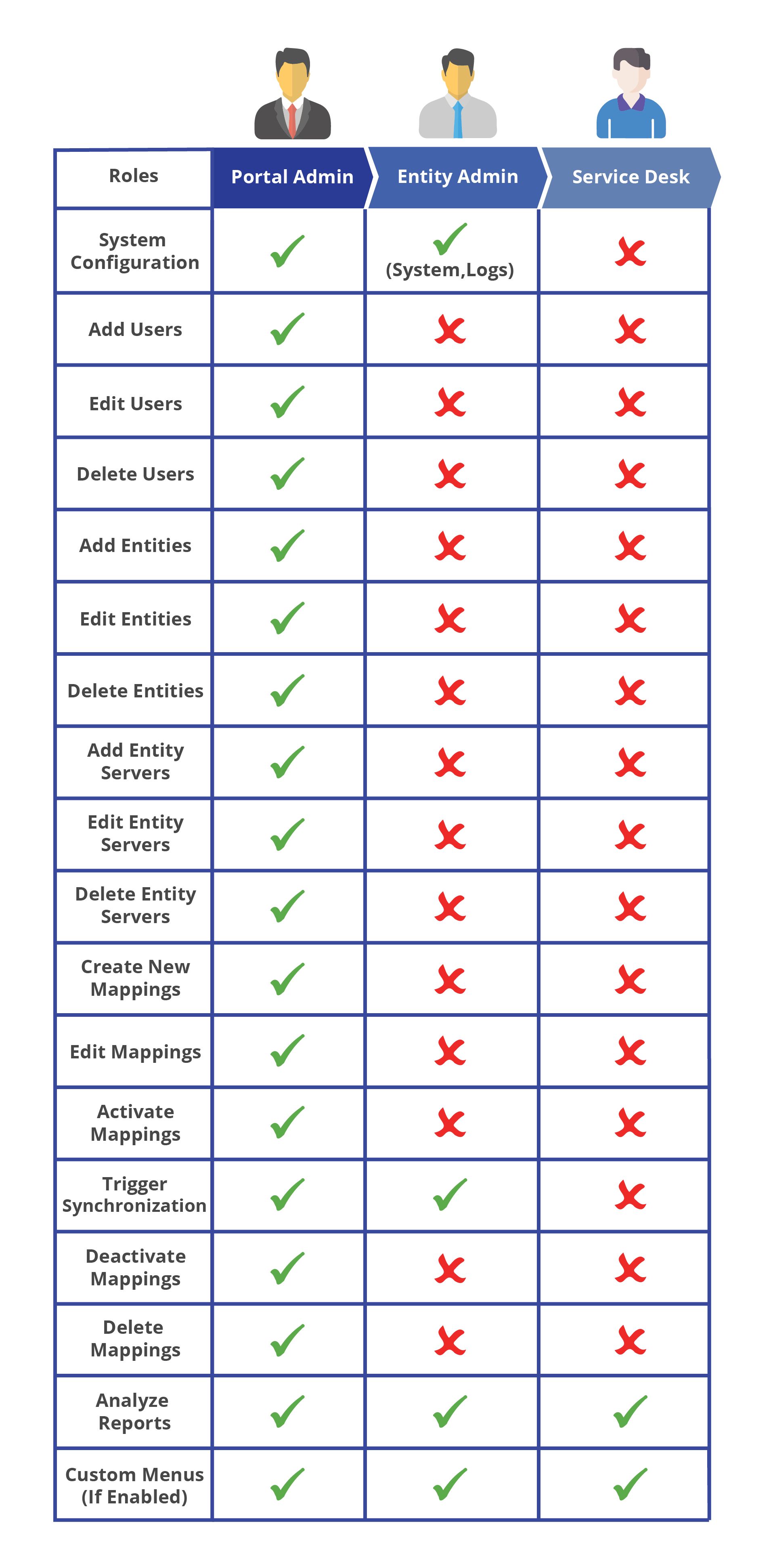
AD Connect Sync Plus presents only one type of administrative user, namely 'Portal Admin'. The other two types are not administrators since they cannot change anything in the system. These are 'Entity Admin' and 'Service Desk'. Entity Admin can only view entity assigned to it, OU mappings for that particular entity, System Reports, and Custom Menus. Service Desk can only view System Reports and view Custom Menus.
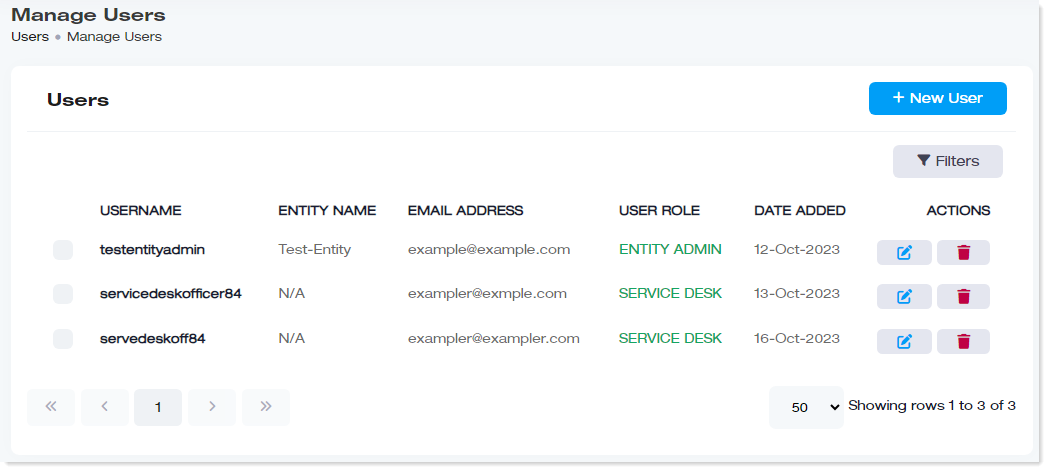
To manage users, navigate to the left menu, under the Main section, and click Users.
|
Manage Users page shows following information:
|
Portal Admin
A Portal Admin is an admin with administrative control only over the AD Connect Sync Plus system. It is a kind of super admin with privileges to administer Active Directories (sources and targets) in the AD Connect Sync Plus system, add entity mappings, trigger synchronization tasks, and other AD sync-related tasks. It can not only manage Active Directories and organizations in the system but can also configure other top-level settings that other users cannot. It can define the portal URL, activate licenses, and enable security to name a few.
The Portal Admin has its own Active Directory and is authenticated through it using either LDAP or LDAPS. The Active Directory is referred to as the Portal Active Directory. It is the same Active Directory, the setting for which is taken in the System Auth Settings under Security. All members of the Portal Admin security group can log in to AD Connect Sync Plus Portal with their Active Directory credentials. Basically, they log in with their User Principal Names (UPN).
Entity Admin
Entity Admin is a user of the AD Connect Sync Plus Portal which is assigned a particular entity (i.e., a particular Active Directory) that is connected with the Portal. The assigned entity (i.e., AD) could either be the source or target entity. Creating an Entity Admin through AD Connect Sync Plus Portal will create a security group of the same name in the same Active Directory that the Portal Admin uses. In other words, Portal Admin and Entity Admin share the same Active Directory. It is referred to as the Portal Active Directory.
The members of this security group can log in to AD Connect Sync Plus Portal (with their UPN) and view their Active Directory and synchronization mappings. They can also view reports such as Synced Users Report, and so on.
Members need to be added manually to the security group at the backend in the Portal Active Directory. Once they are added, they can log in to AD Connect Sync Plus Portal with their respective UPNs.
Service Desk
Service Desk is a user of the AD Connect Sync Plus Portal. Creating a Service Desk user through AD Connect Sync Plus Portal will create a security group of the same name in the same Active Directory that both Portal and Entity Admins use. In other words, Portal Admin, Entity Admin and Service Desk user share the same Active Directory. It is referred to as the Portal Active Directory.
The members of this group can only view System Reports and/or go to Custom Menus that are created by the Portal Admin.
Members need to be added manually to the security group at the backend in the Portal Active Directory. Once they are added, they can log in to AD Connect Sync Plus Portal with their respective UPNs.
Role-Based Access Control
The role-based access control and user privileges built into the AD Connect Sync Plus can be viewed below:
Create a User
To add a new user to the portal, click + New User and specify required information as:
- Username: Type username to be added.
- Email Address: Type email address of the user.
- Phone Number: Type phone number of the userr.
- Description: Type brief description of th user.
- Select User Role: Select user role from the list.
- Select Entity: Select entity from the list.
Search a User
To search any user, click Filters. Specify name to search the required user.
Edit a User
To modify details of any user, under Actions coulumn, click  and modify details as required.
Delete a User
To delete any user, under Actions coulumn, click  and Yes, delete it to remove the user.
Portal Admin to Portal Security
Communication between the Portal Admin and the central web portal is carried over HTTPS with MFA and reCAPTCHA. The Portal Admin will be authenticated with its AD credentials only if it is a member of the relevant security group.
Once authenticated, the user session will be issued an authentication token (JWT) by the application (APIs) and all subsequent requests will be authenticated via this token.