
| Product Documentation
AD Connect Sync Plus
System
Installation of the AD Connect Sync Plus Portal creates a site named ADCS Plus Portal in the Internet Information Services (IIS) web server. This site holds the ADCS Plus Portal website, which can be accessed by its users to log-in with their credentials. ADCS Plus Portal Admins, Entity Admins and Service Desk users can log-on to the ADCS Plus Portal by using this site. Please note that the ADCS Plus Portal provides exclusive graphical user interface (GUI) to the Portal Admins, Entity Admins, and Service Desk users.
General Settings
To configure General Settings of the ADCS Plus Portal System, navigate to System >> General Settings.
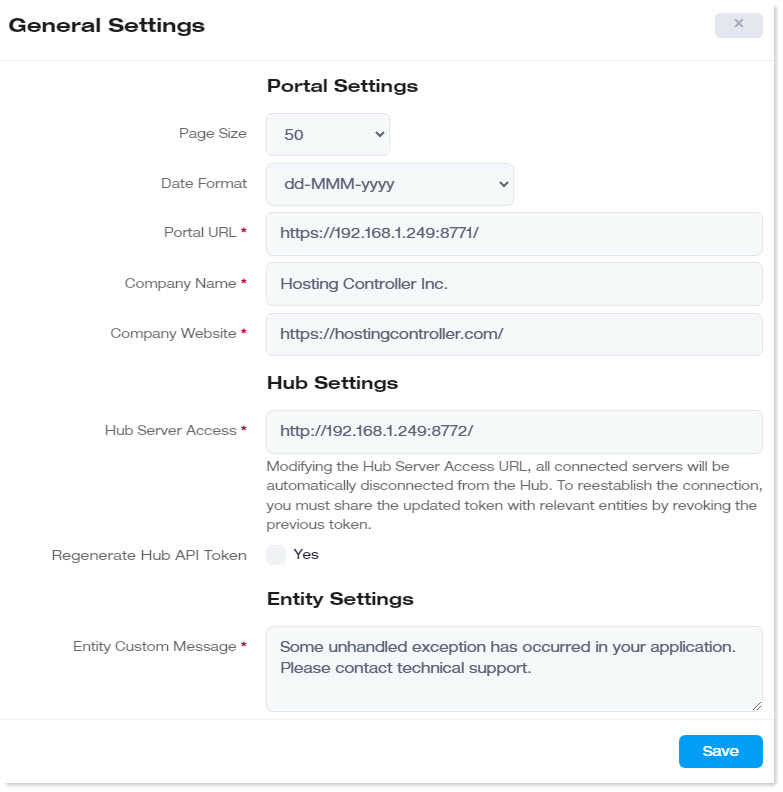
- Page Size: This indicates the number of records (rows) displayed on each page.
- Date Format: This indicates the date format followed by the application.
- Portal URL: This displays the administration site for the ADCS Plus Portal. This is where admin users log-in into their respective interfaces with their credentials. The URL field is a required field and cannot be left empty.
- Company Name: This displays the company name. This field is used in the event templates. The company name field is a required field and cannot be left empty.
- Company Website: This displays the company website. This field is used in the event templates. The company website field is a required field and cannot be left empty.
- Hub Server Access: This is the URL of the Hub API. Hub API serves as an interface for communication between the portal and the agent. It is a required field and cannot be left empty.
- Regenerate Hub API Token: This regenerates the API token used for secure connection between the ADCS Plus Portal and the Hub. This is used for reconnecting the ADCS Plus Portal with the Hub in case either the connection between the Portal and the Hub was lost, or the token security was compromised.
- Entity Custom Message: Type a custom message.
View Agent Update History
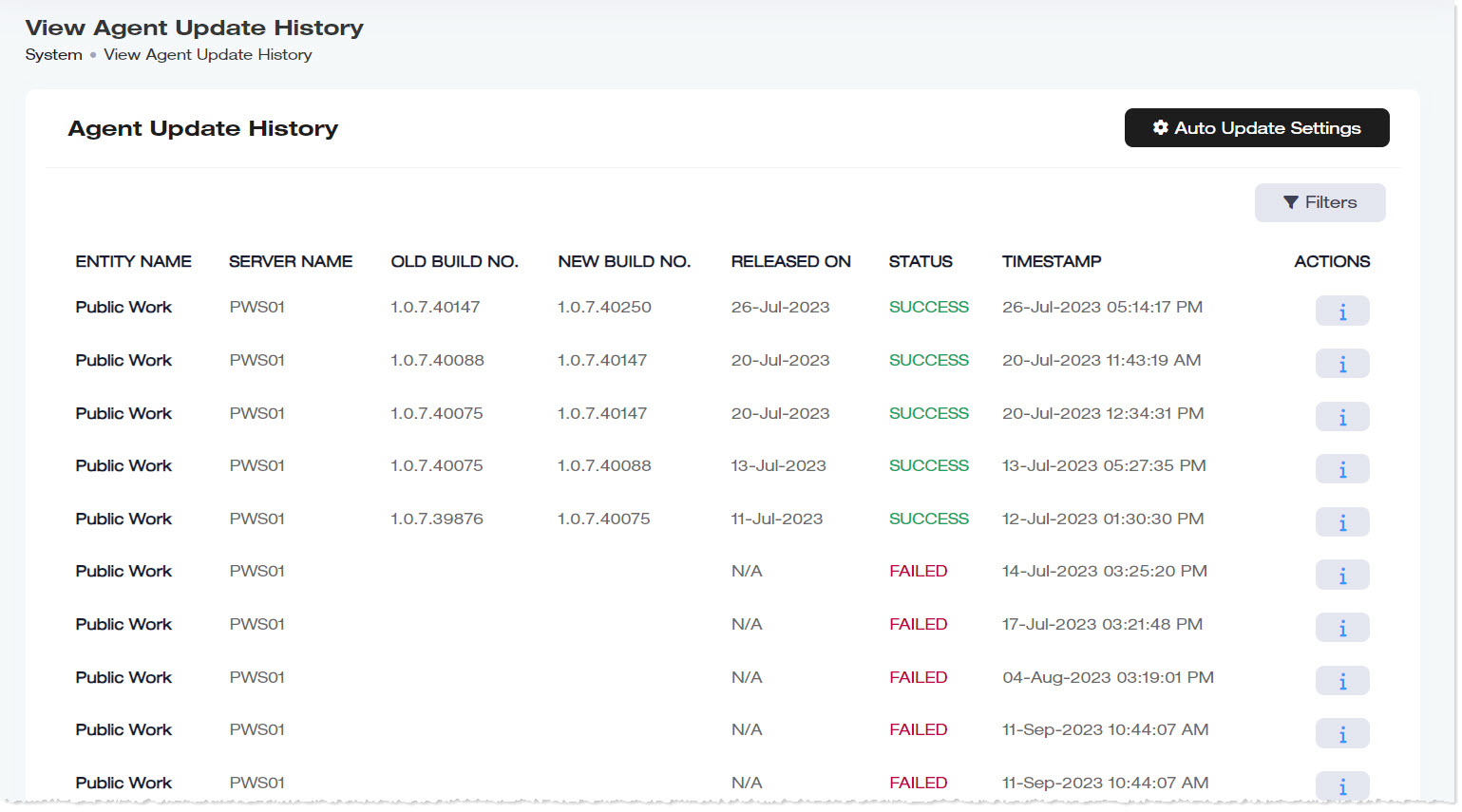
To view the update history of ADCS Plus Agent, navigate to the System >> Agent Update History. Please note that you can update the ADCS Plus Agent using the ADCS Plus Portal.
|
View Agent Update History page shows following information:
|
Auto Update Settings
Through this button, we set up an SFTP server from which the Portal will look for the new build of the ADCS Plus Agent and install it if it finds any. Furthermore, a time has to be set at which the Portal will regularly look for a new build of the ADCS Plus Agent.
To configure more settings, click Auto Update Settings and specify required information as:
- SFTP URL: Type URL of SFTP.
- SFTP Port: Type port of SFTP.
- Username: Type username.
- Password: Type password.
- Agent File Name: Type file name of the agent.
- Check for Update Daily at: Select the time to check daily updates.
Search History of any Agent
To search any history, click Filters. Specify name to search the required agent's information.
Manage Pending Deletions
In the ADCS Plus system, there is a threshold check regarding the number of synced AD users deleted from the AD of source entity. Whenever this threshold is reached, a pending deletion request is generated and shown to the Portal admin in System >> Pending Deletions. If approved, AD users that were deleted from the AD of source entity are also removed from the AD of target entity (i.e., synchronized users deleted from source are also deleted from target provided that both the threshold is reached, and the deletion request is approved by the Portal Admin).
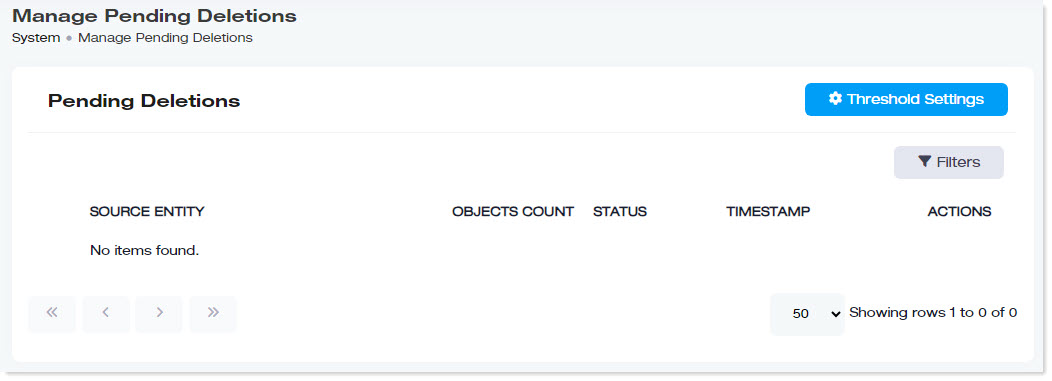
To manage settings for pending deletions, navigate to the top menu and click System >> Manage Pending Deletions.
|
Manage Pending Deletions page shows following information:
|
Threshold Settings
To configure threshold settings, click Threshold Settings and specify required information as:
- Accidental Deletion Threshold:
Search Pending Deletions
To search any pending deletion, click Filters. Specify name to search the required deletion.
Manage Scheduled Reports
This allows the Portal Admin to send a synchronization report (e.g., report regarding synced users) at a set schedule to the specified email address.
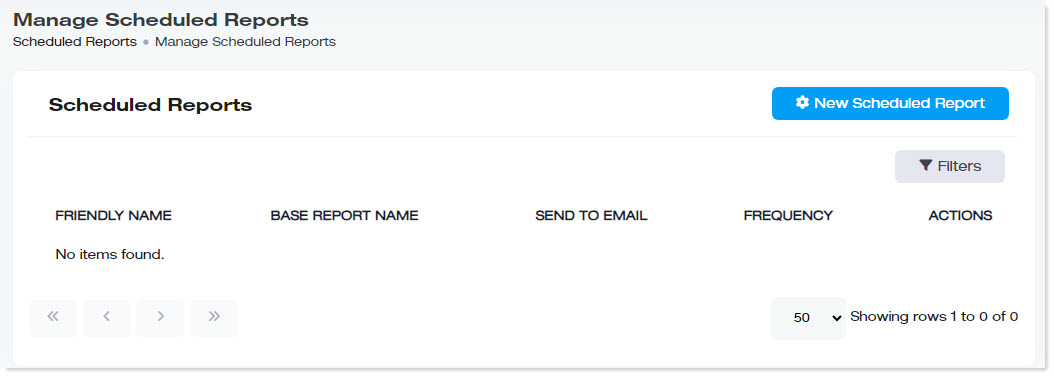
To manage scheduled repots, navigate to the top menu and click System >> Manage Scheduled Reports.
|
Manage Scheduled Reports page shows following information:
|
New Scheduled Report
To add a new scheduled report, click New Scheduled Report and specify required information as:
- Friendly Name: Type friendly name of the report.
- Base Report: Select type of the base report from the list.
- Send To Email: Type recipient's email.
- Frequency: Select number of times the report should be scheduled like Daily/Weekly/Monthly and on which day of the week.
Search Scheduled Reports
To search any scheduled report, click Filters. Specify name to search the required report.
Activate License
To activate license, navigate to the top menu and click System >> Activate License and specify information as:
- License Key: This shows the partially hidden license key for the ADCS Plus Portal.
- License Status: This shows whether the Portal product in use is licensed or unlicensed.
- License Type: This shows whether the subscription for license is being paid for on a monthly basis or an annual basis.
- Activation Status: This shows whether the license has been activated or not. In case of inactivation, some features of the ADCS Plus Portal may be restricted to its users.
- Sync Objects Limit: This shows the limit of objects that can be synced through the ADCS Plus Portal. Please note that this limit is defined by the kind of license in use. For more information, contact our support team.
To change license details (such as the license key), click on the Deactivate button located beneath Activation Status. Then specify the License Key (if you want to apply a new key) and Email Address (please note that these are required fields). Optionally, you may specify your Contact Name, Company Name, Phone and Country.