
| Product Documentation
AD Connect Sync Plus
Mapping
AD Connect Sync Plus allows you to map a specific source OU to a specific target OU. The users, groups, contacts, and devices in the source OU will be synchronized to the specified target OU.
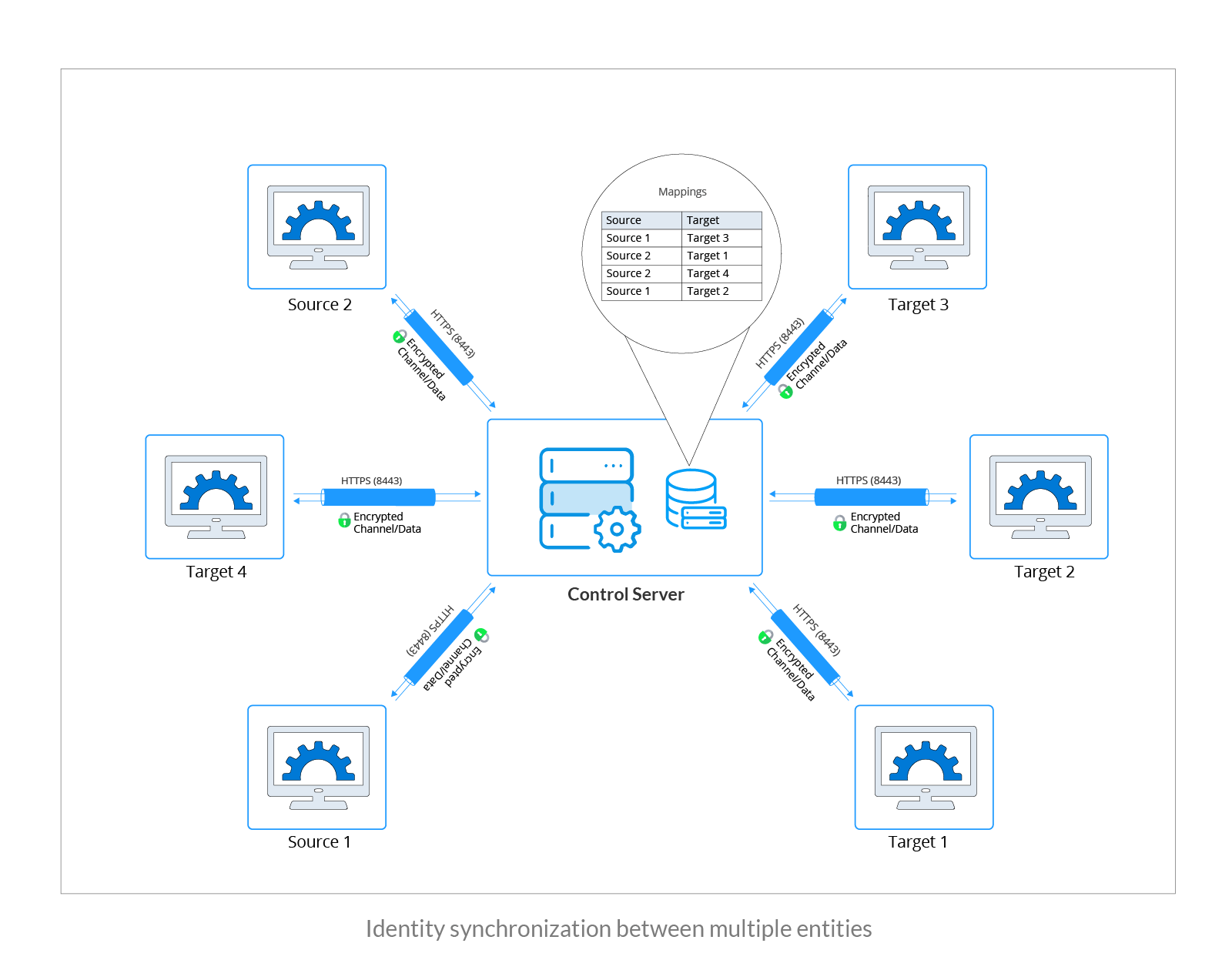
To manage mappings, navigate to the left menu, under the Main section, and click Mappings.
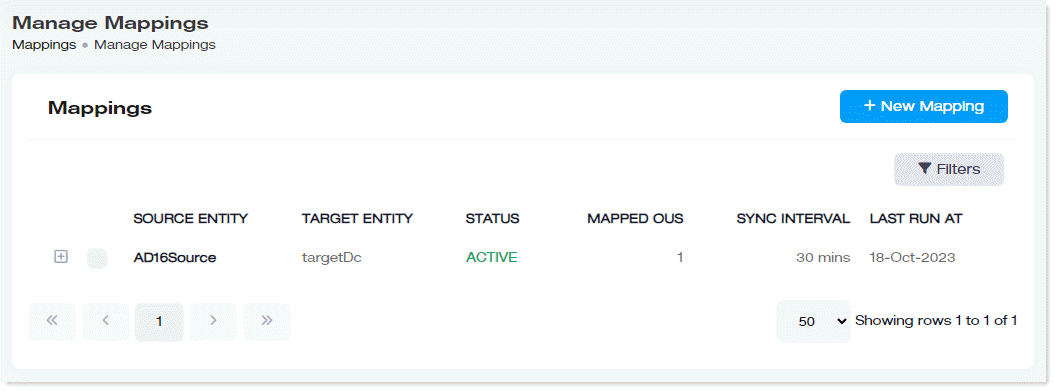
|
Manage Mappings page shows following information:
|
Search Mapping
To search mapping details, click Filters. Specify name or suffix to search the required mapping detail in first screen and then click Next.
Add New Mapping
To add new mapping, click + New Mapping and specify the required information on the first screen and click Next. On the second screen click + Mapped OU to add Mapped OU. Click Save to add new mapping.
- Source Entity: Select the source for mapping.
- Target Entity: Select the target for mapping.
- Souce Entity OU: Select source entity OU.
- Target Entity OU: Select target entity OU.
- UPN Suffix Mapping: Select Default checkbox to apply default UPN suffix mapping settings.
Managing Mappings
To manage mappings, under Source Entity, click  to expand and view the details of the mappings.
Edit Mappings
To modify mapping details, click Edit and update required settings. AD Connect Sync Plus Portal allows you to modify two types of settings as Sync Settings and Log Settings.
Sync Settings
- Source Entity: This shows the name of the source entity (Active Directory).
- Target Entity: This shows the name of the target entity (Active Directory).
- Password Sync: When enabled, this allows one-way sync of passwords from the source Active Directory to the target Active Directory.
- Two-way Password Sync: When enabled, this option allows two-way password synchronization between the source Active Directory and the target Active Directory, ensuring that password changes are synced in both directions.
- Attribute Sync: When enabled, this allows user attributes to be synchronized from the source Active Directory to the target Active Directory.
- Attributes: AD Connect Sync Plus allows you to select the user attributes to be synchronized. Attributes that are not required to sync can be excluded as needed.
- Null Value Overwrite: When enabled, empty or blank attribute values from the source will overwrite the existing attribute values in the target entity during synchronization.
- Object Creation: When enabled, an object will be created in the target entity when an object is created in the source entity. Specify the regular expression for the sAMAccountName for the user object. The user object will be created with this regular expression.
- Object Deletion: When enabled, the object will be deleted from the target entity when an object is deleted from the source entity.
Log Settings
- Log Level: Select log level from the dropdown list box.
Trigger Mappings
In AD Connect Sync Plus, object synchronization is typically performed automatically at scheduled intervals. However, if required, you can use this option to manually trigger synchronization at any time.
To trigger synchronization forcefully, click Trigger Sync.
Deactivate Mappings
AD Connect Sync Plus allows you to temporarily deactivate mappings between the source Active Directory and the target Active Directory. Deactivating a mapping stops synchronization between the connected directories. The mapping can be reactivated at any time to resume synchronization.
To deactivate mappings, click Deactivate and it deactivates the particular mapping.
Delete Mappings
AD Connect Sync Plus also allows you to permanently remove mappings between the source and target Active Directory environments. To resume synchronization between the Active Directories, the mappings must be recreated.
To delete mappings, click Delete and it removes the particular mapping.
Add New Mapped OU
To add a new mapped OU, click + New Mapped OU, specify required information and click Save to proceed.
- Source Entity OU: Select source entity OU from the list.
- Target Entity OU: Select target entity OU from the list.
Edit Mapped OU
To modify a mapped OU, under Actions column, click  to modify mapped OU.
View Mapping Details
To view details of the mapped OU, under Actions column, click  and then View Mapping.
Delete Mapped OU
To delete mapped OU, under Actions column, click  and then Delete.