
| Product Documentation
HC Marketplace
Domain Registration
Registering a domain refers to the process of purchasing a domain name from a registrar. The process involves registering the name you want with an organization called ICANN through a domain registrar. To purchase a domain name for your company, you need to go to a registrar, pay a registration fee and register a domain name for a year or more. Depending on the registration period you can then renew it annually or for a period greater than a year. Marketplace allows you to accomplish this process of registration through its interface, provided a domain registrar is configured.
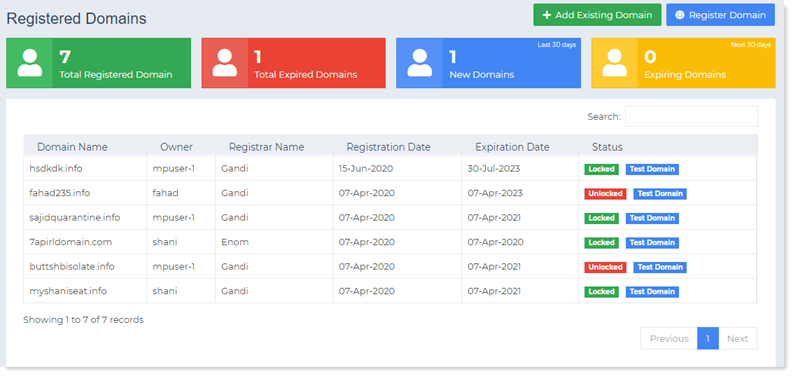
This section displays all the registered domains, registered by the customers. It also displays the domains transferred
from one registrar to another.
To view registered domains in HC Marketplace, login as a host and from the left menu, navigate to Domain Registration
Add Existing Domain
If a domain is already registered with a domain registrar, it can be added to the Marketplace for further operations such as domain renewal and transfer. To add existing domain, specify the following:
- Domain Name: Specify domain name.
- Add for Client: Select a customer from the list.
Register Domain
Domains can be registered through the Marketplace. Before registering a domain, the Marketplace also lets the host check domain name availability. If the domain name is available, it lets the host register the domain. To register a domain, specify the followings:
- Domain Name: Specify domain name.
- Check Availability: Normally before registering a domain, its availability is checked. Only if a domain name is available, can it be registered. Marketplace allows the host to check domain name availability before registration.
- Nameservers: These fields specify the nameservers being used by the customer. The customer can specify upto four nameservers. When the host registers a domain for its customer, the nameservers are automatically fetched and displayed here.
- Registrant Contact: While registering a domain, the Marketplace allows the host to select a contact from a list of contacts. The list comprises of all contacts assigned to the customer. The contact selected at the time of registration is set as all four, the registrant, admin, tech and bill contact. All four types are assigned the same contact. Once the domain is registered successfully the host can assign separate contacts to each.
View Registered Domains
To view registered domains, place your mouse on the name of the registered domain and click View to look at its details.
- Registration Date: It indicates the date on which the domain was registered.
- Expiration Date: It indicates the expiry date of the domain.
- Renew Domain For: The Marketplace allows the host to renew domains for various periods such as 1 year, 2 years, 5 years etc.
The renewal periods can be set in the Domain Registrar settings at Edit Registrar > Manage TLDs. - Lock Status: Domain names can be locked to protect against unauthorized, unwanted or accidental changes. The registrar may put a ‘Registrar-Lock’ on a domain. If a Registrar-Lock is on, the domain cannot be transferred to another registrar. Through the Marketplace the host can lock or unlock a domain.
- Auth Code: An auth code also known as a transfer code is a code created by a registrar to help identify the domain name holder of a domain name. It is required for a domain holder to transfer a domain name from one registrar to another. Through the Marketplace the host can reset an auth code for a domain.
- Nameservers: These fields specify the nameservers being used by the customer. The customer can specify upto four nameservers.
- Contacts: Typically there are four types of contacts for a domain. They are as follows:
- Registrant: The registrant is the official owner and the highest authority for a domain name. It can be an actual person or an organization.
- Administrative Contact: The administrative contact is the registrant’s appointed agent for the domain name. In case the registrant is a company, the administrative contact should be an employee of the company. The administrative contact has full authority, almost equal to that of the registrant, over the domain name therefore the registrant should take special care in selecting an administrative contact. This contact has full authority to request and authorize any necessary decisions and updates on behalf of the registrant, including contact information, name server information and transferring ownership.
- Technical Contact: The technical contact is the person responsible for the technical administration of the domain name such as maintaining the nameservers associated with the domain name and attending to the technical administration of the domain files on the server. The technical contact does not have the authority to transfer ownership or administrative rights of the domain.
- Billing Contact: The billing contact is the person responsible for paying registration and renewal fees for the domain name.
While registering a domain, the same contact is set as all four, the registrant, admin, tech and bill contact. But later once the domain has been registered, while viewing it, the host can assign separate contacts to each. It can select an appropriate contact from the list of assigned contacts and assign it to each category.
Delete Registered Domains
To remove any of the registered domains, place your mouse on the name of the registered domain and click Delete to remove it.
Transfer Domain
To transfer a domain, specify the followings:
- Domain Name: Specify domain name.
- Transfer for Client: Select the customer to whom the domain is being transferred. Select the customer from a drop-down list.
- Auth Code/EPP Key: EPP Key is an authorization code, required for the transfer of domain names from one registrar to another. It prevents unauthorized transfer of domains. When transferring a domain, the host can copy the Auth Code from the domain under previous registrar and paste it here.
- Primary Name Server: Type primary name server that is to be used with the transferred domain.
- Secondary Name Server: Type secondary name server that is to be used with the transferred domain.
- Third Name Server: Type third name server that is to be used with the transferred domain.
- Fourth Name Server: Type fourth name server that is to be used with the transferred domain.
- Owner Contact: Select owner from the drop-down list.
- Admin Handle: Select admin handle from the drop-down list.
- Tech Handle: Select tech handle from the drop-down list.
- Bill Handle: Select bill handle from the drop-down list.
Delete Transferred Domains
To remove any of the transferred domains, place your mouse on the name of the transferred domain and click Delete to remove it.