| Product Documentation
HC Marketplace
Admin
The admin is the host of the Marketplace. It bills its customers and receives payments from them. The host launches the Marketplace and configures it according to its requirements. It has full control of the admin interface.
To manage customers, being a host (admin), from the left menu, navigate to Customers >> Users.
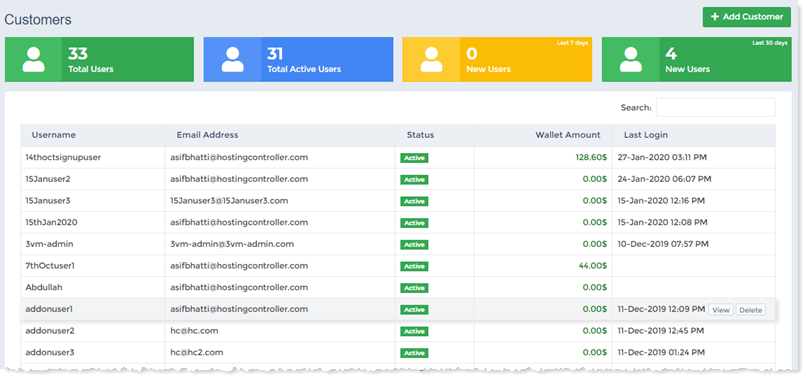
Add Customer
To add a customer click + Add Customer and specify the followings.
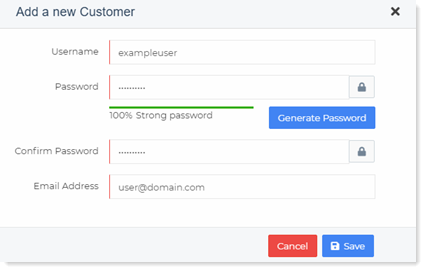
- Username: Type name of the user being added.
- Password: Type password.
- Generate Password: In case you want computer generated password, click Generate Password.
- Confirm Password: Confirm your typed password.
- Email Address: Type email address of the user.
Customer cannot have space in its username.
Manage Customer Details
The host can not only view all its customers but can also control their settings.
Summary
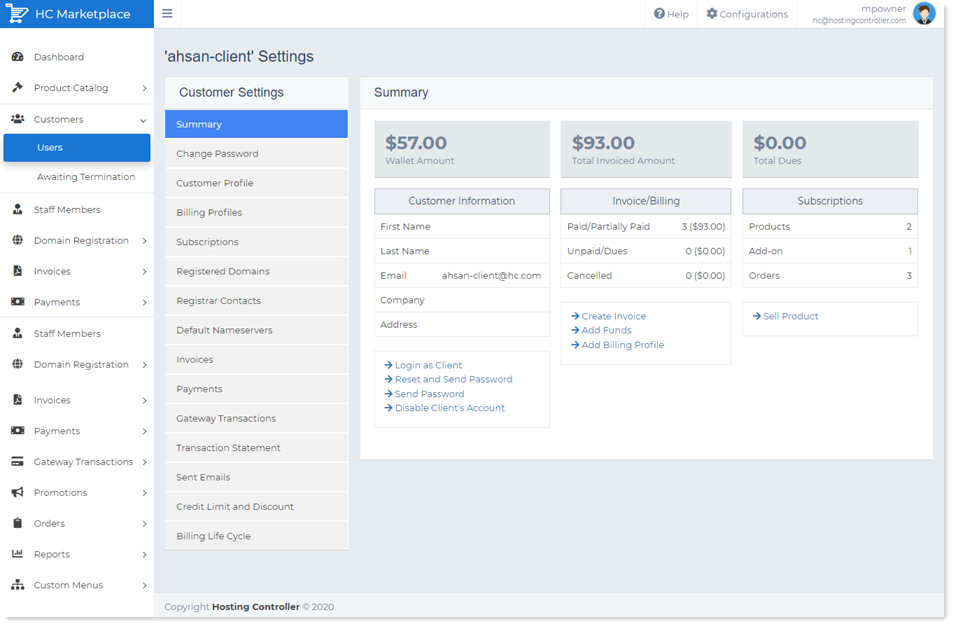
The summary dashboard displays profile and financial information of the customer. It displays the following information:
- Wallet Amount: This reflects the total amount present in the customer’s wallet.
- Total Invoiced Amount: This displays the total of all the invoices issued to the customer.
- Total Dues: This displays the total outstanding dues against the customer.
- First Name: The first name of the customer.
- Last Name: The last name of the customer.
- Email: Email of the customer.
- Company: This indicates the name of the customer’s company.
- Address: This indicates the company address.
- Paid: This indicates the number of invoices paid by the customer and their total.
- Unpaid/Dues: This indicates the number of invoices which have not yet been paid by the customer and their total. This also includes any partially paid invoice and its due amount.
There can be only one partially paid invoice for a customer at a time. Once the customer funds its wallet, the partially paid invoice is settled first. - Cancelled: This indicates the number of issued invoices cancelled by the host and their total. Only due invoices can be cancelled. Paid and partially paid invoices cannot be cancelled.
Only the host can cancel an invoice. - Login as Client: This feature allows the host to login directly into the customer’s online store account and view or modify its settings. It provides the host direct access to its customer’s account.
- Reset and Send Password: This permits the host to reset the customer’s password and forward the new password to its email.
- Send Password: This option permits the host to send the original password to the customer’s email, without resetting it.
- Disable Client’s Account: This enables the host to restrict certain actions of the customer. It presents three options to the host.
- Restrict Hosting Panel: The option allows the host to block the customer’s access to its Hosting Controller panel.
- Restrict Billing Panel: The option allows the host to block the customer’s access to the online store.
- Restrict Provisioned Resources: The option enables the host to suspend customer’s websites.
- Restrict Hosting Panel: The option allows the host to block the customer’s access to its Hosting Controller panel.
- Create Manual Invoice: This option permits the host to generate a manual invoice for the customer.
- Pay To: It is the name of the user.
- Line Items:
- Item Name: It is item name.
- Description: It is brief description of the item sold/used.
- Price ($): It is the price of the item.
- Quantity: It is the quantity used/purchased.
- Discount (%): It is the amount of discount if any.
- Net Price: It is the net price of each item.
- Sub Total: It is the total price of all the items in the invoice
- Tax: It is the tax amount
- Grand Total: It is the total amount to be paid inclusive of taxes.
- Item Name: It is item name.
- Pay To: It is the name of the user.
- Add Funds: This allows the host to add funds manually to the customer’s wallet.
- Customer: It is name of the customers.
- Amount: It is the amount to be funded.
- Cheque No: It is cheque number.
- Bank Details: These are bank details.
- Account No: It is the account number of the customer.
- Routing No: It is the routing number.
- Customer: It is name of the customers.
- Add Billing Profile: This allows the host to add a new billing profile for the customer.
- Sell Product: This allows the host to sell product (service plan) to the customer.
- Product Name: Select name of the product to sell.
- Setup Price: It is the one time setup price.
- Setup Discount: It is the discount amount if any.
- Recurring Price: It is the monthly payment.
- Recurring Discount: It is the recurring discount if any.
- Quantity to Sell: It is the quantity to be sold.
- Sell to User: It is username.
- Product Name: Select name of the product to sell.
Change Password
The host can change the customer's password here. Password can be typed or generated automatically.
Customer Profile
The host can fill in the customer's profile here.
Billing Profiles
The host can create one or more billing profiles for the customer here. Customer can add more than one billing profiles to its account. If there are more than one billing profiles, it can choose the profile to make payment from.
Subscriptions
Subscriptions are simply products purchased from the host. Customer can purchase multiple subscriptions from the host. This view presents all the subscriptions purchased by the customer. It also lets the host sell new products to the customer.
Registered Domains
A customer can register domain names through the Marketplace. This displays all the registered domains for the customer.
Registrar Contacts
Default Nameservers
While registering a domain, a customer can either use its own nameservers such as ns1.owndomain.com and ns2.owndomain.com or use the nameservers of its web hosting company. A customer’s own name servers are known as private nameservers. No matter which nameservers the customer uses, they can be defined here.
Invoices
Invoices are bills issued by the host to the customer. This view displays all the invoices issued to the customer.
Payments
Payments are funds added to the customer’s wallet as payments for the issued invoices. This view displays all the payments made. The view includes both manual payments and those done through credit card. It also allows the host to manually add funds to the customer’s wallet.
Gateway Transactions
This shows all payments made by the customer through payment gateways.
Transaction Statement
This displays a statement showing all the invoices issued to the customer and payments made by it. The running balance column.
Sent Emails
This displays all the sent emails.
Credit Limit and Discount
This displays a statement showing all the credit limits and discounts.
Billing Life Cycle
There are certain safeguards in place, in case due bills are not cleared by Customers. These safeguards manifest themselves in the form of a user life cycle. A vendor can trigger the user life cycle as soon as any Customer’s bill falls in the due category, passing Customer through the different stages of the life cycle. The life cycle makes certain restraints available at each stage in case of non-payment, until the final restraint i.e. a user delete notification.
Delete Customer
The host can delete any of its customers. To remove a customer click Delete. Before deleting the customer, the invoices, payments or orders related to the customer can also be removed.
Delete Customer Options
- Delete Payments: This will allow to delete all payments associated with the customer. This check box is optional and can remain unchecked. If it remains unchecked the customer will be deleted but its payments will remain in the system.
- Delete Pending/Paid Invoices: This will allow to delete all pending or paid invoices associated with the customer. This check box is optional and can remain unchecked. If it remains unchecked the customer will be deleted but its invoices will remain in the system.
- Delete Orders: This will allow to delete all orders associated with the customer. This check box is optional and can remain unchecked. If it remains unchecked the customer will be deleted but its orders will remain in the system.
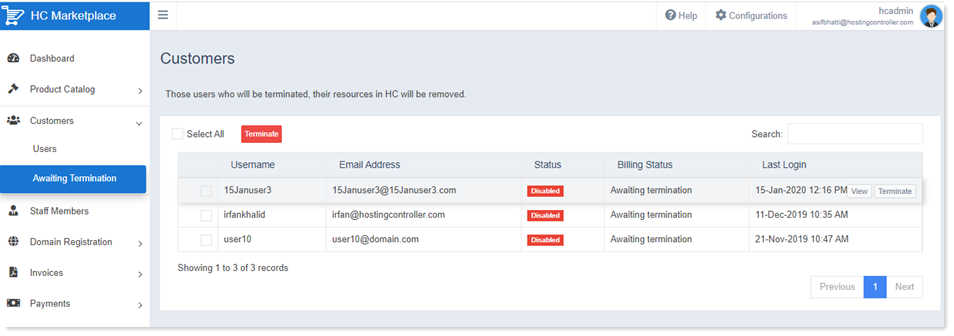
Awaiting Termination
Customers can be terminated from the Marketplace due to non-payment. The host can define a billing cycle globally for all customers or it can specify individual life cycles for each customer. The billing life cycle provides customers sufficient time to clear their dues. If after expiry of ‘Access Lock’ days in the billing life cycle, a customer still doesn’t pay, it will be marked for termination. Awaiting termination section lists all customers marked for termination. The host can terminate all customers at once or can choose to terminate them individually.