
| Product Documentation
HC Marketplace
PayTR
PayTR, is a Turkish payment service allowing website owners to get secure online payments from their websites in a fast, simple way with the help of PCI-DSS Level 1 Service Provider adapted technical infrastructure. Sellers enable customers to choose PayTR payment method on the checkout page and similarly they can receive secure payments through PayTR.
To configure PayTR, from the top, navigate to Configurations >> Payment Gateways. Configuration process includes the following.
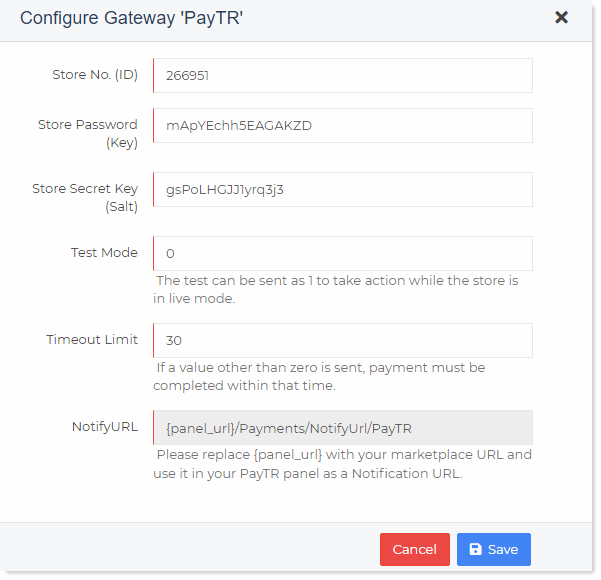
- Store No. (ID): This is the Merchant ID provided by PayTR.
- Store Password (Key): This is the merchant_key. It is found on the Information page on the Merchant Panel.
- Store Secret Key (Salt): This is the merchant_salt, which is required for API. It is found on the Information page on the Merchant Panel.
- Test Mode: When the merchant is in live mode, it can be sent as 1 to run a test.
- Timeout Limit: If a value other than zero is sent, payment must be completed within that time. You can use it for security purposes in case of price updates etc.
- Notify URL: Replace {panel_url} with your marketplace URL and use it in your PayTR panel as a Notification URL. This is also the Call Back URL
Edit PayTR
To modify PayTR details specify the following.
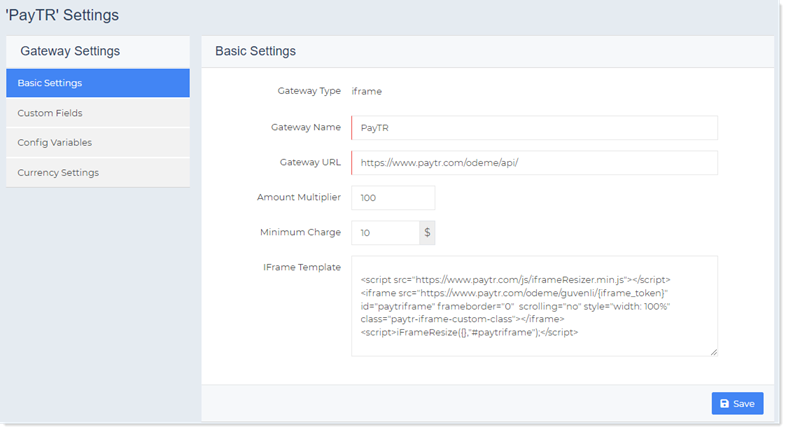
Basic Settings
To modify basic gateway settings enter the following.
- Gateway Type: This reflects the type of the gateway. The type of PayTR is IFrame
- Gateway Name: This displays the name of the gateway.
- Gateway URL: This specifies the URL of the gateway.
- Amount Multiplier: This multiplies the invoice amount by the multiplier. For e.g. if multiplier is 2 and the invoice amount is 10, the amount is multiplied by the multiplier 10 x 2 = 20. If multiplier is given then amount will be multiplied to it before sending to the gateway. Default value is “1” which means amount will be sent as it is to the gateway.
- Minimum Charge: Payment gateways charge fee for every transaction. Sometimes it’s not feasible to pay extra fee for every small transaction. To avoid these extra charges, the host can specify a minimum charge. While paying customers cannot specify an amount less than this minimum charge.
- IFrame Template:
Custom Fields
Custom fields are merchant defined fields that are not recognized by the payment gateway as standard payment form fields. They are shown to the customer in the payment form and collect additional, non-sensitive information such as specific shipping instructions.
Add/Edit Custom Field
To add a new custom field click + Add Custom Field and specify the followings.
- Display Name: This is the name displayed in your general profiles for this custom field.
- Field Name: This is the name that is needed for the database at the back-end.
Edit Custom Field
To modify custom fields click Edit and modify fields information as required.
Delete Custom Field
To remove custom field click Delete.
Config Variables
In this section you can add/modify/delete configuration variables as required.
Add Variable
To add a new variable click + Add Variable and specify the followings.
- Variable Name: Type variable name to be added.
- Description: Type a brief description of the variable name.
- Help Text: This is an additional text displayed to briefly describe the variable.
- Has Fixed Value: If this check box is selected, you can specify some fix value for the variable like True/False.
Edit Variable
To modify any variable click Edit and modify information as required.
Delete Variable
To remove any variable click Delete.
Currency Settings
Marketplace allows the host to choose any available currency. However once an invoice is generated in a specific currency, the currency cannot be changed.
Default Currency
This displays the default currency, which has already been selected as the currency of choice. All transactions will be conducted in this currency.
Gateway Currency
Select Gateway currency from the list. Sometimes the gateway currency can be different than the default currency. If the gateway currency is different than the default currency, the host needs to specify a proper exchange rate.
Exchange Rate
This displays the Exchange rate.
Activate/Deactivate PayTR
To activate or deactivate PayTR click Activate or Deactivate respectively.