
| Product Documentation
ExSign
Account Settings for Exchange Server
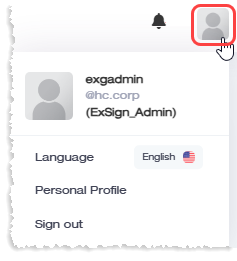
Language
Use the Language settings to select the display language for the ExSign Administration Portal.
Changing the portal language updates the user interface, menus, labels, and system messages, allowing administrators to work in their preferred language.
To change the portal language, navigate to Account Settings >> Language.
Available Languages
ExSign currently supports the following languages:
- English
- Arabic
Select your preferred language and save the changes. The new language is applied to the portal interface.
Personal Profile
Use Personal Profile to manage your contact information within the ExSign Administration Portal.
Keeping your profile information up to date helps ensure that system notifications and administrative communications are sent to the correct contact details.
To update your profile, navigate to Account Settings > Personal Profile.
Profile Information
- Email Address: Enter or update your email address.
- Phone Number: Enter or update your contact number.
After making changes, save your profile to apply the updates.
Sign Out
Use Sign Out to securely end your current ExSign session.
Signing out helps protect your account and prevents unauthorized access, especially when using a shared or public computer.
To sign out, click Sign Out from the account menu.
Best Practice
Always sign out after completing your work, particularly when accessing ExSign from a shared workstation or remote environment.