
| Product Documentation
ExSign
Connecting Sent Items Update Agent
Like the Transport Agent, installing this agent isn't enough on its own; it needs to be connected to the Portal before it'll actually do anything. It communicates over the same API Hub connection as the Transport Agent, on port 8776.
Before You Begin
- Enable Sent Items Settings for the entity first; this comes before you can even generate a token. Log into the Portal, go to Entities, and under the relevant entity's Actions, enable Sent Items Settings (see Adding Entities and Organizations). Only once that's enabled can you generate an authentication token for this agent. If you can't generate a token, this is the first thing to check.
- Have your EWS impersonation mailbox credentials ready: a username, password, and the EWS URL for your Exchange server (see Step 2 below for what this is for).
- If this one agent needs to serve more than one entity, read the Handling Multiple Entities section below before you start, it requires a registry change, not just a setting in the UI.
Connect to the Hub
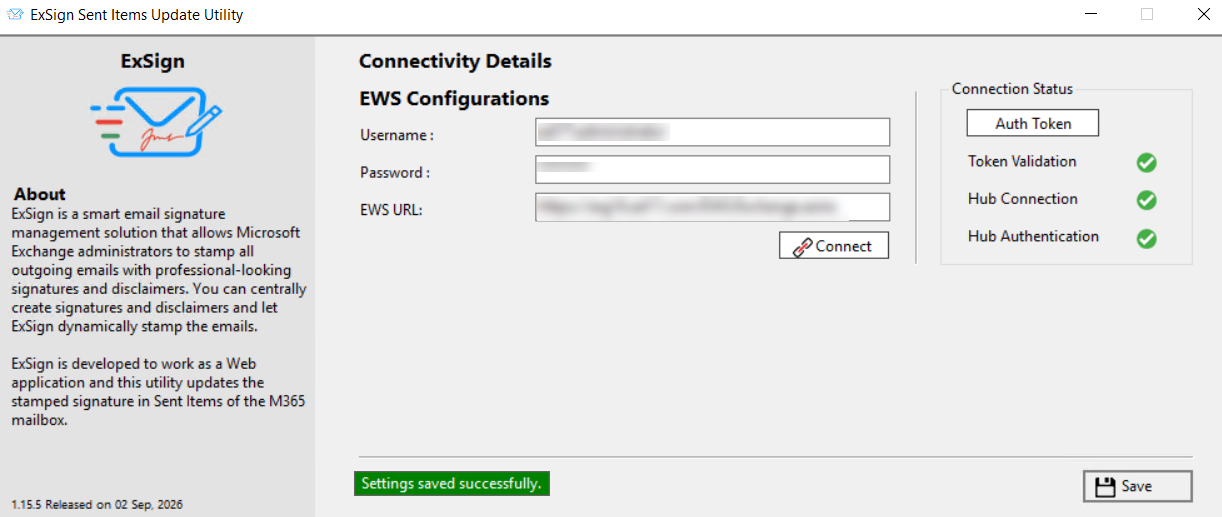
- Open the Sent Items Update Agent's configuration interface on the server it's installed on.
- Paste your authentication token into the Authentication Token field.
- Click Validate.
Just like the Transport Agent, this runs through three checks, each shown as a green check (success) or red mark (failure):
| Check | What it Confirms | If it fails |
| Token Validation | The token was decrypted correctly on this server. | The token is likely incorrect, expired, or already used. Generate a fresh one from the entity's Sent Items Settings and try again. |
| Hub Connection | The Agent successfully reached the Portal's API Hub. | Points to network/firewall; confirm port 8776 is open between this server and the Portal (see Firewall Ports You'll Need Open). |
| Hub Authentication | The Portal responded and confirmed the connection. | The request got through but no response came back, check the Hub Server Access URL configured in the Portal is correct and reachable from this server. |
Configure EWS Access
This agent uses Exchange Web Services (EWS), the API Exchange exposes for accessing mailbox items, to read and update Sent Items across your mailboxes.
Rather than needing individual credentials for every mailbox it touches, it uses one mailbox that's been granted the impersonation role in Exchange, and impersonates other mailboxes using that single set of credentials. Provide:
| Field | What to enter |
| Username | The username of the mailbox granted the impersonation role. |
| Password | That mailbox's password. |
| EWS URL | Your Exchange server's EWS endpoint, commonly https://mail.domain.com/EWS/Exchange.asmx, but confirm this with whoever manages Exchange rather than assuming the default, since it isn't always the case. |
Handling Multiple Entities
By default, one installation of this agent connects to a single entity. If you need it to serve more than one entity from the same install, you'll need to enable that manually:
- On the server where the agent is installed, open the Registry Editor and navigate to
HKEY_LOCAL_MACHINE\SOFTWARE\ExSign\Sent Items. - Double-click the MultipleEntities key and change its value from 0 to 1. (0 is the default, single entity only.)
- Reopen the agent's configuration interface, it will now show a combo box allowing you to add multiple entities.
- Add each entity, and paste in its own respective token, validating each the same way as Step 1.
As with any registry change, note the original value before editing, and only make this change if you actually need one agent serving multiple entities, most setups won't.