
| Product Documentation
ExSign
Adding Entities and Organizations
Understanding the Hierarchy
ExSign's structure has two levels:
- Entity: A separate Exchange environment (Exchange forest). Each entity can contain one or more Exchange Mailbox Servers. There can be many organizations under a single entity, each with its own OU Admin(s). Different entities may like to avail themselves of the email stamping service of ExSign. Therefore, all entities desirous of availing the stamping service are required to be added to the central interface of the ExSign Web Portal.
- Organization: An Active Directory Organizational Unit (OU) within an entity. Each organization has its own OU Admin(s) who manage rules and banners only for that organization. When you create an OU Admin, ExSign creates their security group one level above the OU it manages. That is to say, at the root OU, not inside the OU itself. This is because a single organization can have multiple OU Admins, so the admin group needs to sit where it can see all of them.
Who Can Do What
| Action | ExSign Admin | Exchange Admin | OU Admin |
| Add / edit / delete an entity |  |
 |
|
| Add/edit / delete a new organization | |
|
|
| Manage rules/banners for their own organization | -- | -- | |
Viewing an Entity
The Entities list shows:
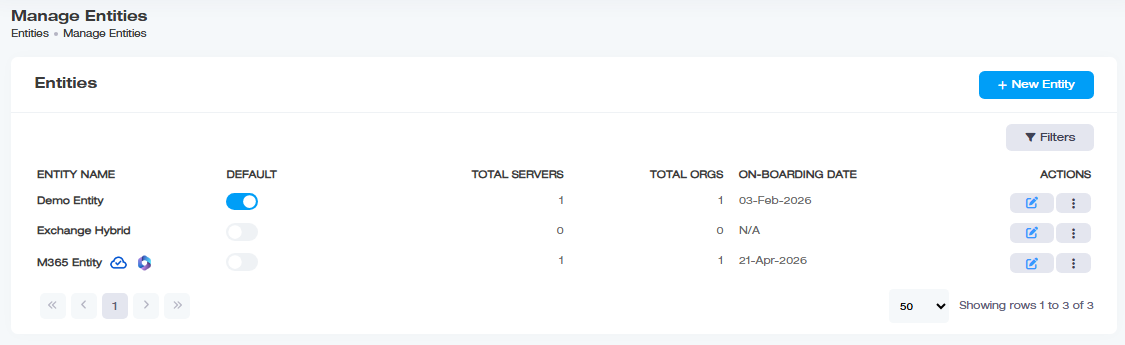
| Column | Shows |
| Entity Name | Name of the entity |
| Default | Whether this is the default entity (new servers/organizations land here unless assigned elsewhere) |
| Total Servers | Number of servers with the ExSign Agent installed |
| Total ORGs |
Number of organizations under this entity |
| On-Boarding Date |
When it was added |
Use Filters to search by name or suffix. To edit or delete an entity, use the Actions menu.
Adding an Entity
Navigate to the left menu, under Main, and click Entities. To add an entity, click + New Entity, then New Entity (On-premises), and provide:
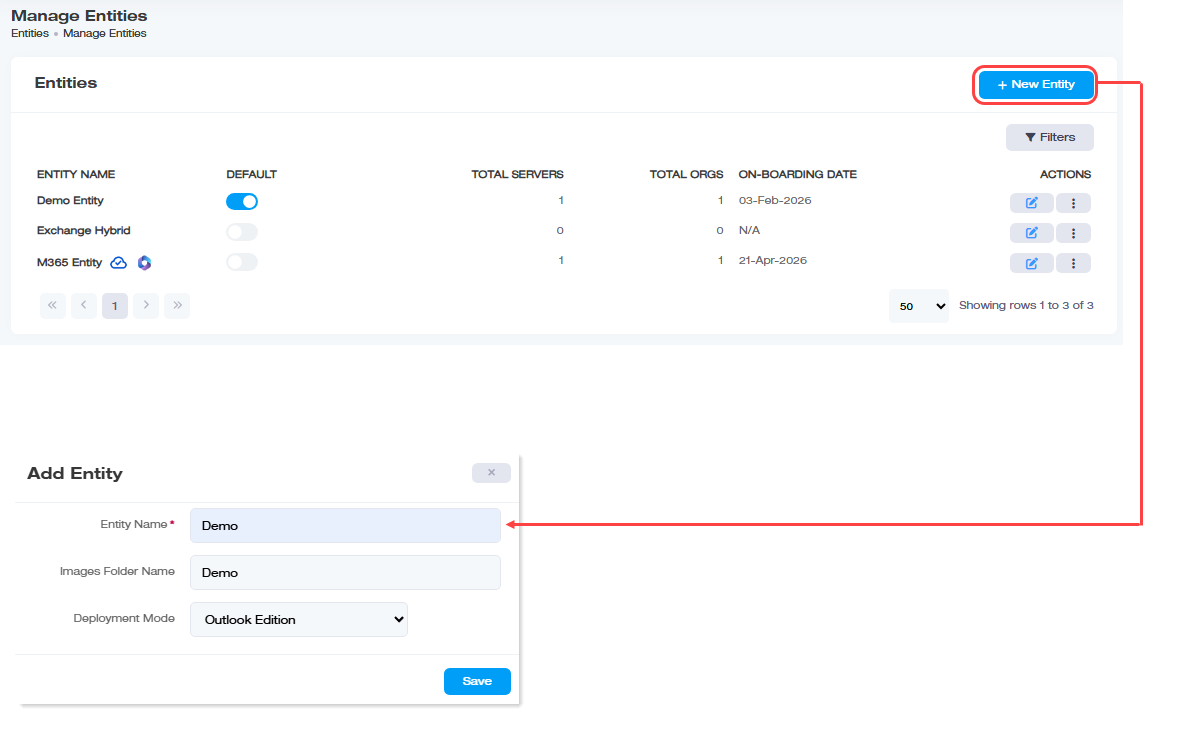
| Field | What to Enter |
| Entity Name | A friendly name for this Exchange organization (Exchange forest). |
| Images Folder Name | A folder name that will be created on the Portal server to hold this entity's images. |
| Deployment Mode | Select Transport Agent Edition for server-side signatures or Outlook Edition for client-side signatures. If you're planning to run Hybrid Mode (server-side plus client-side stamping via the Outlook Add-in), select Transport Agent Edition. There's no separate "Hybrid" option at creation time; you enable Hybrid Mode afterward on top of a Transport Agent Edition entity: see Manage Outlook Add-in below. |
Adding an Organization
Navigate to the left menu, under View by Entities, and click Organizations. Click + New Organization and provide:
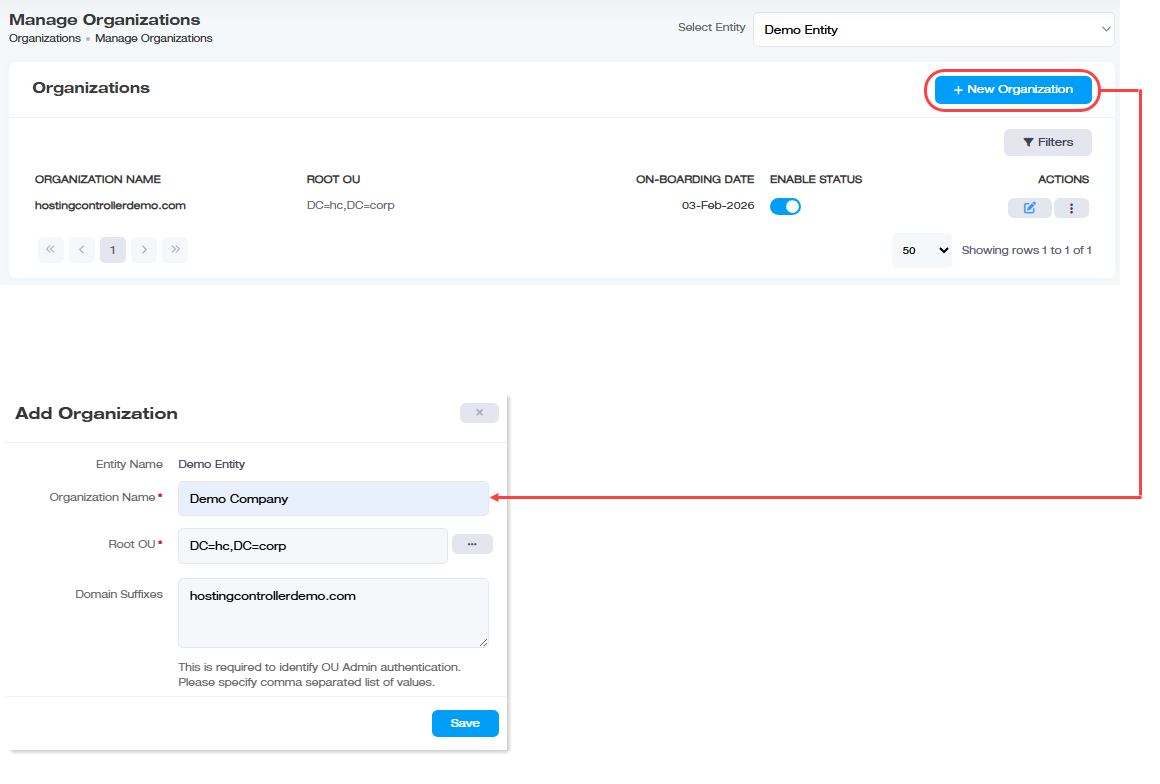
| Field | What to Enter |
| Entity Name | Which entity this organization belongs to (use Select Entity to change it) |
| Organization Name | A name for the organization. |
| Root OU | The topmost OU for this organization, use the picker to select it |
| Domain Suffixes | One or more comma-separated UPN suffixes for this entity's OUs. |
Viewing Organizations
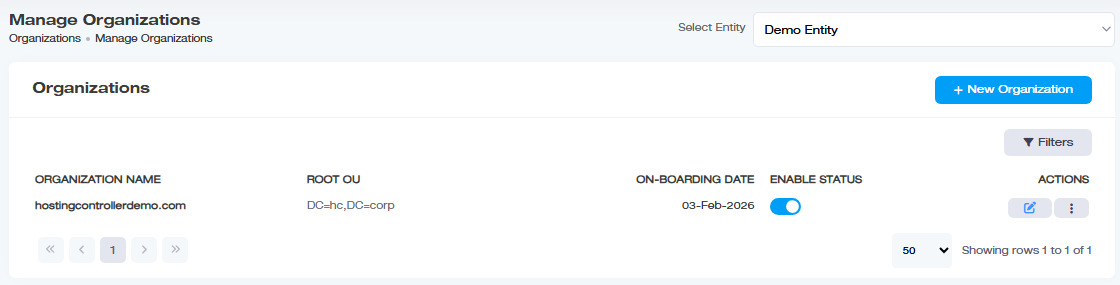
The Organizations list shows Organization Name, Root OU, On-Boarding Date, and Actions.
Configuring Entities and Organizations Further
Once created, both entities and organizations have additional settings, reachable from their respective Actions menus.
Controlling How and Where Signatures Get Applied
- Sent Items Settings (entity-level): enable Update Sent Items to keep mailboxes' Sent Items folders showing the stamped version of what was sent. Optionally enable Create Copy to preserve the original, unstamped message too. Choose which organizations' mailboxes this applies to.
- Split Message Settings (entity-level): lets you apply banners to some users/organizations and exclude others. Anything on the exception list is skipped; everything else gets the banner.
- Plain Text to HTML (organization-level): normally, a plain-text reply/forward keeps a plain-text signature. Enable this to convert plain-text messages to HTML before stamping, so HTML signatures can still be applied. You can also set the font family and size used for the converted text, with a live preview.
- Exclude Stamping (both entity and organization level): comma-separated email addresses to skip during stamping. Note the precedence rule: an address on the entity's exclude list stays excluded even if it's not on the organization's own list, the entity-level exclusion always wins.
Setting Limits and Quotas
- Max Banners Limit (entity-level): Caps the total number of banners the entity can publish (e.g., a limit of 3 blocks a 4th from being published).
- Set Quota (organization-level): Separately caps the number of rules and the number of banners that a specific organization can create.
- License Quota (both entity and organization level): Allocates mailbox licenses out of your total pool. Entity-level quotas are always available; organization-level quotas only take effect if Set Org. License Capacity is enabled under Configuring Your Environment. See Licensing for how the overall mailbox-based model works.
Keeping License Usage Accurate
- Sync Deleted Items (entity-level): When a mailbox is deleted (e.g., an employee leaves), its license isn't automatically freed. Enable Auto Sync to have ExSign check for deleted mailboxes daily at 1:00 AM and release their licenses back to the pool automatically, or use Trigger Now to force a sync immediately instead of waiting.
QR Codes and vCards (Organization-level)
Signatures can include a scannable QR code, but only one per signature, and you'll choose between two types:
- Internal (vCard): displays the user's built-in digital business card (name, photo, contact details) when scanned.
- External: a standard QR code showing custom attributes you define instead of a vCard. Configure a Placeholder (which AD attributes to show), a Processing URL (where the attributes get appended), and the code's Width/Height in pixels.
if you switch a QR code from Internal to External, the vCard stops appearing in the Portal going forward, but it remains functional in any emails that were already sent with it.
Troubleshooting Stamping Placement (Entity-level)
If signatures start appearing in the wrong place, for example, at the bottom of an entire reply thread instead of directly under the new message, enable Troubleshooting, provide a Sender Email and Test Subject, and ExSign will generate diagnostic logs (in .eml format) you can review under Troubleshooting Logs.
Outlook Add-in for Hybrid Mode (Entity-level)
If this entity runs in Hybrid Mode (both server-side and client-side stamping), it should already be a Transport Agent Edition entity (see Deployment Mode above), Hybrid Mode is enabled on top of that, not a separate entity type. Download the Outlook Add-in Manifest (.xml) from Manage Outlook Add-in, then deploy it through the Exchange Admin Center (EAC). Once deployed, users automatically get the ExSign add-in in Outlook, letting them see and interact with signatures while composing, while OWA and other clients continue to receive server-side stamping as usual. See ExSign Outlook Add-in Configurations for deployment steps.