| Product Documentation
ExSign
CMS Settings for Exchange Server
ExSign's CMS lets the ExSign Admin control the branding and legal/business content of the system, such as Terms and Conditions, Privacy Policy, etc. This content is displayed when you click the relevant buttons on the login page of the ExSign Portal, the same page every admin sees before they even log in.
Editing Your Login Page Content
Three pieces of content are editable here, each through the same simple content editor:
| Content | What It Is For? |
| Terms and Conditions | Your company's terms, if you choose to show the “Terms and Conditions” button on the login page of the ExSign Portal. |
| Privacy Policy | Your company's privacy policy, if you choose to show the “Privacy Policy” button on the login page. |
| Forgot Password Text |
To edit any of these, go to CMS, select the relevant section, and use the built-in editor to add or update the content. Changes take effect on the login page immediately.
Viewing Existing Custom Menus
Navigate to CMS >> Custom Menus to see what's already been added:
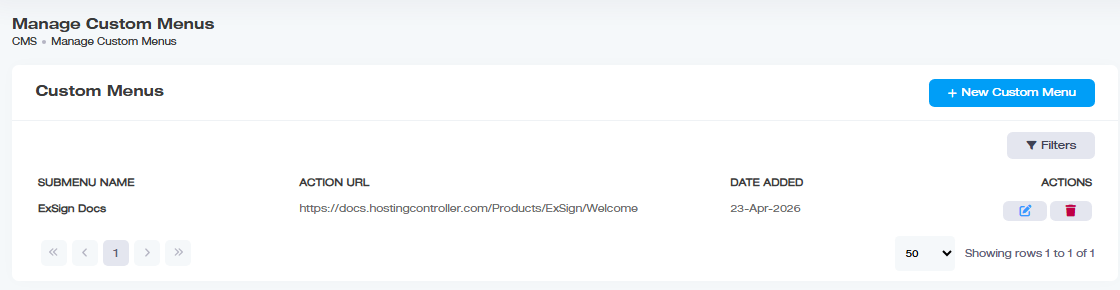
| Column | Shows |
| Submenu Name | The name of the custom menu |
| Action URL | Where it takes the user when clicked |
| Date Added | When it was created |
| Actions | Actions |
Adding Custom Menus
Beyond the built-in menus, you can add your own custom menu items to the ExSign interface, useful for things like linking to an internal support wiki, a company intranet page, or a "Contact IT" form. Each custom menu just points to a URL, and you control which admin levels can see it.
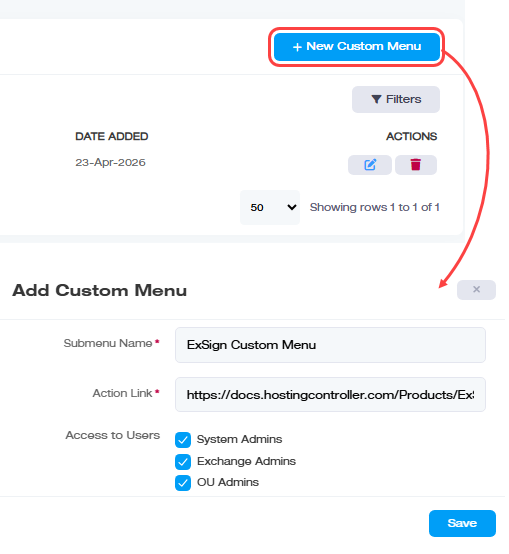
Click + New Custom Menu and provide:
- Submenu Name: What the menu item will be called in the interface.
- Action Link: The URL it should open when clicked.
- Access to Users: Which admin level(s) should be able to see and use this menu.
Editing or Removing a Custom Menu
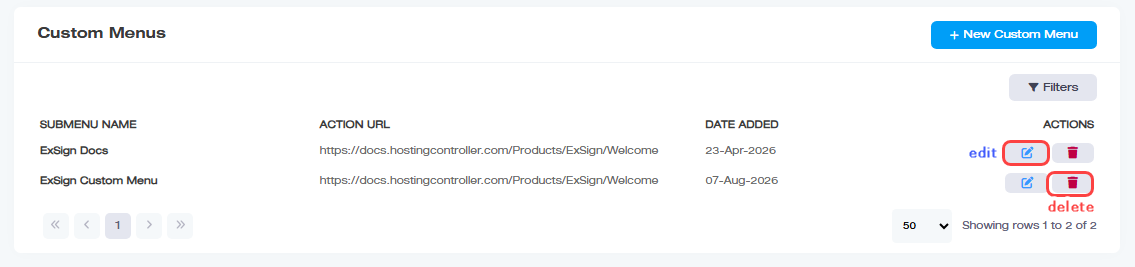
Under the Actions column for any menu, click  to update its details, or
  to remove it entirely.