| Product Documentation
ExSign
User Management
ExSign doesn't manage individual user accounts directly; every role is backed by a real Active Directory security group. Adding someone to the correct AD group is what actually grants them access; ExSign then authenticates them against AD using their UPN (User Principal Name) when they log in. ExSign works on the principle of group authentication and authenticates group members from Active Directory. The users then access the ExSign web interface over a secure connection with multiple security defences.
Choosing the Right Role
There are four roles in ExSign.
| Role | Can Do | Cannot Do |
| ExSign Admin | Most of the tasks; create and publish central rules, plus top-level settings (Portal URL, license activation, security config). Sort of a global admin. | Highest privilege level. |
| Exchange Admin | Publish, unpublish, edit, and delete rules; view, edit, delete, publish, and unpublish banners, across the entity. | Configure top-level system settings. |
| OU Admin | Add and edit rules and banners for their own organization only | Add further admins |
| Approval Manager | Approve or reject rule-publishing requests, if approval workflows are enabled (see Decide on an approval workflow) | Create, edit, or publish rules directly |
If you're not sure which role someone needs, give OU Admin to anyone who should only manage their own organization's signatures, Exchange Admin to anyone managing an entire entity, ExSign Admin only to the small group who should control system-wide settings, and Approval Manager to whoever should sign off on rule changes before they go live.
How Login Works
ExSign Admin, Exchange Admin, and Approval Manager all authenticate against the same Active Directory, referred to as the ExSign Portal Active Directory (the same one configured under Security >> System Auth Settings). Members log in with their UPN, and access is granted based on which security group they belong to.
Each OU Admin authenticates against their own entity's remote Active Directory. Here's how ExSign decides whether to let an OU Admin in:
- Each sub-OU in an entity's Active Directory is assigned a UPN suffix.
- That same UPN suffix must also be listed against the matching organization inside the ExSign Portal.
- When an OU Admin logs in with their UPN, ExSign checks whether their UPN's suffix matches one of the suffixes listed for that organization in ExSign.
- If it matches, they're let in. If it doesn't, login fails, even with otherwise-correct credentials.
Setting Up ExSign Admin Role
Set up the ExSign Admin role as part of the Portal installation. The Root OU you specify (for AD Group Auth) or the Admin User you designate (for Azure Auth) during setup, is where this group/user is established. See Installing the ExSign Web Portal.
Setting Up Exchange Admin Role
Create a new user in ExSign with the Entity Admin user role. This will create a security group of the same name in the ExSign Portal Active Directory. Then add members manually to the security group. Once added, these members can log in to ExSign with their UPN.
Setting Up OU Admin Role
Create a new user in ExSign with the OU Admin user role. This will create a security group of the same name in the OU's own remote Active Directory. Then add members manually to the security group. Once added, these members can log in to ExSign with their UPN.
Setting Up Approval Manager Role
Create a new user in ExSign with the Approval Manager user role. This will create a security group of the same name in the ExSign Portal Active Directory. Then add members manually to the security group. Once added, these members can log in to ExSign with their UPN.
Viewing All Users
Go to the left menu, under Main, and click Users to see everyone with ExSign access:
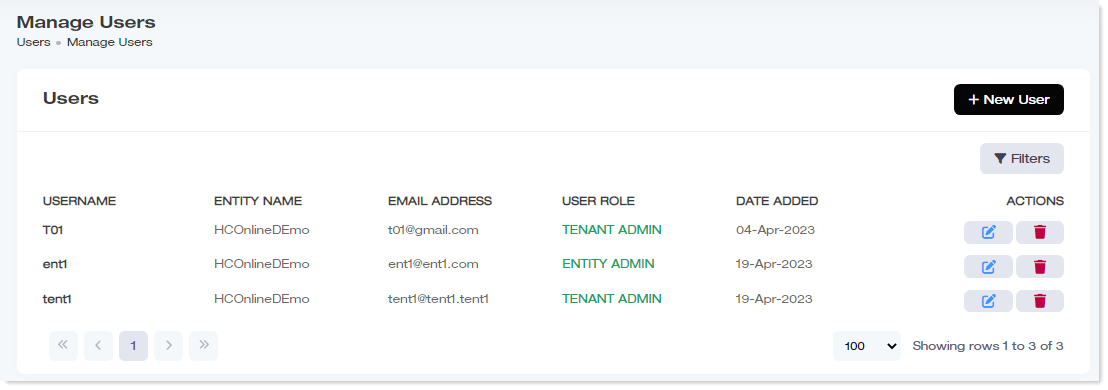
| Column | Shows |
| Username | The user's name |
| Entity Name | Which entity they belong to |
| Email Address | Their email address |
| User Role | Their assigned role |
| Date Added | When they were added |
| Actions |
Available actions for that user |
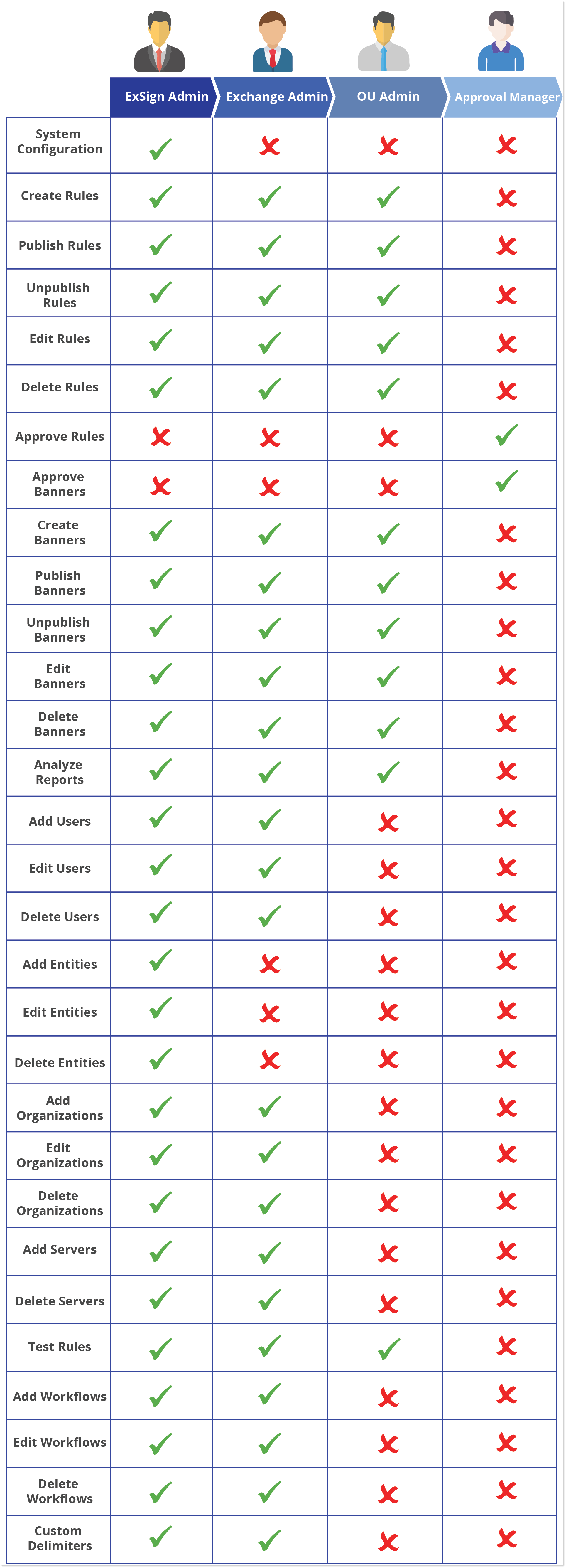
Role-Based Access Control
ExSign restricts access to its interface based on a user's role within an organization. Access control in ExSign is built around roles and privileges. Top-level users have more privileges while lower levels have fewer privileges. The role-based access control and user privileges built in ExSign can be viewed below: