
| Product Documentation
ExSign
Adding Entities and Organizations for Google Workspace
Understanding the Hierarchy
An Entity for Google Workspace is a logical construct, it has no physical presence or corresponding object in Google Workspace at all. It exists purely within ExSign as a container for one or more Google Workspace tenants.
Because Google Workspace is cloud-based, entities here are created as a "Cloud Entity" type designed specifically to manage cloud-based email environments.
A cloud Entity is one shared entity type, and a single Cloud Entity can house organizations from more than one cloud product at once (e.g., both Microsoft 365 and Google Workspace tenants under the same entity).
Viewing Entities
Go to the left menu, under Main, and then click Entities:
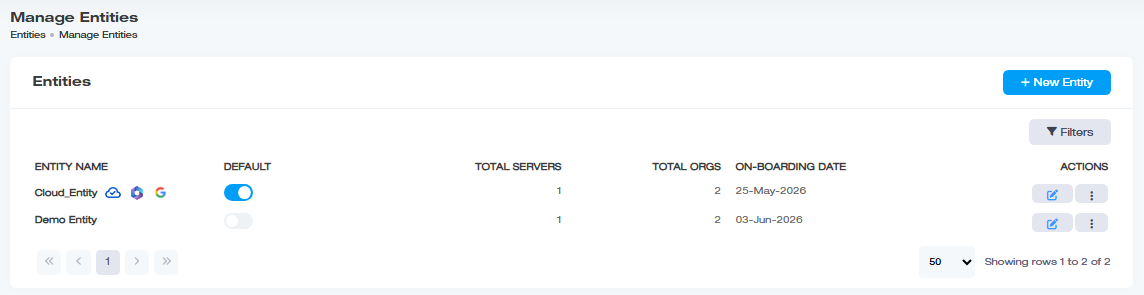
| Setting | What It Controls |
| Entity Name | Name of the cloud entity |
| Default | A toggle switch; click it directly on this list to change which entity is default. The default entity automatically receives every newly onboarded Google Workspace tenant unless assigned elsewhere, a more specific mechanism than the generic "default or not" description given for Exchange and M365's equivalent column |
| Total Servers | Number of servers associated with this entity |
| Total ORGs | Number of Google Workspace tenants under this entity. Organization here means a Google Workspace tenant |
| Onboarding Date | When the entity was added |
| Actions |
Edit and other entity actions |
Adding an Entity
Click + New Entity, and then Add Cloud Entity, and provide:
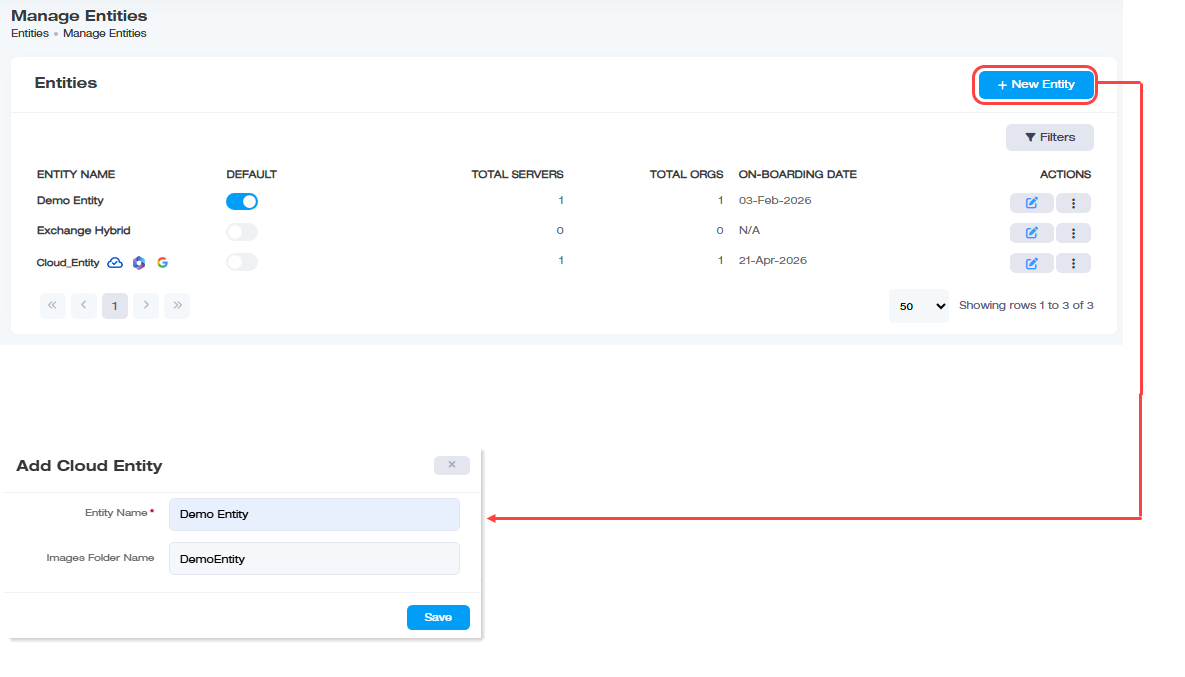
| Setting | What It Controls |
| Entity Name (required) | A friendly name for this logical grouping |
| Images Folder Name | A folder name created on the Portal server to hold this entity's images |
Configuring Entities Further
Controlling how and where signatures get applied.
- Sent Items Settings: Enable Update Sent Items to keep mailboxes' Sent Items folders showing the stamped version of what was sent, optionally with Create Copy to preserve the original.
- Split Message Settings: Apply banners to some organizations/users and exclude others, same mechanism as Exchange.
- Exclude Stamping:
Setting Limits and Quotas
- Max Banners Limit: caps total banners the entity can publish.
- License Quota: allocates mailbox licenses out of your total pool, same mechanism as Exchange.
Keeping License Usage Accurate
- Sync Deleted Items: frees licenses from deleted mailboxes, with Auto Sync (daily at 1:00 AM) or Trigger Now for an immediate sync, identical to Exchange.
Troubleshooting Stamping Placement
Enable Troubleshooting, provide a Sender Email and Test Subject, and review generated .eml diagnostic logs.
Google Connector Settings
Go to the entity's Actions menu and select Google Connector Settings. This creates the Inbound/Outbound connectors for your organizations.
| Field | What to Enter |
| ExSign Inbound Connector, IP Addresses (required) | A comma-separated list of IP addresses. Incoming messages are identified by checking that the sending server's IP falls within this list |
| ExSign Outbound Connector, Smart Host (required) | An IP address or certificate name to route outgoing messages through |
Click Update to apply.
Deleting an Entity
To remove any entity, under Actions column, click  and then Delete.
Adding an Organization
Each organization you create is individually assigned a platform, so the same entity can hold a Google Workspace organization and a Microsoft 365 organization side by side.
Go to the left menu, under View by Entities, click Organizations, then + New Organization:
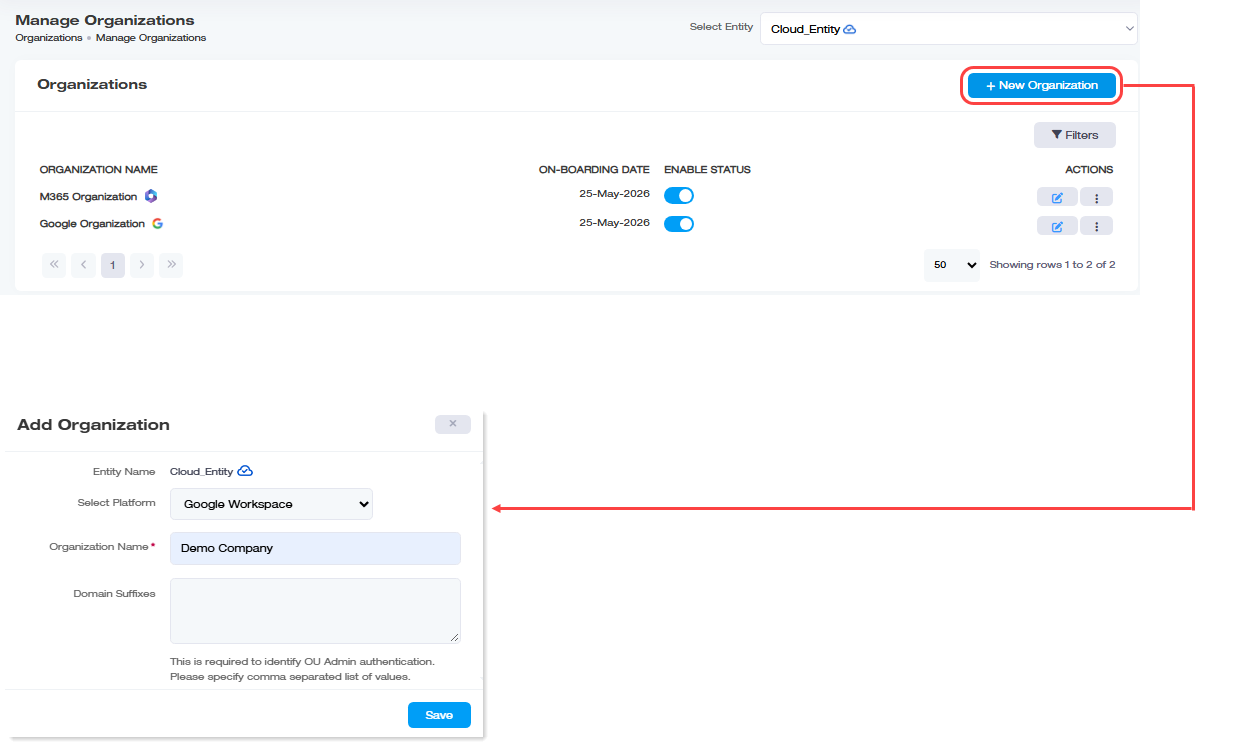
| Field | What to Enter |
| Entity Name | Which entity this organization belongs to |
| Select Platform | The cloud platform this organization connects to, choose Google Workspace here |
| Organization Name |
A friendly name for this Google Workspace organization |
| Domain Suffixes | Domains for this Google Workspace organization. Each Google Workspace organization is?assigned?domains. Those same domains must also be listed against the matching organization inside the?ExSign?Portal. When an OU Admin logs in with their credentials,?ExSign?checks whether their domains match one of the domains listed for that organization?in?ExSign.??If it matches,?the OU Admin is?let in. If it?doesn't, login fails,?even with otherwise-correct credentials |
Viewing Organizations
The list shows Organization Name, On-Boarding Date, Enable Status (enabled/disabled), and Actions.
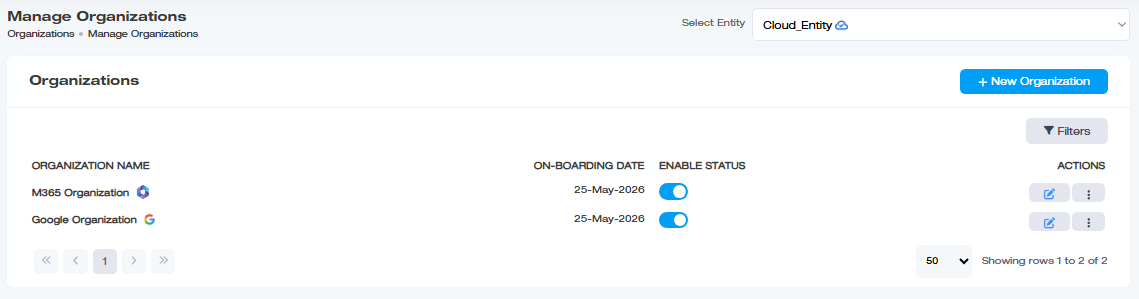
| Field | What It Shows |
| Organization Name | It is the name of the organization |
| On-Boarding Date | shows the date of creation |
| Enable Status | It allows you to set status of the organization like enable/disable |
| Actions | It allows to perform various other actions |
How to Create an Entity and Organization
Watch the video tutorial to see how to quickly deploy an entity and organization in ExSign for Google Workspace.
Configuring an Organization Further
QR Codes and vCards
Click QR Code under Actions.
- Internal (vCard): Displays the user's built-in digital business card when scanned. See Designing vCards for how the vCard itself gets built, now confirmed relevant here too.
- External: A standard QR code showing custom attributes (Placeholder, Processing URL, Width, Height) instead of a vCard.
Placeholders use dynamic values for user attributes, where values are fetched directly from the Active Directory. To see how QR codes work, see QR Codes in ExSign Signatures.
Only one QR code (Internal or External) per signature, and switching from Internal to External keeps the vCard working in already-sent emails but removes it from the Portal going forward.
Limits and License Quota
- Set Quota: caps the number of rules and banners this organization can create.
- Plain Text to HTML: Convert plain-text replies/forwards to HTML before stamping, with font family/size and preview, same as Exchange.
- Exclude Stamping: Comma-separated addresses to skip, with the same entity-overrides-organization precedence rule as Exchange.
- License Quota: Only takes effect if organization license capacity is enabled under System > General Settings (confirmed here as being described at the Entity Admin level, see the terminology note below).
Sync M365 User Profiles
Pulls the latest user profile data from Google Workspace immediately, rather than waiting for the next scheduled sync. To sync a user profile, Click  under Actions column and then Sync Users Profiles.
Deleting an Organization
To remove any organization, Click under Actions column and then Delete.