
| Product Documentation
ExSign
Active Directory User Photos in Signatures
One of the most critical elements of any email signature is a high-resolution photo of the sender. ExSign enables you to retrieve user photos from Active Directory and use them in email signatures. User photos are pulled from the thumbnailPhoto attribute in Active Directory and can be inserted directly into the ExSign editor for use in email signatures.
Scenario
Consider a case where you may want users to use their Active Directory photos in their email signatures, with the image displayed to the left of their profile details.
How to Achieve This with ExSign
To achieve this with ExSign, create a rule for the organization whose members should have their user photos displayed in their email signatures. Then insert a placeholder for their photographs in the editor through the Thumbnail Photo button.
Follow the steps below to practically achieve this with ExSign:
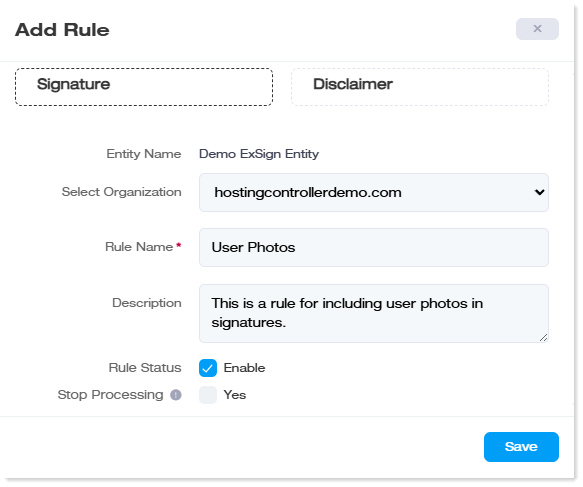
- Create a new rule and call it “User Photos”.
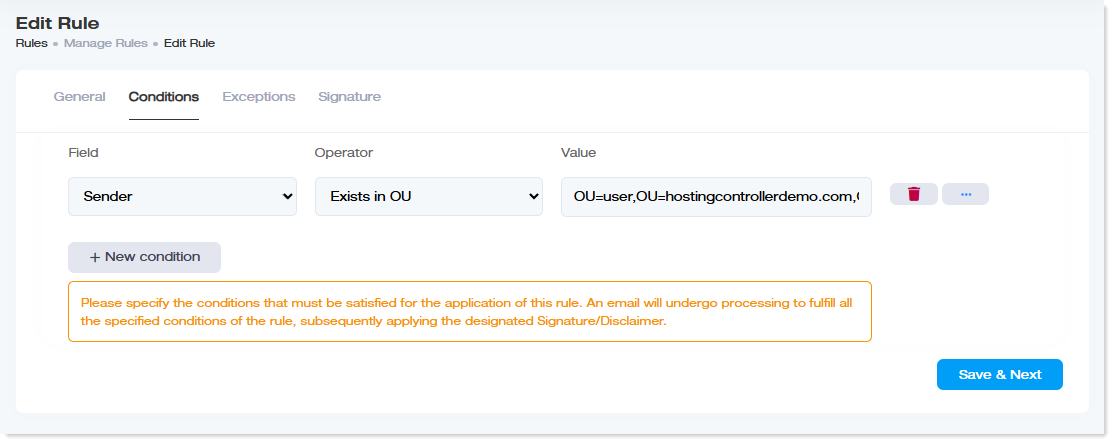
- In the Conditions tab, add a new condition where Sender Exists in OU. Provide a value for a sub-OU for whose members their photos will be included in their signatures. Then click Save & Next.
- In the Signature tab, either create your signature from scratch or choose a predefined template. Click
 to insert a user photo placeholder to the left of the profile details in the editor.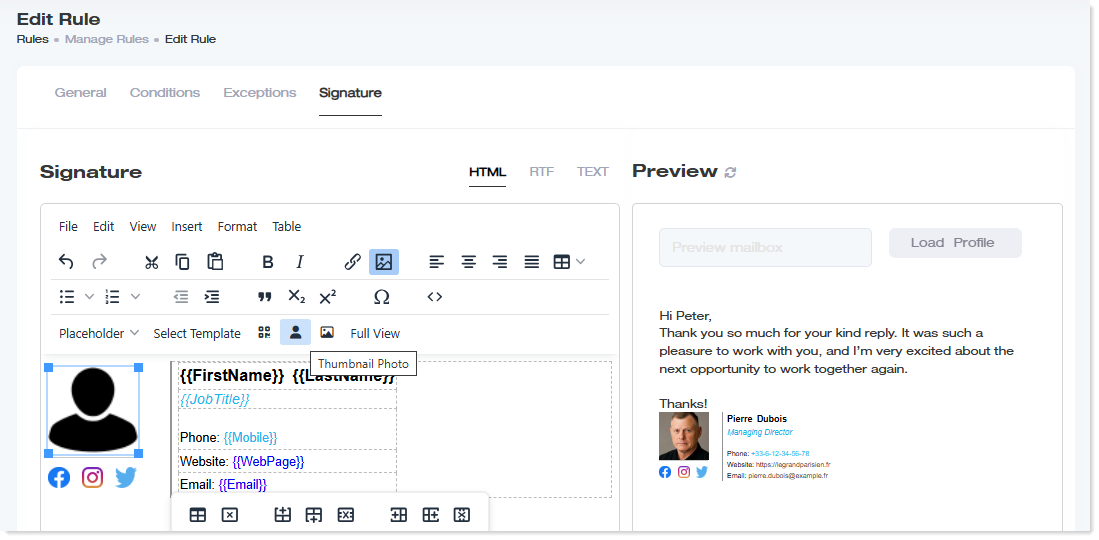
- That's it! Now, whenever members of this sub-OU send emails, their email signatures will include their profile photos, pulled directly from the Active Directory.