
| Product Documentation
ExSign
Publishing and Managing Rules for M365
Publishing a Rule
A rule has no effect until it's published.
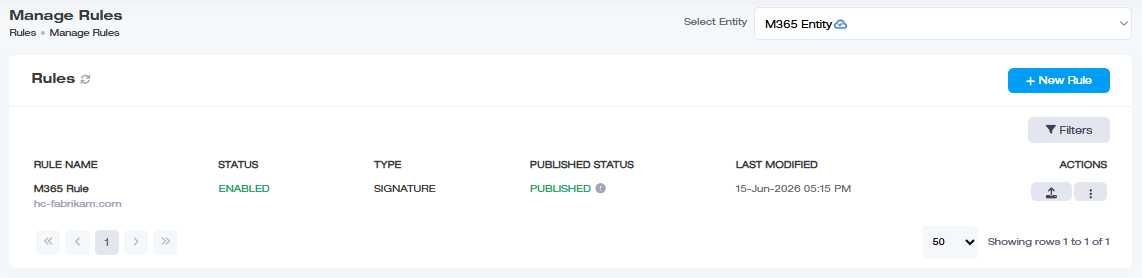
To manage and publish rules, navigate to the left menu under View by Entities and then Rules.
Reusing a Rule
Need a similar rule for a different department, with only minor changes. Use Make a Copy (under Actions) to clone an existing rule, adjust what's different, and save, instead of building it from scratch. See Reusing an Existing Rule?for a worked example.
Auditing and Reverting Changes
A rule can always be edited if it needs amendments. When a rule is edited, ExSign allows you to compare the original and the edited version before it can finally be republished. This review allows you to compare all the changes side by side and revert any if not required.
To review the changes made to the rule, click  under Actions column and then click Review Changes.
- Published: This section displays the rule that is currently in use. It displays the name of the rule, its status, conditions, and a preview of the current signature.
- Edited: This section displays what the rule will look like after being edited. It displays the new name of the rule (after editing), its new status, new conditions, and a preview of the edited signature.
- Revert Changes: Clicking this button will undo changes made to the current rule.
- Publish Now: Clicking this button will publish the newly edited rule.
Removing a Rule
To remove a rule, click under Actions column and then Delete. Unlike deleting a server, there's no prerequisite step here, a rule can be deleted directly.