
| Product Documentation
ExSign
Choosing Outlook Edition
ExSign Outlook Edition for Exchange Server is a client-side signature management software that adds signatures directly to the email body as users type in their messages in Outlook. It is ExSign's client-side alternative to its standard server-side stamping. It gives senders more control over email signatures but only works with Outlook.
Should You Use It?
If you haven't already, read Server-side vs. Client-side Email Signatures; that page covers the general trade-off between server-side signatures and client-side signatures. Outlook Edition is ExSign's way of offering the client-side approach without giving up central management: signatures still live in the ExSign Web Portal and are still pushed out automatically, but they're inserted by Outlook itself as the user types, instead of by the Exchange server after the message is sent.
Organizations tend to reach for this when they want:
- Zero changes to Exchange transport. No Transport Agent installed on Mailbox Servers, a good fit if your Exchange environment needs to stay untouched.
- Live, in-body signatures. Users see the signature in place as they compose, reply, or forward, not just after the email is sent.
How It Works?
- Sender logs in to its PC.
- The ExSignClient.exe is automatically deployed to the PC (Adds/Updates signature to Outlook).
- As the user composes a new email or replies/forwards an email, signatures appear in the email body.
- Sender submits email.
- Uses Microsoft Exchange’s native transport service to deliver email.
- Recipient receives a stamped email.
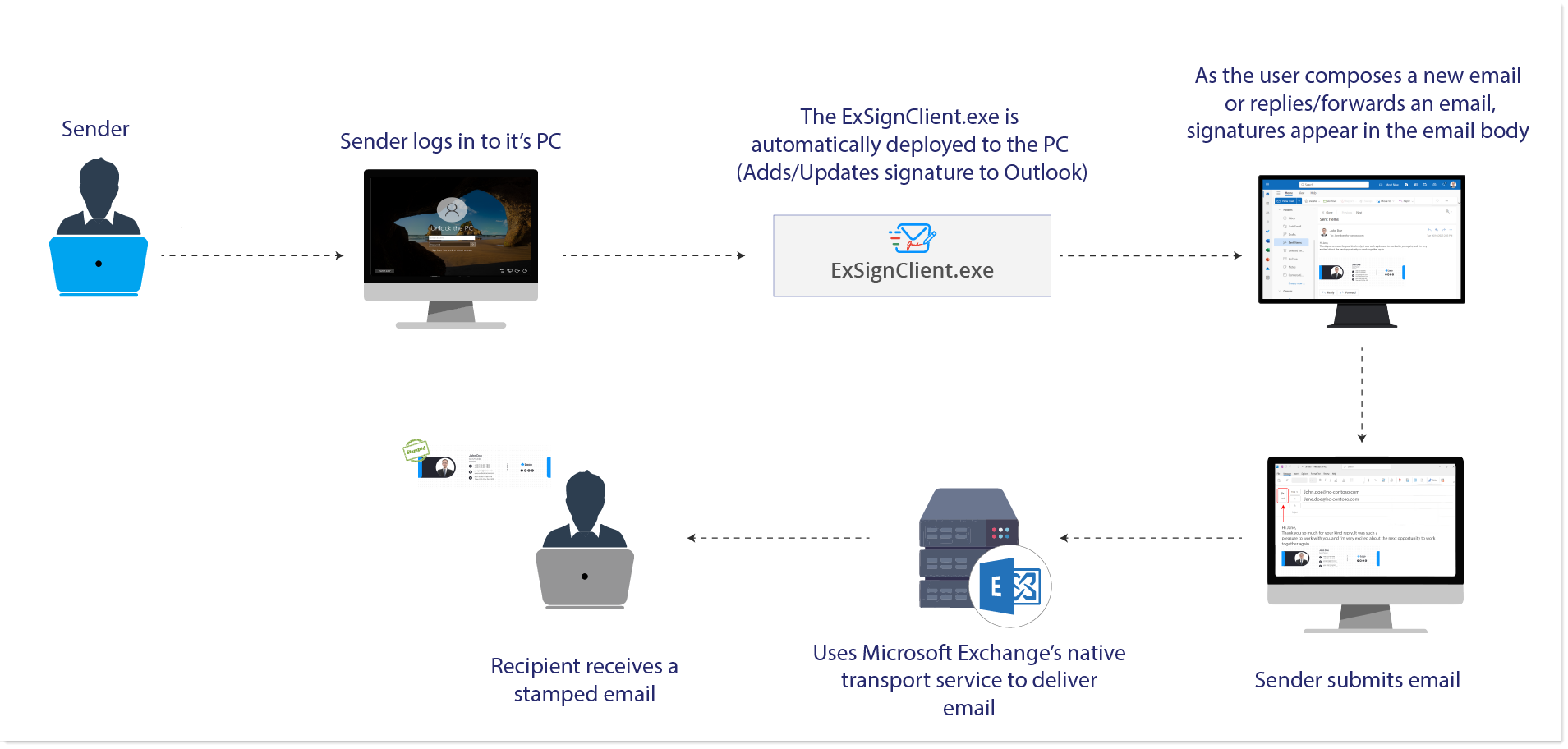
How Outlook Edition Stamps Signatures
See how the Outlook Edition inserts signatures to email messages as a sender composes an email.
What's Different Architecturally
The ExSign Portal and the ExSign Transport Agent work exactly as described in How ExSign Works, with the same rules engine and the same central source of truth. Two things change here, however:
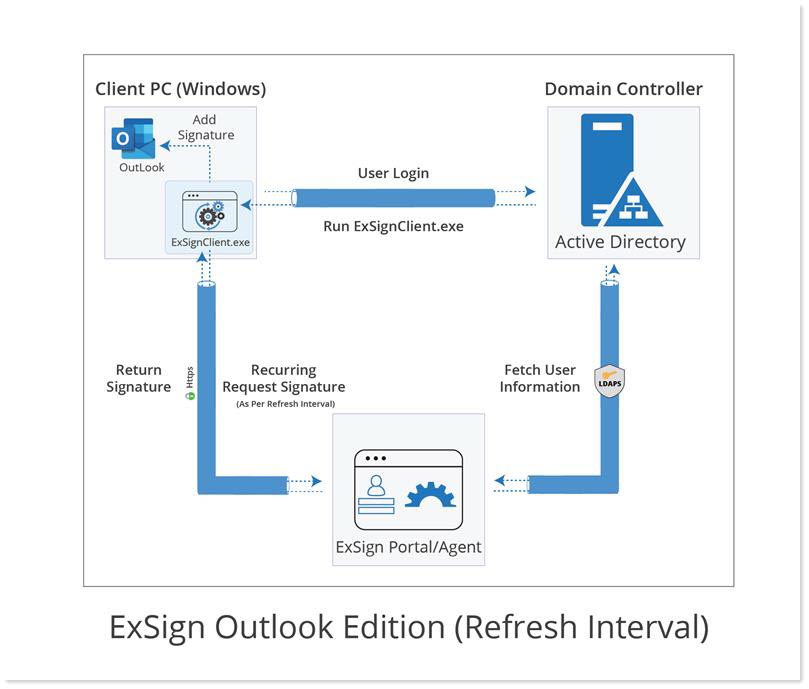
- The Agent doesn't sit on your Exchange Mailbox Servers. It runs on any domain-joined machine (the Portal server or a separate one) and only needs LDAP access to your Exchange Active Directory; it never touches Exchange transport directly.
- There's a new component: ExSignClient.exe, which runs on every user's PC. It checks in with the Portal (once at logon, or on a timer you configure) and applies any new or updated signature to that user's Outlook. This exe is designed to periodically update Outlook signatures while using minimal processing and memory resources. It establishes communication with the ExSign Portal to retrieve user signatures and updated AD profiles and deploy them in Outlook. The communication can be configured to run either once at the system logon or at a specified time interval (in minutes).
- Initially, a copy of ExSignClient.exe can be obtained by logging in to the ExSign Portal and downloading the utility from the specific entity configured for Outlook Edition. It can then be deployed via Logon Script or Group Policy Object (GPO).
Setting It Up
The rest of the entity management works exactly as described in the Adding Entities and Organizations section. The only Outlook Edition-specific parts are below:
- Create the entity as Outlook Edition: When adding a new entity, set Deployment Mode to Outlook Edition. Everything else on that form (entity name, images folder) is the same as any other entity.
- Download and Deploy the Client Utility : This is the one genuinely new task in this edition: getting ExSignClient.exe running on every client PC.
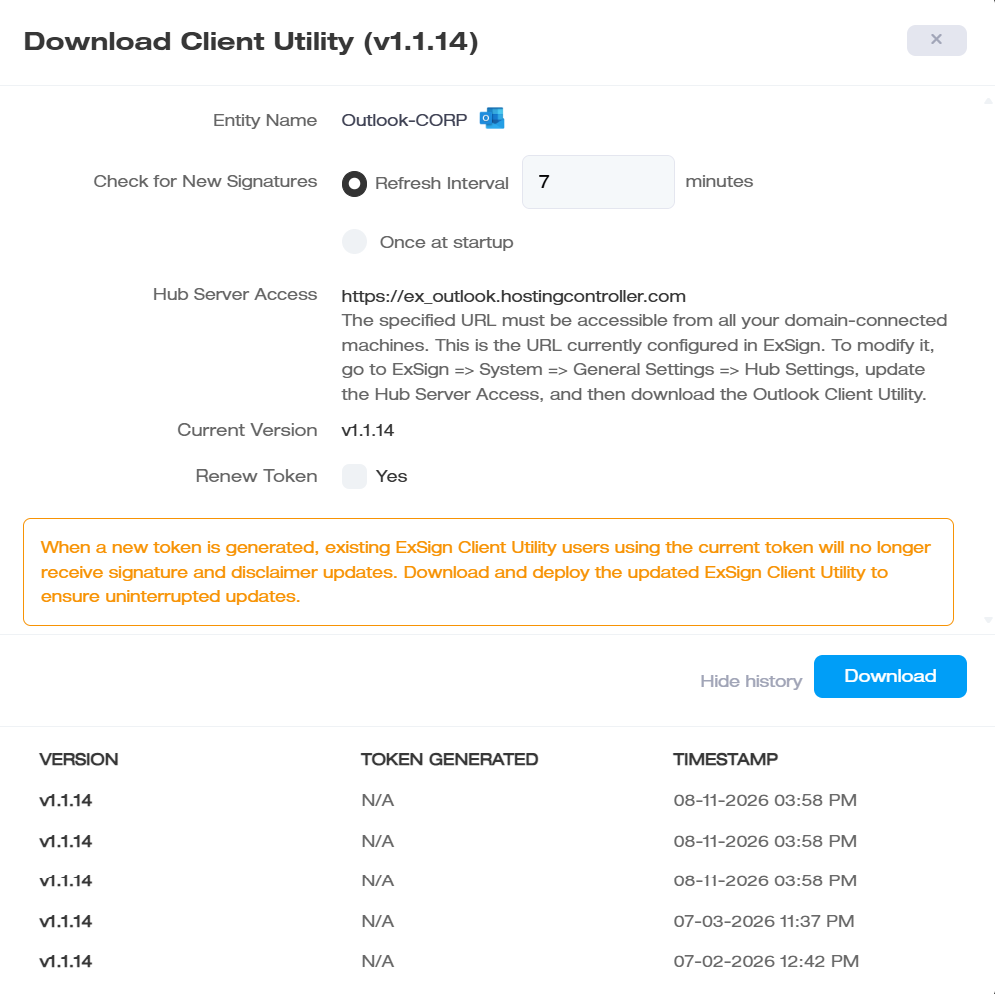
- From the entity's Actions menu, choose Download Client Utility. You'll get a ZIP with four files: ExSignClient.exe, ExSignClient.exe.config, System.Net.HTTP.dll, and Newtonsoft.json.dll.
- Unzip all four files, with no subfolders, into
\\{ADMachine}\sysvol\{Domain.com}\scriptson the entity's domain controller. - Add ExSignClient.exe to the logon script for each user's profile (or deploy via GPO).
- Before downloading, double check two settings on the same screen:
- Refresh Interval: how often (in minutes) each PC checks for a new/updated signature, or set it to Once at startup to check only at login.
- Hub Server Access: the URL client PCs use to reach the Portal. This must be reachable from every domain-connected PC; if it's changed, update it here before redistributing the utility, or existing clients will fail to check in.
-
Create rules and signatures as usual: Rules, conditions, exceptions, and signature design all work exactly as described in Creating a Rule, Setting Conditions and Exceptions, and Designing Your Signature, none of that changes for Outlook Edition. The only difference is where the signature ends up appearing (in Outlook itself, per the flow above) rather than how you build it.
Server-side vs Client-side
|
For Exchange |
For Exchange Outlook |
|
Uses Microsoft Exchange (on-premises, hybrid setups). |
Uses Microsoft Exchange (on-premises, hybrid setups). |
|
Works with all email clients & devices |
Works only with Outlook |
|
A signature is added after an email is sent (but users can see signatures in their sent items folder.) |
A signature is added directly to the email as the user types. The signature is visible in the sent items folder as it becomes part of body. |
|
No add-in deployment is required. |
ExSignClient.exe deployment is required. |
|
Signature applied to reply or forwarded messages. |
Signature applied to reply or forwarded messages. |
|
Server-side signatures. Users have less control over their email signatures. |
Client-side signatures. Provides users with more control over their email signatures. |
|
Signatures are available in rich text format (RTF). |
Rich text format (RTF) is not available. |