
| Product Documentation
ExSign
Viewing Orders for Cloud Signature
Every subscription purchase creates an order with a unique order number. Use Orders to review purchase history, payment status, mailbox quantity, and billing cycle.
To place a new order, see How to Buy.
Open Order History
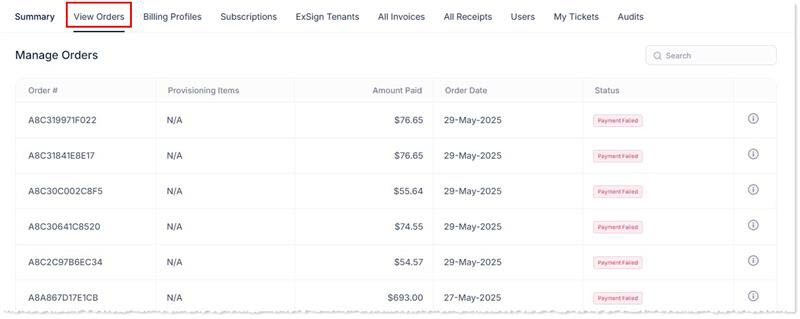
- Sign in to the Billing Portal
- Click Orders.
What the Orders List Shows
| Field | Meaning |
| Order Number | Unique ID for the order |
| Amount Paid | Total paid for the order, including tax |
| Order Date | Date the order was placed |
| Status |
Payment result, such as Successful or Payment Failed |
When you place an order, ExSign also generates an invoice. See Managing Invoices.
View Order Details
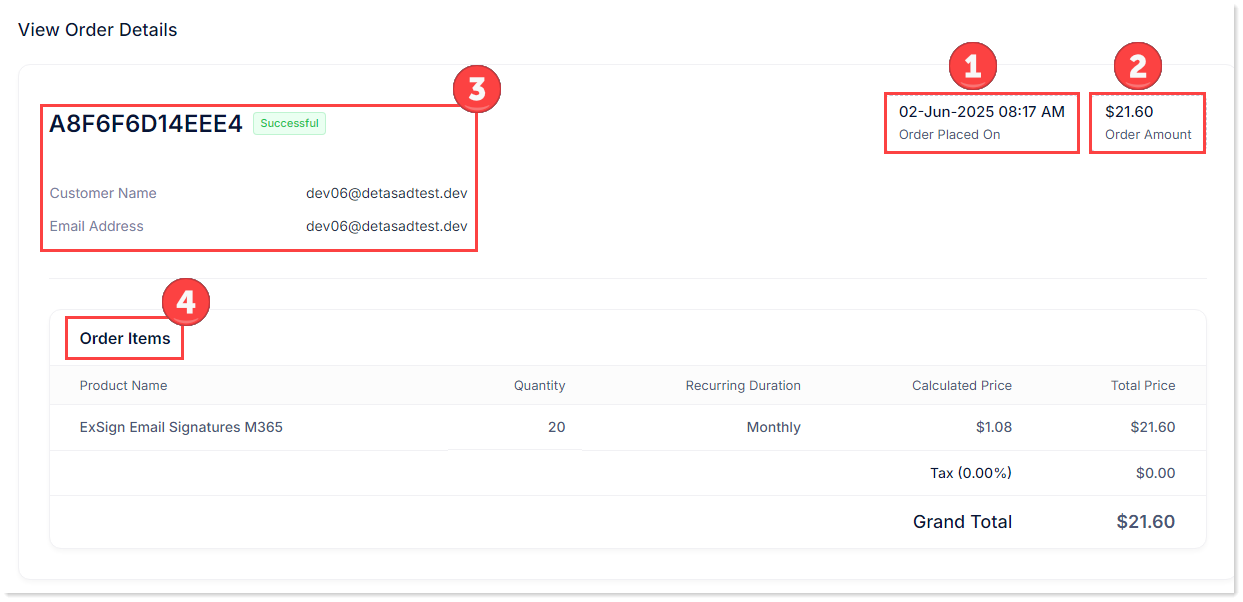
- On the Orders list, open the details action for the order.
- Review:
| Detail | Meaning |
| Order Placed On | Date the order was placed |
| Order Amount | Total amount, including taxes |
| Order Number | Unique order number, plus related organization/email information when shown |
| Product Name | ExSign Cloud Signatures product line for the purchase |
| Quantity |
Number of mailboxes purchased |
| Recurring Duration |
Billing cycle: monthly or yearly |
| Calculated Price |
Price per mailbox for the selected billing cycle |
| Total Price |
Order total, including tax |