
| Product Documentation
ExSign
Managing Subscriptions for Cloud Signatures
ExSign Cloud licenses are sold as subscriptions. Each subscription covers a quantity of mailboxes for your onboarded Microsoft 365 and/or Google Workspace organizations. Signatures are applied only within the mailbox quantity assigned to the organization.
You can buy monthly or yearly subscriptions. Yearly billing offers a lower effective monthly rate. See Licensing and How to Buy.
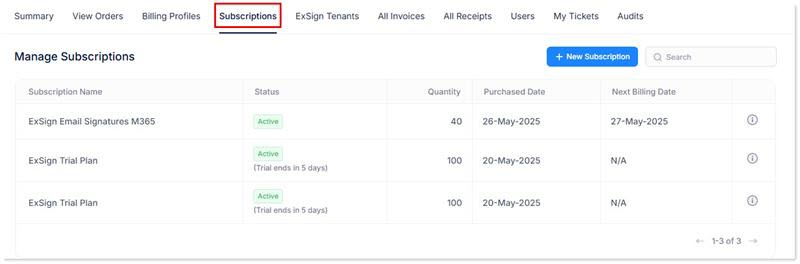
Open Subscriptions
- Sign in to the Billing Portal
- Click Subscriptions.
What the Subscription Shows
| Field | What to Enter |
| Subscription Name | Name of the subscription. Trial plans are labeled as trial; paid plans use the ExSign Cloud product name |
| Status | Active or Inactive |
| Quantity | Number of mailboxes in the subscription |
| Purchased Date | Date the subscription was purchased |
| Next Billing Date | Next charge date (one month or one year from purchase, based on the billing cycle) |
View Subscription Details
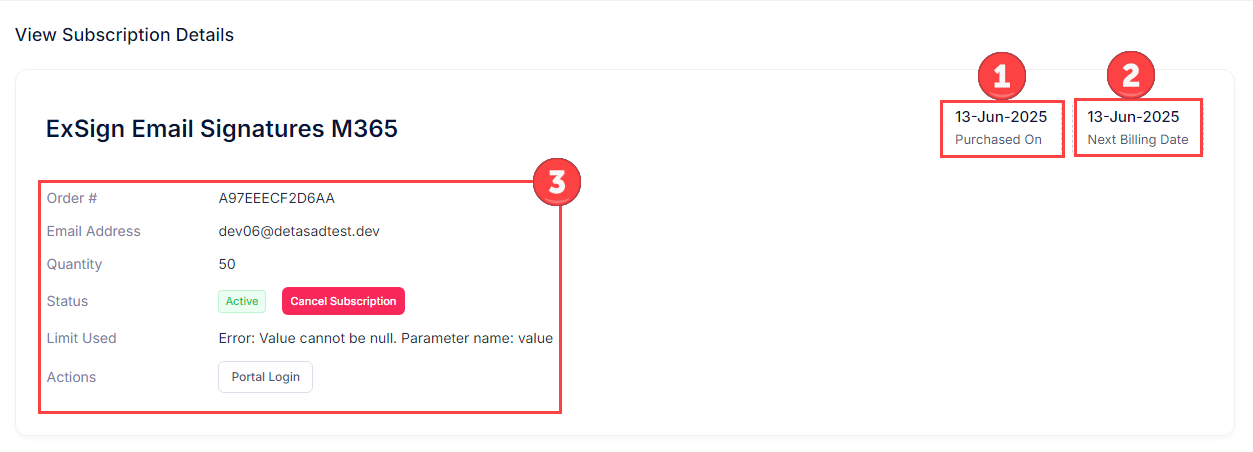
- Open the details action for a subscription.
- Review:
| Detail | Meaning |
| Purchased On | Purchase date |
| Next Billing Date | Next bill due date |
| Order # | Related unique order number |
| Email Address | Admin email for the related tenant/organization |
| Quantity | Total mailboxes purchased |
| Status |
Active or inactive; you can cancel while the subscription is active |
| Limit Used |
Usage against the assigned mailbox limit |
| Actions |
Open the ExSign Portal for the related organization when available |
Cancel a Subscription
Subscriptions renew automatically unless you cancel them.
- Open Subscriptions.
- Open the subscription you want to cancel.
- Click Cancel Subscription.
- Confirm the cancellation.