
| Product Documentation
ExSign
Notifications and Alerts
ExSign can alert admins via email, SMS, or in-app notifications when certain events occur, such as an entity boarding the platform. Set these up in this order: get delivery working first, then customize what gets sent, then know how to check on it later.
Set Up Email Delivery
Navigate to Notifications >> Notification Delivery Settings >> Email Delivery Settings. This tells ExSign how to reach your outgoing mail server; nothing will be delivered by email until this is configured. Required fields are marked in red in the interface, and they cannot be left empty.
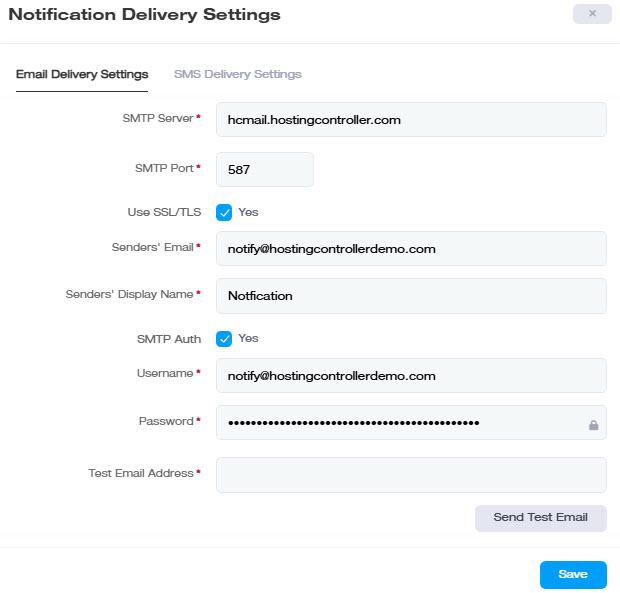
| Field | What to Enter |
| SMTP Server | Your mail server's SMTP address. |
| SMTP Port | Usually 25, unless your provider specifies otherwise. |
| Use SSL/TLS | Check this if you want notification emails encrypted in transit. Emails sent over an SSL connection are encrypted and impossible to read in transit. ExSign also supports TLS, which is simply an updated, more secure version of SSL. |
| Senders' Email | The address recipients will see as the sender. |
| Senders' Display Name | The name recipients will see as the sender. |
| SMTP Auth | If selected, it requires the mail server to authenticate emails. The user specified for sending emails must identify himself, and after successful authentication, emails are transmitted. |
| Username / Password | Credentials for the account that has to identify itself, if SMTP Auth is on. |
Before moving on, verify it actually works: enter a To Email Address and click Send Test Email. Don't consider this step done until a test email actually arrives; a saved configuration doesn't guarantee a working one.
Set Up SMS Delivery
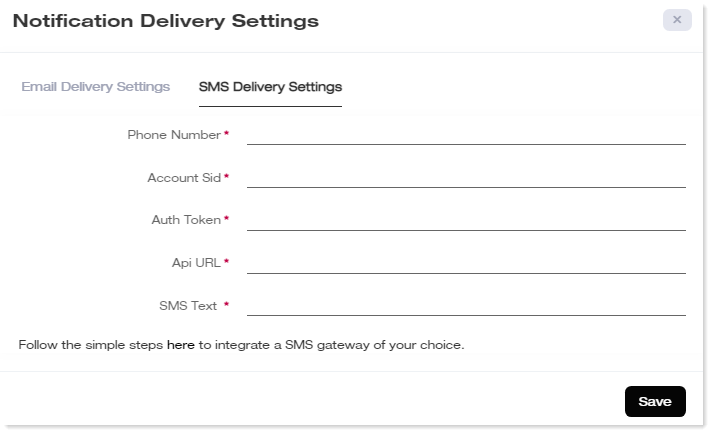
Navigate to Notifications >> Notification Delivery Settings >> SMS Delivery Settings if you also want notifications sent by text message.
Customize Notification Templates
Navigate to Notifications >> Event Templates. Every event that triggers a notification already has a ready-to-use template; you only need to visit this if you want to change the wording, branding, or which channels (email, SMS, in-app) a notification uses.
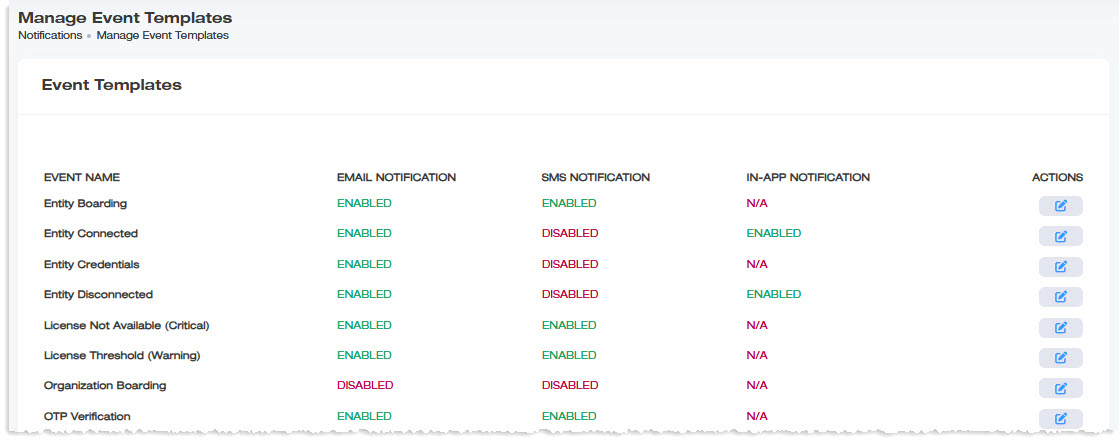
For each event, you can see and toggle the template:
- Email Notification: Sent to the user's inbox.
- SMS Notification: Sent as a text message.
- In-App Notification: Shown in the notification bell (top right) inside ExSign.
 (under actions column) next to an event to open it in the built-in editor.
Personalizing a Template with Tags
Templates support dynamic tags that get replaced with real values when the notification is sent. For example, this line in a template:
Hello {{recipient}}, a new rule was published for {{entity_name}}on {{timestamp}}.
would render as something like " Hello Jane Doe, a new rule was published for Contoso Corp on 2026-07-21."
Available Tags
| Tag | Inserts |
{{recipient}} |
The notification recipient. |
{{timestamp}} |
When the event occurred. |
{{entity_name}} |
The relevant entity's name. |
{{mediator_name}} |
The server’s name. |
{{current_website}} |
The current website. |
{{controlpanel_access}} |
Control panel access link/info. |
{{company_name}} |
Your company name. |
Monitor Sent and Unsent Notifications
Navigate to Notifications >> Sent/Unsent Emails to check delivery status at any time.
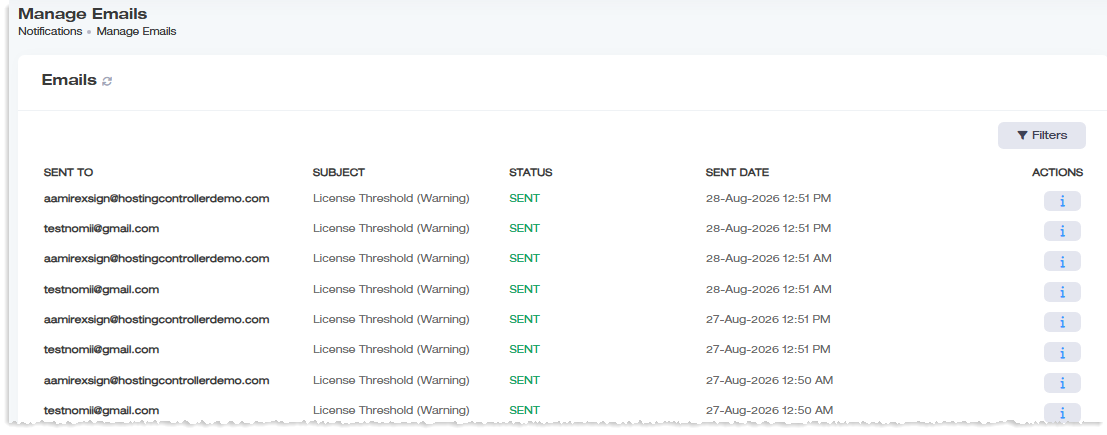
- Sent: Emails that were successfully delivered.
- Unsent: Emails that were sent from ExSign but haven’t been delivered yet.
 to pull the current sent/unsent status immediately, rather than assuming something failed.