
| Product Documentation
ExSign
Security Settings for Exchange Server
Security settings are available only to the ExSign Admin (Global Administrator).
Use this section to configure authentication methods and secure access to the ExSign Administration Portal. ExSign supports Two-Factor Authentication (2FA) and Active Directory/Azure Active Directory authentication to help protect administrator accounts and reduce unauthorized access.
To access these settings, navigate to Security from the top menu.
Two-Factor Authentication
Two-Factor Authentication (2FA), also known as Multi-Factor Authentication (MFA), adds an extra layer of security by requiring users to verify their identity using a second authentication factor in addition to their password.
With 2FA enabled, users must provide a valid One-Time Password (OTP) during sign-in, reducing the risk of unauthorized access even if passwords are compromised.
To configure Two-Factor Authentication, navigate to Security >> Two-Factor Authentication.
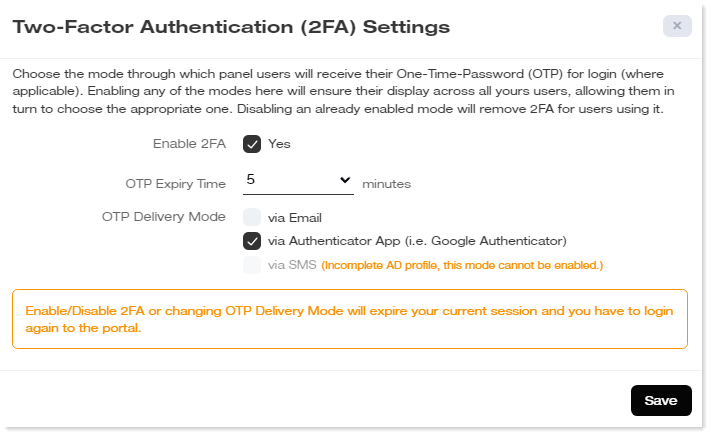
Configuration Options
- Enable 2FA: Select Yes to require all users to authenticate using Two-Factor Authentication.
- OTP Expiry Time: Specify how long the One-Time Password (OTP) remains valid (in minutes). Users must enter the OTP before it expires.
- OTP Delivery Mode: Select one or more methods for delivering OTPs. Enabled methods are available for users to choose during sign-in.
Via Email
- Sends the OTP to the email address configured in the user's Active Directory profile.
- This option requires a valid email address in the user's Active Directory account.
Via Google Authenticator
- Allows users to receive OTPs through the Google Authenticator mobile application.
Via SMS
- Sends the OTP via SMS to the mobile number configured in the user's Active Directory profile.
- This option requires a valid mobile number in the user's Active Directory account.
System Auth Settings
ExSign uses Active Directory group-based authentication to control access to the Administration Portal.
ExSign Admins (Global Administrators) and Exchange Admins (Site Administrators) are authenticated against the primary Active Directory using their domain credentials. Authentication is based on membership in designated Active Directory security groups.
To configure authentication settings, navigate to Security >> System Auth Settings.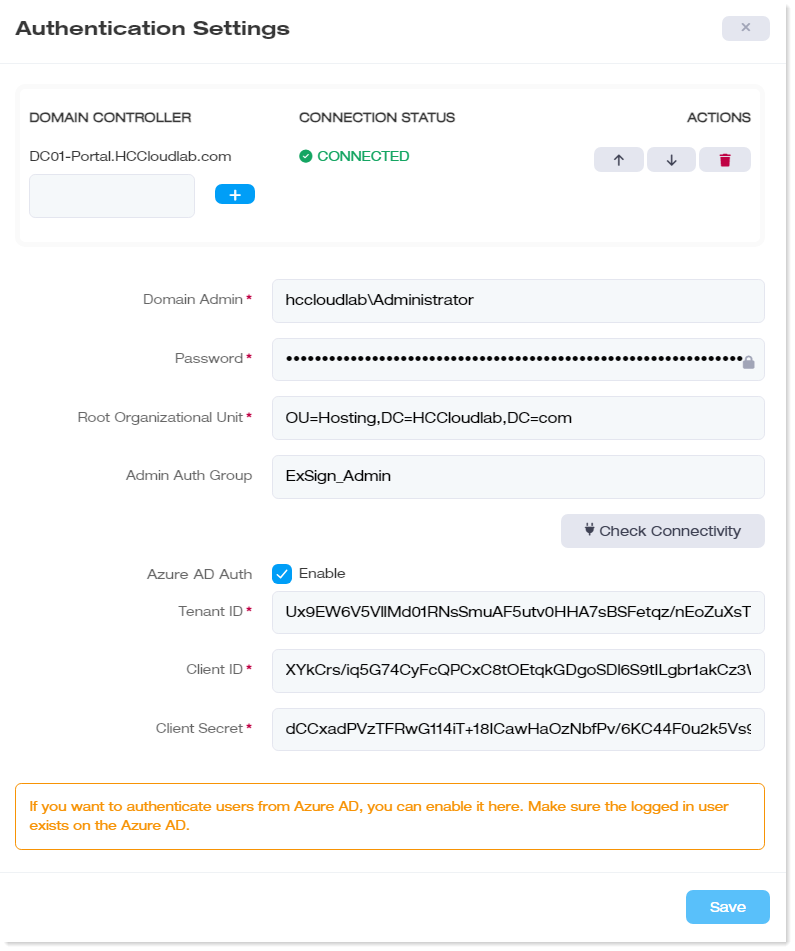
Configuration Options
- Domain Controller: Specify the Domain Controller used to authenticate ExSign Admins and Exchange Admins. Multiple Domain Controllers can be configured to provide high availability. If the primary Domain Controller becomes unavailable, ExSign automatically switches to an alternate Domain Controller.
- Domain Admin: Enter the domain\administrator account used to access the Active Directory.
- Password: Enter the password for the specified Domain Administrator account.
- Root Organizational Unit: Specify the root Organizational Unit (OU) where ExSign administrator security groups are created.
- Admin Auth Group: Specify the Active Directory security group that contains ExSign Administrators (Global Administrators). Users who belong to this group can access the Administration Portal using their Active Directory credentials.
Azure Active Directory Authentication
ExSign also supports authentication through Microsoft Azure Active Directory (Azure AD).
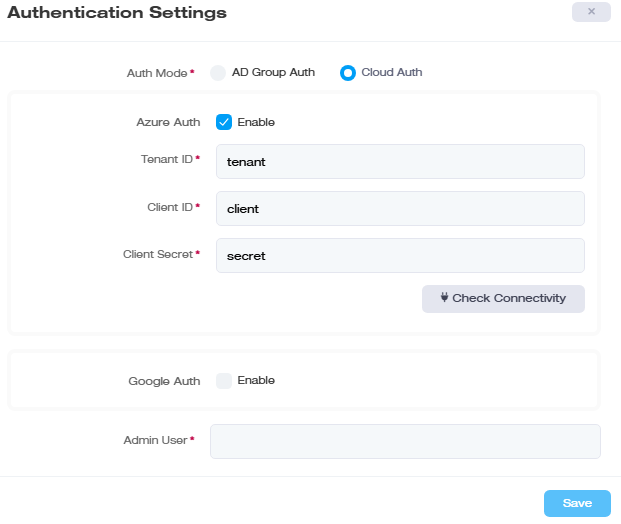
To authenticate successfully through Azure AD, administrator accounts must exist in both Azure Active Directory and the corresponding on-premises Active Directory.
- ExSign Admins and Exchange Admins must exist in the Portal Active Directory.
- OU Admins must exist in their respective remote Active Directories (Entities).
Configuration Options
- Azure AD Authentication: Select Enable to allow users to sign in using Azure Active Directory.
- Tenant ID: Enter the unique identifier of your Azure Active Directory tenant.
- Client ID: Enter the Application (Client) ID used to authenticate the ExSign application with Azure AD.
- Client Secret: Enter the Client Secret associated with the registered Azure application.
For detailed configuration instructions, see Configure Azure Active Directory Authentication (formerly Steps Required for Signing into ExSign with Azure).