
| Product Documentation
ExSign
Logs
Which Log Answers Your Question?
| If You are Asking | Check |
| Who changed a rule, signature, or setting in the Portal, and when? | Portal Audit Logs |
| Did the Agent successfully communicate with the server it's running on? | Agent Audit Logs |
| Did the Transport Agent actually stamp a specific email? |
Transport Agent Logs |
| Who's logging into the Portal, and were there any failed attempts? |
Login History |
| Something went wrong, what was the actual error and when? |
Error Logs |
| I need the raw log file for a specific server, e.g., for a support ticket. |
Misc. Logs |
| I'm looking for something older than what's currently showing. |
Archived Logs |
Outdated Logs
All six log screens can occasionally fall behind the actual activity; an action just happened but hasn't shown up yet. Click  on that screen to pull the current entries immediately, rather than assuming the action didn't happen.
Portal Audit Logs
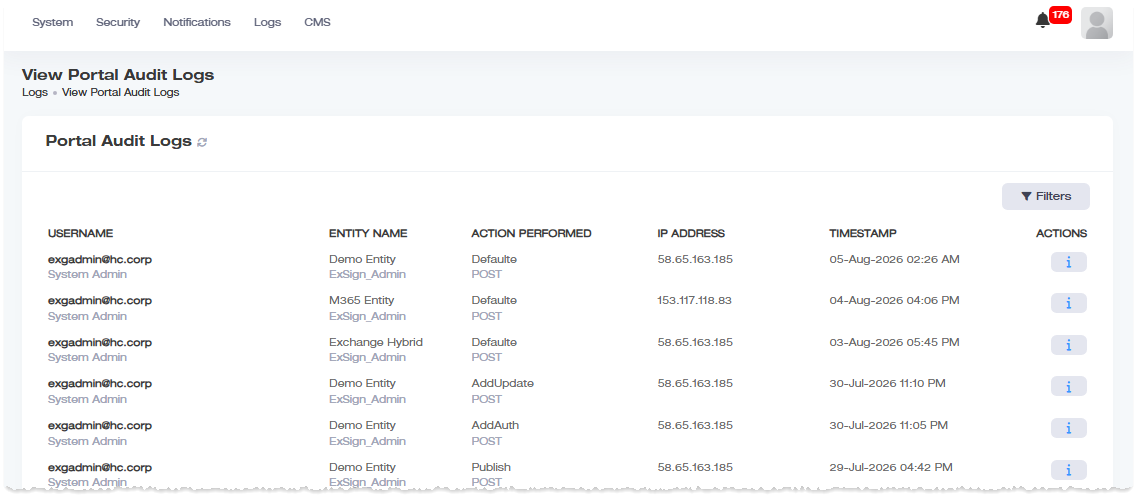
Navigate to Logs >> Portal Audit Logs to see activity performed by users inside the ExSign Portal, rule changes, setting updates, and similar admin actions.
| Column | Shows |
| Username | Name of the admin who performed the action. |
| Entity Name | Which entity it was performed under. |
| Action Performed | What they did. |
| IP Address | Where the action came from. |
| Timestamp | When it happened. |
| Actions | Details of the audit log. |
Agent Audit Logs
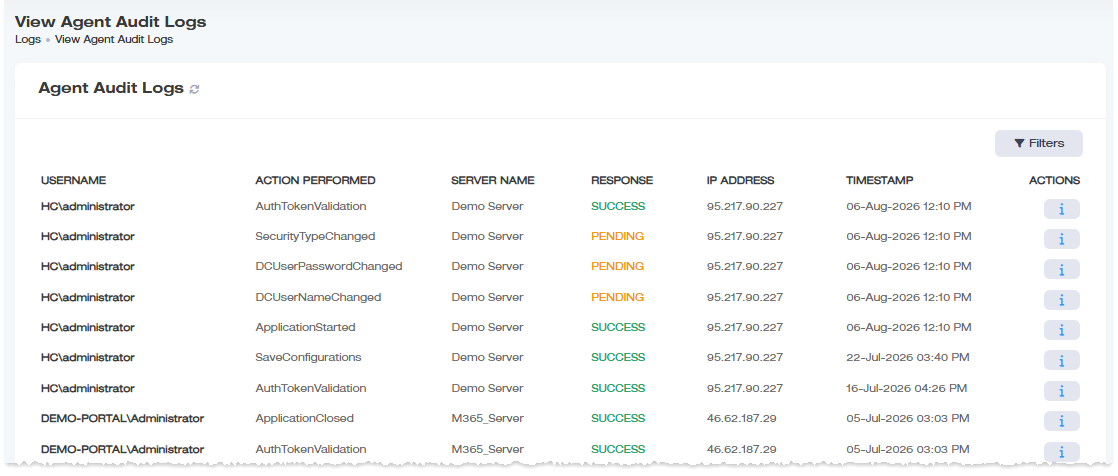
Navigate to Logs >> Agent Audit Logs to see activity on the ExSign Agent Server itself, useful for confirming an Agent-side action actually succeeded, rather than just being requested.
| Column | Shows |
| Username | Name of the admin who triggered the action. |
| Action Performed | What was attempted. |
| Server Name | Which Agent server it ran on. |
| Response | Whether it succeeded or failed. |
| IP Address | Where the action came from. |
| Timestamp | When it happened. |
| Actions |
Details of the agent audit log. |
Transport Agent Logs
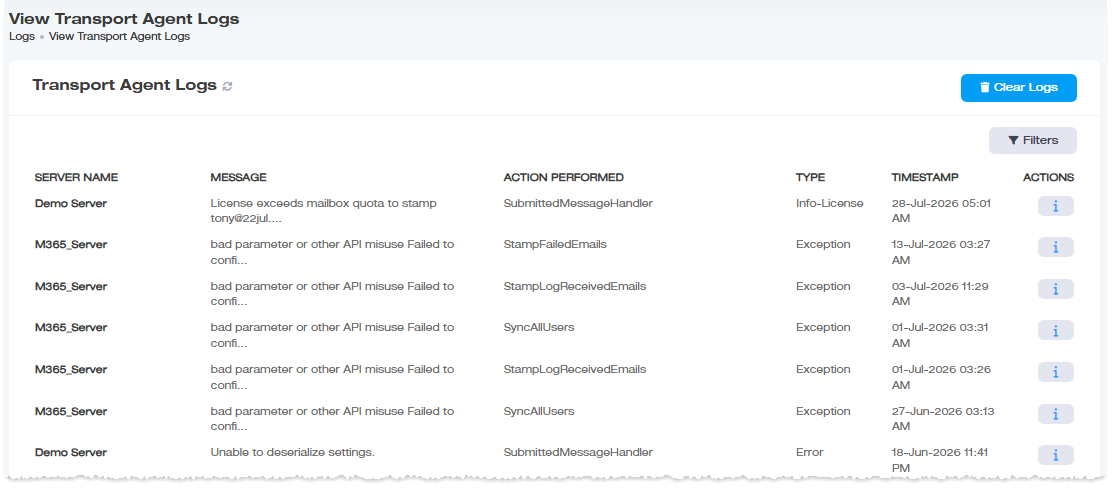
Navigate to Logs >> Transport Agent Logs to check whether a specific message was actually processed and stamped. This is the log to check when someone reports a missing or incorrect signature on a sent email.
| Column | Shows |
| Server Name | Which Mailbox Server processed the message. |
| Message | The message involved |
| Action Performed | What the agent did |
| Type | Whether it succeeded or failed |
| Timestamp | When it happened. |
| Actions | Available follow-up actions on that entry |
Login History
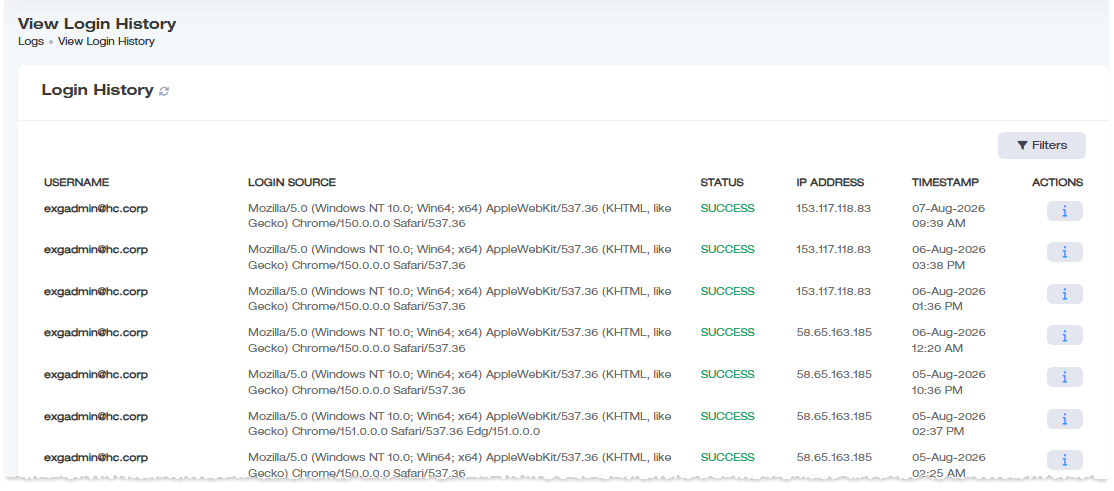
Navigate to Logs >> Login History to track who's accessing the Portal and from where, useful for spotting failed login attempts or confirming who was logged in at a given time.
| Column | Shows |
| Username | The Active Directory UPN of the user that logs in to the ExSign portal. |
| Login Source | The browser used to log in. |
| Status | Whether the login succeeded or failed. |
| IP Address | Where the login came from. |
| Timestamp | When the login occurred. |
| Actions | The session activity of the user while logged in. |
Error Logs
Navigate to Logs >> Error Logs when something has gone wrong internally, and you need to find out which component failed and why. Unlike the other logs on this page, this one isn't about what a user did; it records errors raised by ExSign's own services and background processes.
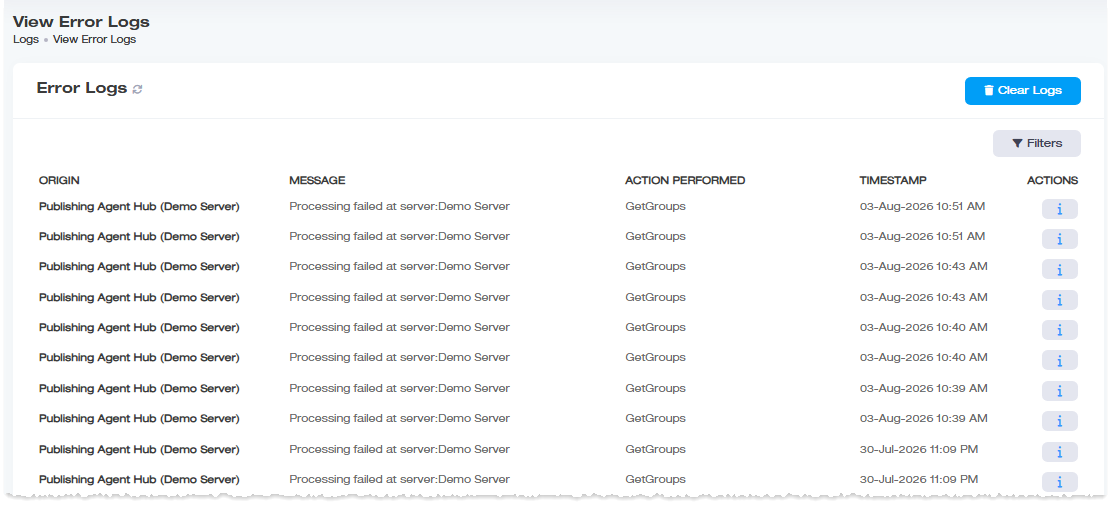
| Column | Shows |
| Origin | Which ExSign component or service raised the error (e.g., Send Email Service, Publishing Agent Hub). |
| Message | The actual error text. |
| Action Performed | The specific internal operation running when the error occurred. |
| Timestamp | When it happened. |
| Actions | Complete error detail including stack trace. |
Miscallaneous Logs
Navigate to Logs >> Misc. Logs for direct access to the raw log files saved to disk on the Portal and on each connected ExSign Agent server as opposed to the five structured, database-backed logs above. You'll see one card per source:

- Portal Logs: the Portal's own log files. This also shows the installation logs for the ExSign Web Portal.
- Server Logs [Entity] / [Server]: one card per registered server, across every entity, labeled by its entity and server name. These also show the installation logs for the ExSign Agents.
Archived Logs
Go to Logs >> Manage Archived Logs to find log entries older than what's currently showing in the live views above. ExSign periodically archives older log data into monthly ZIP files to keep the live log screens from growing unwieldy over time, rather than deleting it outright.
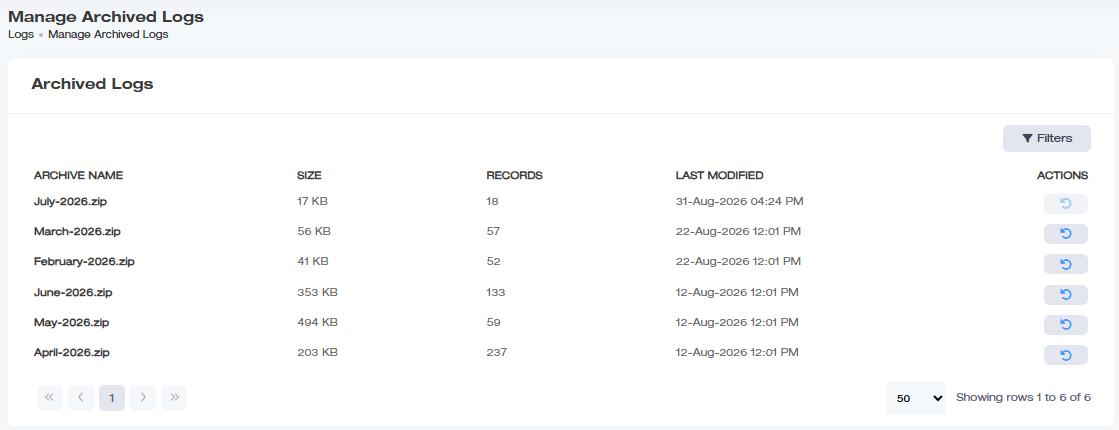
| Column | Shows |
| Archive Name | The archive file, named by month (e.g., July-2026.zip) |
| Size | The archive's file size |
| Records | How many log entries are in that archive |
| Last Modified | When the archive was last updated |
| Actions | A restore action for that archive |
Use Filters to narrow the list if you have many months of archives.