
| Product Documentation
ExSign
vCard for Microsoft 365
ExSign enables you to design engaging digital business cards (vCards) and distribute them via email signatures. It allows you to embed QR codes into your signatures, enabling recipients to scan them and view your business card. The vCards can contain your name, your photograph, and other contact details pulled directly from Microsoft 365.
To manage vCards, navigate to the left menu, and click vCard under the View By Entities section.
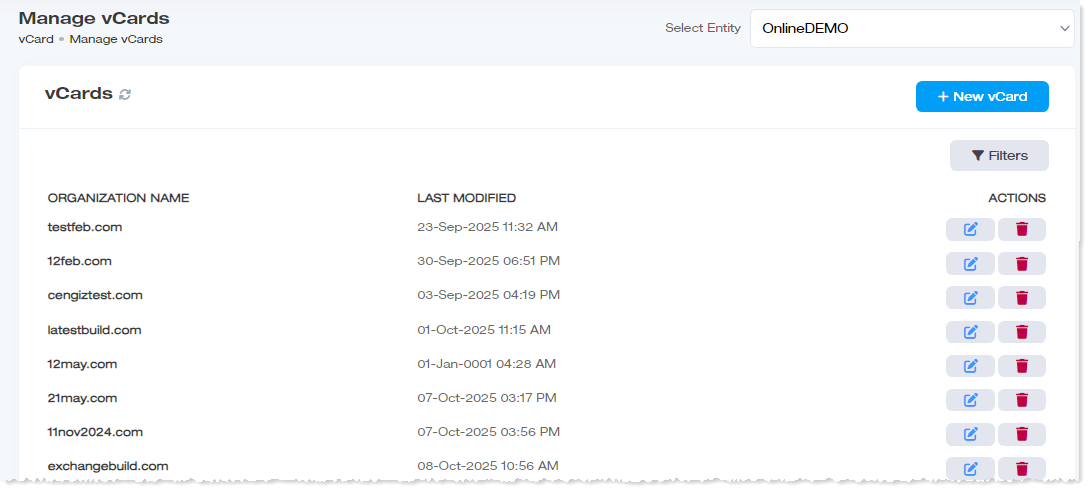
|
Manage vCards page shows following information:
|
Add New vCard
To add a new vCard, click + New vCard, and specify required information to add a new vCard.
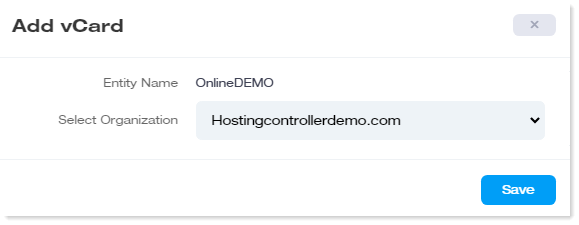
- Entry Name: It is the name of the entity under which the organization lies.
- Select Organization: Select the organization that will use the vCard.
You can create only one vCard per organization.
Search a vCard
To search any vCard, click Filter. Specify name or organization to search the required vCard.
Edit a vCard
vCards can be designed through an editor. You can build them from scratch or use pre-defined templates. You can also preview the vCards to see how they appear before they are saved.
To modify details of any vCard, under Actions coulumn, click  and modify details as required.
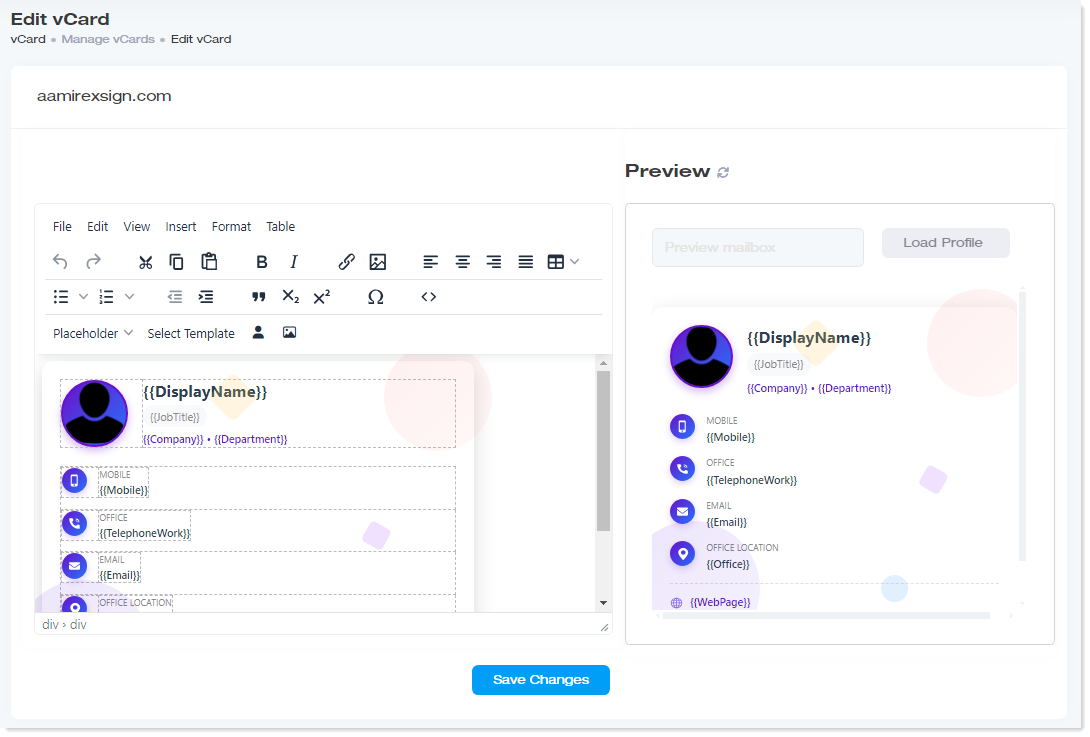
- Template: The ExSign admins can also take advantage of several built-in templates for vCards. These templates make available ready-made styles that admins can use for defining vCards. They are especially handy for those admins who do not want to build vCards from scratch.
Some templates include QR codes by default, while others require you to add them manually. If a template includes a QR code by default, no manual insertion is required. If it does not, you must manually add a QR code to the template. - Placeholder: Admins can insert Active Directory attributes to vCards, anywhere they want. These attributes can be inserted in the form of placeholders. The placeholders are substituted for actual values of the respective profiles when the vCards are scanned.
- Source Code: The source code of the vCards can be viewed and edited directly in HTML. be saved if it is empty. At least one line of code must be present before saving is possible.
The source code window cannot be saved if it is empty. At least one line of code must be present before saving is possible.
Delete a vCard
To remove any vCard, under Actions column, click  and then Delete.