
| Product Documentation
ExSign
Hybrid Mode for Exchange
In Server-side vs. Client-side Email Signatures, we framed it as a choice. Hybrid Mode is ExSign's third option: run both at once on the same entity, and let ExSign automatically decide which one applies to a given email based entirely on which client sent it. There's nothing for the user to choose.
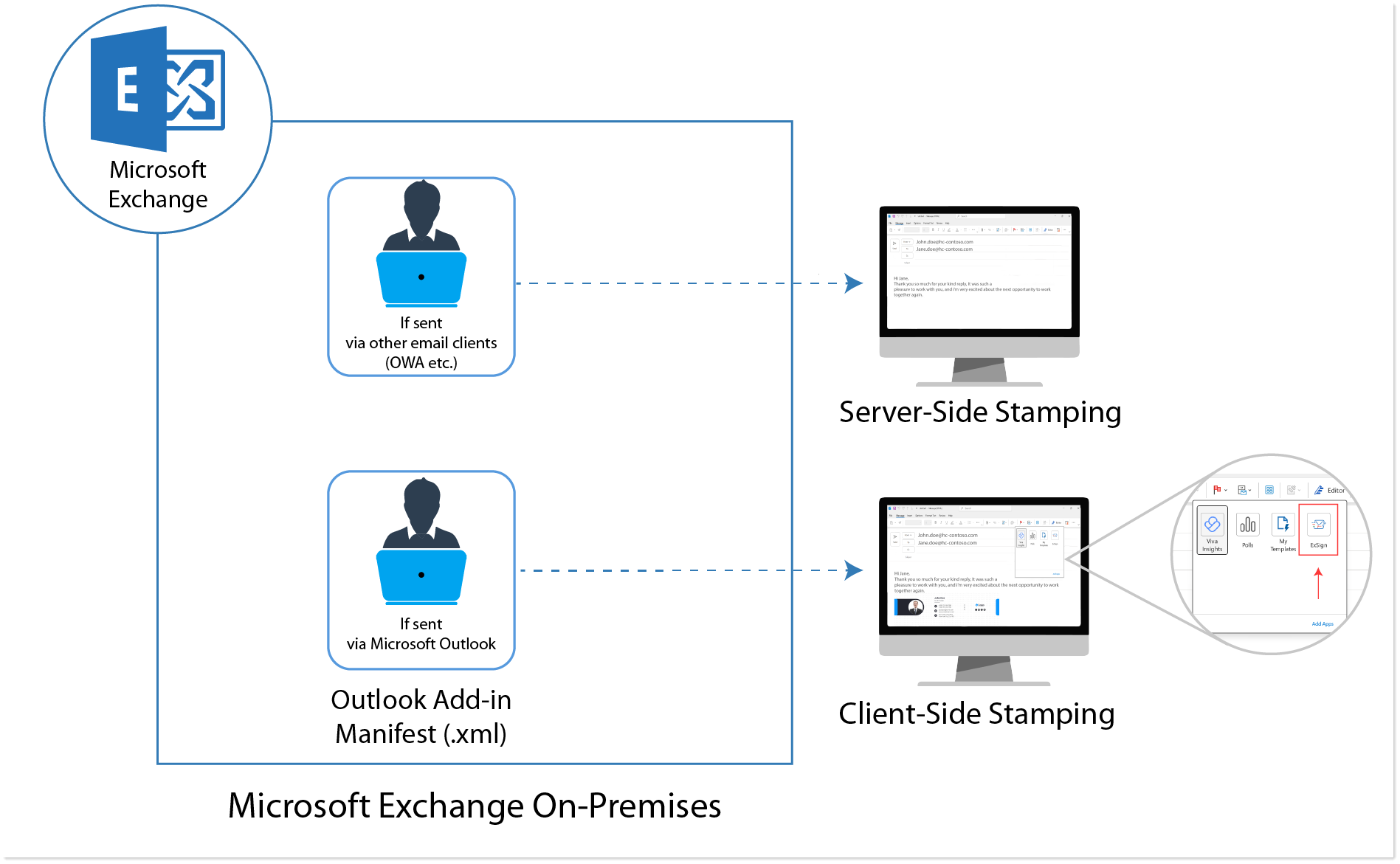
How ExSign Decides
| If the email is sent via ... | ExSign uses... | What the sender sees |
| Microsoft Outlook (desktop) | Client-side stamping, through the Outlook Add-in | The signature rendered live in the compose window; they can preview and interact with it before sending |
| Anything else, Outlook on the Web (OWA), mobile mail apps (Android/iOS), or any other client | Server-side stamping | Nothing during composition, the signature is appended automatically after the email is sent |
Every outgoing email gets signed, regardless of device or client, but only desktop Outlook users get the interactive, see-it-before-you-send experience. Everyone else still gets a correctly stamped email; they don't see it happen.
Why Choose Hybrid Mode
- If your users send exclusively from Outlook desktop, plain Outlook Edition alone may be enough; see ExSign Outlook Edition.
- If you don't need the live-preview experience at all, standard server-side stamping (the default) is simpler to run.
- If you want both, the interactive experience for your primary desktop Outlook users, plus guaranteed coverage for everyone sending from OWA, mobile, or anywhere else Outlook Edition can't reach, that's what Hybrid Mode is for.
Setting It Up
Hybrid Mode isn't a separate entity type you select at creation, it's layered on top of a standard Transport Agent Edition entity (see Adding Entities and Organizations >> Deployment Mode). To enable it, deploy the Outlook Add-in to that entity, see Adding Entities and Organizations >> Outlook Add-in for Hybrid Mode for the actual steps.