
| Product Documentation
ExSign
First Login
With the Portal, Transport Agent, and (optionally) Sent Items Update Agent installed and connected, you're ready to log in and start configuring ExSign for Exchange.
Finding Your Login Page
Open a browser and go to your Portal's admin URL, for example,https://yourdomain.com:8775. This is whatever was set during installing the ExSign Web Portal.
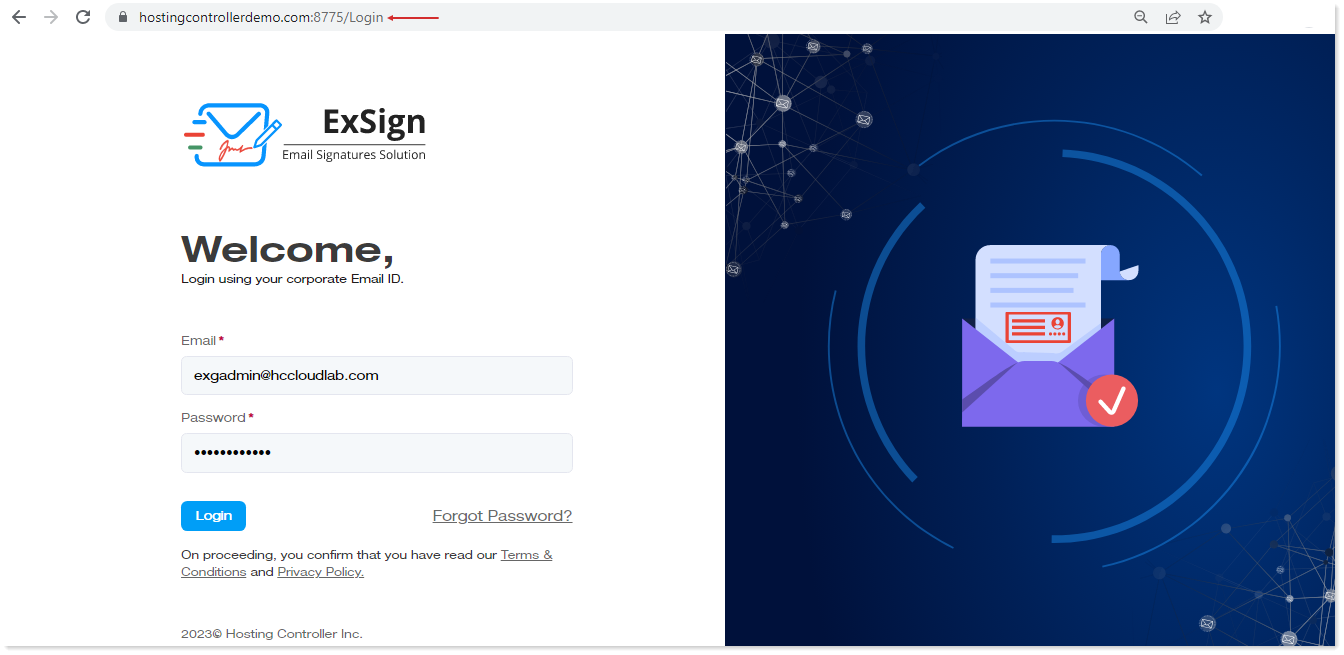
Logging In
How you log in depends on which authentication mode this Portal was set up with (chosen during installation, see Installing the ExSign Web Portal):
|
If Your Portal Uses |
Log In With |
| AD Group Auth | Your Active Directory User Principal Name (UPN) as Email, and your AD password |
| Azure Auth | Your Azure Active Directory credentials, the account must already exist in Azure AD |
Enter your credentials and click Login.
If You Can't Log In
- Confirm the Portal URL is actually correct, a wrong or outdated URL is the most basic reason a login page won't load at all.
- If you're an OU Admin, login depends on your UPN's suffix matching one of the Domain Suffixes listed for your organization (see Adding Entities and Organizations). A mismatch here fails silently, correct credentials, but no login, so this is the first thing to check rather than assuming your account itself is broken.
- If your Portal uses Azure Auth, confirm the account actually exists in Azure AD; a valid AD account elsewhere won't work here.
- If you're not sure your account has access at all, confirm you've actually been added to the right role's security group, see Managing Users & Roles.
What's Next
If you're logging in as the ExSign Admin for the first time, continue to Configuring Your Environment to finish the basic setup (branding, image storage, license activation), then Adding Entities and Organizations to start onboarding your Exchange environment.