| Product Documentation
ExSign
Setting Up Hybrid Mode for M365
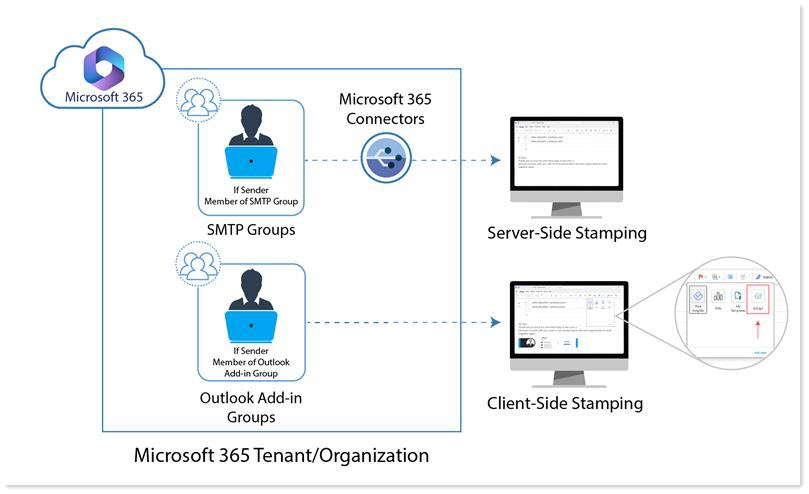
Hybrid mode is a Microsoft 365 option. Some groups use server-side (SMTP/connector) stamping, while other groups use client-side stamping through the Outlook add-in.
Google Workspace cloud stamping is server-side. See Choosing a Signature Mode.
How Hybrid Mode Works
| Path | Who Uses It | What You Set Up |
| Server-side | Members of groups assigned to SMTP/connector stamping | Microsoft 365 connectors, M365 configuration (Client ID, Tenant ID, Client Secret), server-side groups |
| Client-side | Members of groups assigned to the Outlook add-in | Outlook add-in (manifest.xml) uploaded to Microsoft 365, client-side groups |
Server-side users get signatures after send (with banners and richer reporting available). Client-side users see signatures while composing in Outlook.
Set Up Server-Side Groups
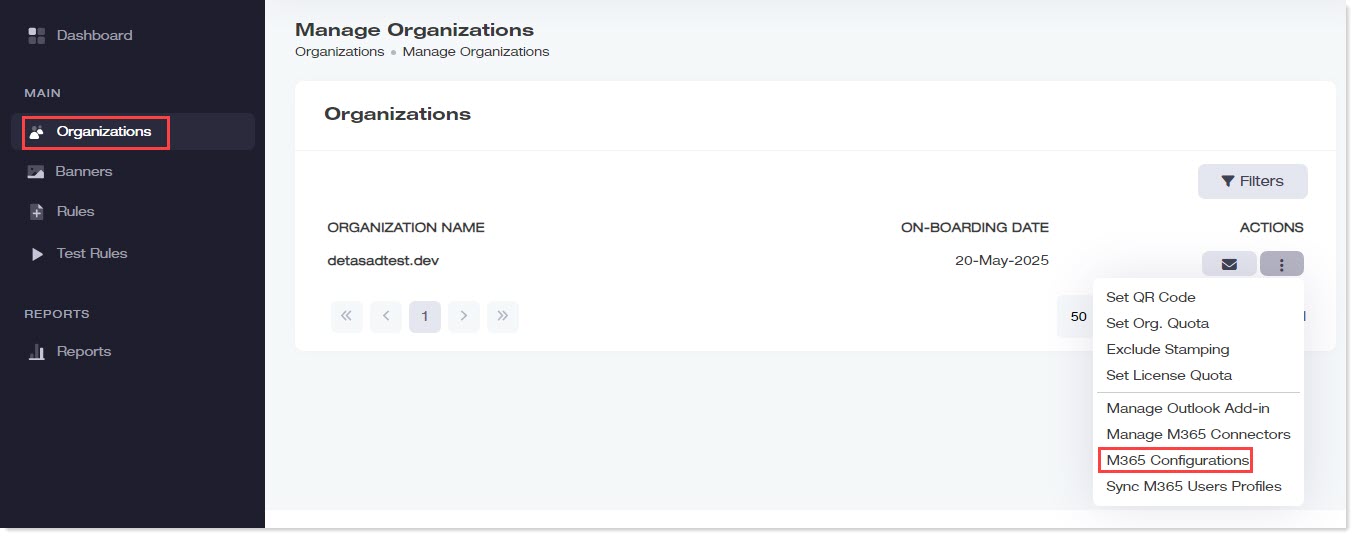
- Open Organizations.
- Open M365 Configurations for the organization.
- Enter Client ID, Tenant ID, and Client Secret, then Check Connectivity.
- Select the groups whose members should use server-side stamping.
- Confirm Microsoft 365 connectors are deployed.
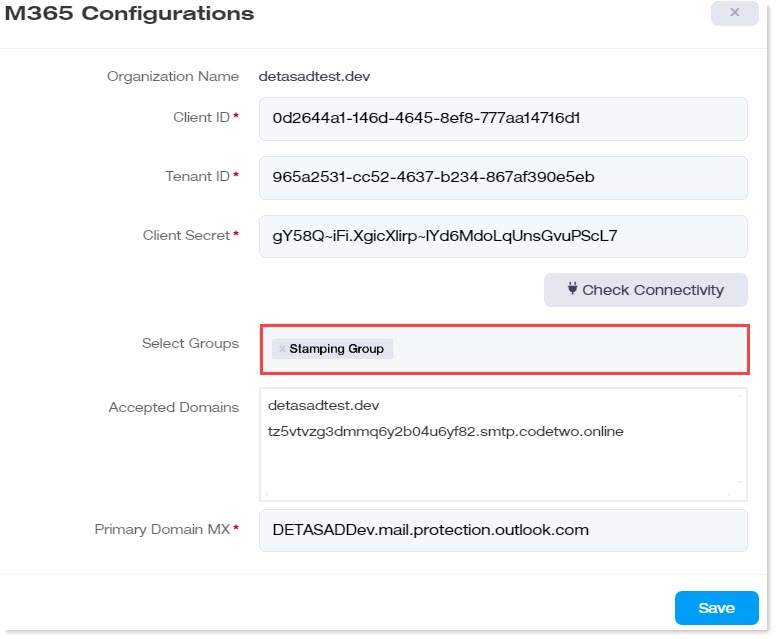
Do not add mailboxes to the server-side group if those users should use client-side Outlook add-in stamping instead.
Set Up Client-Side Groups
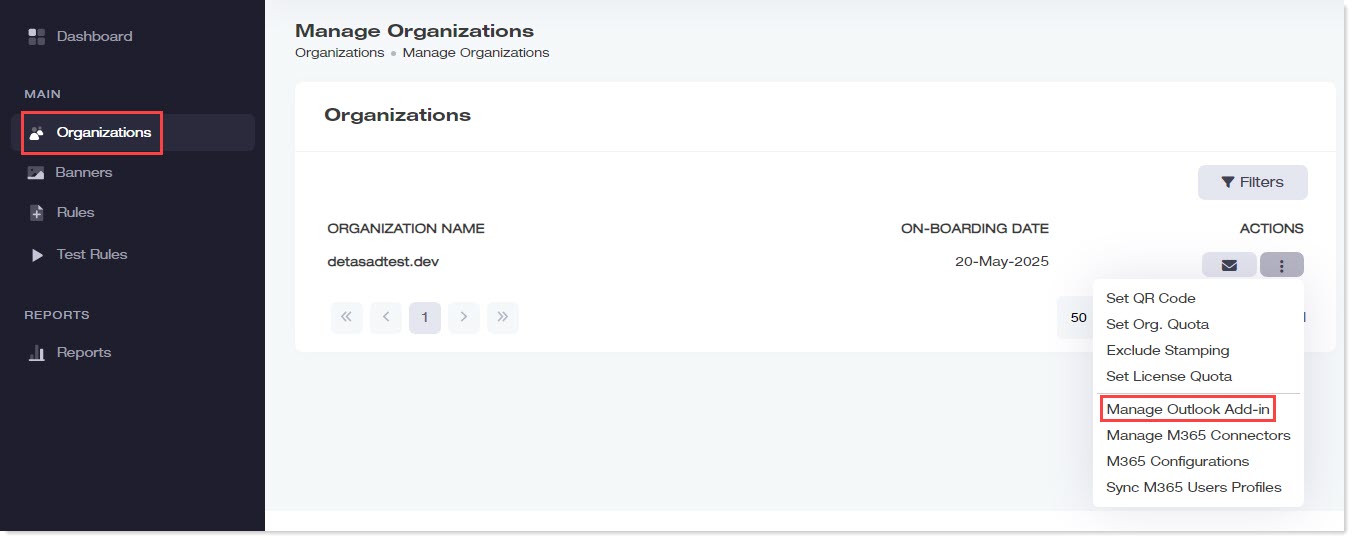
- Open Organizations.
- Download the Outlook add-in (manifest.xml).
- Upload it to the Microsoft 365 organization (Settings → Integrated apps → Add-ins → Deploy Add-in).
- Assign the groups whose members should use client-side stamping.
- Allow up to 12 hours for the add-in to appear in Outlook.