
| Product Documentation
ExSign
Outlook Edition Specifics for M365
What It Is
A signature management add-in for Outlook that inserts a signature directly into the email body as a Microsoft 365 user composes, replies, or forwards, visible and interactive before the email is even sent, unlike server-side stamping (see Server-side vs. Client-side Email Signatures for the general trade-off this reflects).
How It Works
- The sender logs into their PC.
- As they compose, reply, or forward in Outlook, the ExSign add-in loads automatically.
- The add-in fetches the current signature from the central ExSign Web Portal and inserts it into Outlook.
- The sender submits the email.
- The email is delivered through Microsoft Exchange Online's own transport service, not through the Microsoft 365 Agent, connectors, or any SMTP relay.
- The recipient receives the stamped email.
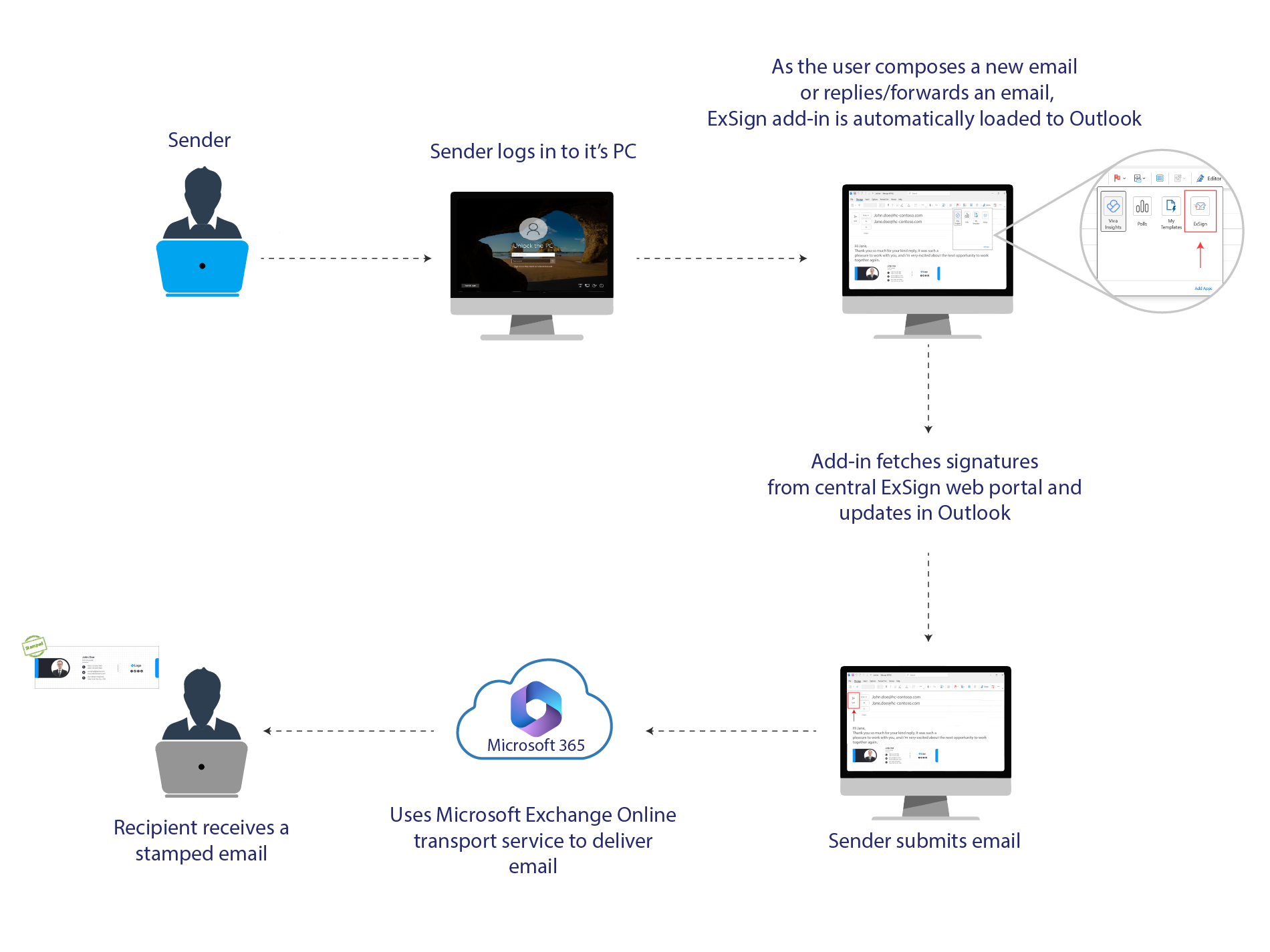
How Microsoft 365 Outlook Edition Stamps Signatures
See how the Microsoft 365 Outlook Edition inserts signatures to email messages as a sender composes an email.
Architecture
This edition has two main components.
- ExSign Web Portal: same central role as everywhere else in ExSign: rules and signatures are managed here, with self-serve access for ExSign Admins, Exchange Admins, and OU Admins.
- ExSign Agent: a desktop utility, installable on the Portal's own server or a separate one, authenticating to the Portal via token over a secure channel (the same pattern used by every other ExSign agent).
Prerequisites
Setting Up Organizations
In Microsoft 365, an organization (or tenant) is the isolated environment a business subscribes into; where its users, data, and Microsoft 365 apps live. For Outlook Edition specifically, signature stamping only applies to members of groups you explicitly select, not automatically to everyone in the tenant.
Creating an Organization
Only the ExSign Admin and Entity Admin can add new organizations. Go to the left menu, under View by Entities, click Organizations, then + New Organization:
| Field | What to Enter |
| Entity Name | Select the entity this organization belongs to, remember, an M365 entity is a logical grouping with no physical existence |
| Organization Name | A name for this Microsoft 365 tenant/organization |
| Domain Suffixes | The UPN suffix(es) for this entity's OUs, same mechanism used everywhere else in ExSign for OU Admin login (see Managing Users & Roles): a mismatch here fails an OU Admin's login silently, even with correct credentials |
Deploying the Outlook Add-in
- From the organization's Actions menu, download the Outlook Add-in, this gives you a manifest.xml file.
- Go to admin.microsoft.com, then Settings >> Integrated apps >> Add-ins >> Deploy Add-in, and upload the manifest file.
- Allow up to 12 hours for the add-in to actually appear in users' Outlook clients, don't assume deployment failed just because it's not showing up immediately.
M365 Configurations
This is where the Client ID, Tenant ID, and Client Secret from Registering an Azure AD Application for ExSign actually get used.
From the organization's Actions menu, open M365 Configurations:
| Field | What It Is? |
| Entity Name / Organization Name | Shown for reference, not editable here |
| Client ID | From your Azure app registration |
| Tenant ID | From your Azure app registration |
| Client Secret |
From your Azure app registration |
Click Check Connectivity to verify the Portal can actually reach your tenant using these values. More fields only appear after this succeeds.
| Field (appears after successful connection) | What It Is? |
| Select Group | The Microsoft 365 group(s) whose members should get client-side stamping, only members of these groups are stamped, nobody else |
| Accepted Domains | The mail domain(s) this organization accepts |
| Primary Domain MX | Fetched automatically, your domain name plus Microsoft's shared suffix (mail.protection.outlook.com), which is where all incoming mail for this domain actually gets routed for processing |