
| Product Documentation
ExSign
Organizations in Microsoft 365
A Microsoft 365 organization refers to an entity or a group within Microsoft's cloud-based ecosystem that has subscribed to Microsoft 365 services. It typically represents a company, school, or other business that uses Microsoft 365 for various productivity and collaboration tools. When a business or organization subscribes to Microsoft 365, it creates an "organization" in Microsoft's cloud infrastructure. The organization is managed by an administrator who can configure settings, manage users, and control access to Microsoft 365 apps. This organization is typically referred to as a tenant, which is the dedicated, isolated environment where all data and services for that organization are stored and managed.
In the case of Microsoft 365, ExSign selects a mail-enabled security group of the Microsoft 365 tenant/organization and allows signature stamping only on the users included in the group. Signatures are not stamped on any users outside the group.
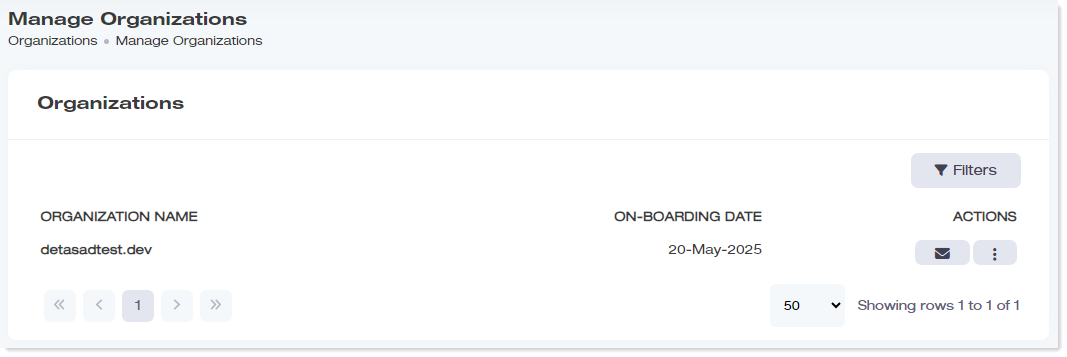
To manage organizations, navigate to the left menu, under the Main section, and click Organizations.
|
Manage Organizations page shows the following information:
|
Exclude Stamping
There may exist email addresses in an organization that you may like to exclude from the stamping process. Such email addresses can be included in an exclude list and signatures will not be stamped on these email addresses. However, if there are email addresses already included in the parent entity exclude list, signatures will not be stamped on them even if they are not included in the organization’s exclude list.
Set QR Code
You can define a machine-readable QR code for an organization. This QR code will appear in user signatures in email clients such as Outlook. The QR code contains information such as text and images for instance contact details, website, company info etc. Once the recipient scans the QR code for example, with it’s mobile phone, the attributes defined in the code are displayed on the mobile device. You can also specify the size of the QR code in pixels. To define a QR code, Click  under Actions column and then QR Code.
- Placeholder: These are the user attributes (e.g., First Name, Last Name, etc.) that will be displayed when the QR code is scanned. The attributes are appended to the processing URL.
Placeholders use dynamic values for user attributes, where values are fetched directly from Microsoft 365. To see how QR codes work, see QR Codes in ExSign Signatures.
- Processing URL: This is the URL linked with the QR code. This link appears when the recipient scans the QR code. The required attributes are appended to this URL.
- Width: Type the width of the QR code. The width defines the horizontal length in pixels, of the code.
- Height: Type the height of the QR code. The height defines the vertical length in pixels, of the code.
Download Outlook Add-in
This downloads a “manifest.xml” file. The primary function of this file is to populate the Outlook client with an ExSign add-in. The add-in is responsible for fetching signatures from the central ExSign web portal and updating them in Outlook. As the sender types in an email or replies/forwards an email, his signatures are available to him in the email body.
Once the “manifest.xml” file has been downloaded, it must be added to the Microsoft 365 organization. To do so, go to admin.microsoft.com and upload the manifest file under Settings >> Integrated apps >> Add-ins >> Deploy Add-in. After adding the add-in to your organization, it will take up to 12 hours for it to appear in your Outlook client. To learn how to upload the manifest file to the Microsoft 365 organization, see ExSign Configurations for Outlook Add-in.
Manage Microsoft 365 Connectors
To add signatures after an email is sent (server-side signatures), you will need to set up Microsoft 365 connectors. You can deploy these inbound and outbound connectors either automatically or manually. One is an inbound connector, and the other is an outbound connector. Connectors reroute your emails through the ExSign service. The needed connectors are:
- ExSign Outbound Connector: The outbound connector routes your emails to the ExSign service.
- ExSign Inbound Connector: The ExSign service checks whether messages meet the centrally defined conditions set in the ExSign rules. If the conditions are met, the service stamps the appropriate signatures and returns the messages to the inbound connector (located inside Microsoft 365). These stamped emails then go to the final recipients.
M365 Configurations
To provide M365 connectivity details for an organization, Click  under Actions column and then M365 Configurations.
- Organization Name: This shows the friendly name of the Microsoft 365 tenant/organization to be stamped. Signatures and disclaimers will be stamped on users (email addresses) of this organization.
- Client ID: Specify a Client ID. This is the unique application ID of this application in your directory. You can use this ID if you ever need help from Microsoft Support, or if you want to perform operations against this specific instance of the application using the Azure Active Directory Graph or PowerShell APIs.
- Tenant ID: Specify a Tenant ID. This is the Azure Active Directory’s global unique identifier (GUID).
- Client Secret: Specify the Client Secret. Client Secret or "App Secret” as it is sometimes called, refers to a confidential piece of information used to authenticate an application in the Azure Active Directory. When you register an application in Azure AD, you can create a secret for the app, which is used as a shared secret between the application and the authentication service. The application uses the secret to request access tokens and authenticate itself. Once you've saved the client secret, the value of the client secret is displayed. Copy this value because you won't be able to retrieve the key later. You'll provide the key value with the application ID (Client ID) to log in as the application.
- Check Connectivity: Verify the connectivity of the web portal with the actual Microsoft 365 tenant/organization, through the above IDs. Other fields appear below once the connection is successful.
- Select Group: Select the mail-enabled security group within the 365 tenant/organization on whose members' (mailboxes) signatures are to be stamped. Signatures will only be stamped on the members of this group. They will not be stamped on any users outside the group.
Refrain from adding mailboxes to this group if ExSign operates in hybrid mode and you want them to utilize client-side stamping through the Outlook add-in.
- Accepted Domains: A Microsoft 365 organization can have multiple accepted (mail) domains. These are the mail domains in the organization.
- Primary Domain MX: The Microsoft 365 MX record consists of two parts:
- The domain name like “trycatch”
- The static suffix for all domain names hosted in Microsoft 365 i.e. “mail.protection.outlook.com”
Microsoft uses the same static suffix for all domain names hosted in Microsoft 365 resulting in the name “trycatch.mail.protection.outlook.com”. All incoming emails for this domain are routed to Microsoft’s Exchange Online servers for filtering and processing before being delivered to the tenant’s/organization’s Microsoft 365 mailboxes.
Sync M365 Users Profiles
Sometimes, user profiles (attributes) in Microsoft 365 may fall out of sync with the ExSign web portal, resulting in wrong signatures. To address the issue, ExSign allows you to sync the user profiles in the Microsoft 365 organization with the ExSign web portal. The operation will pull the latest user profiles from Microsoft 365 and sync them with ExSign. For instance, normally if a user changes its first name in Microsoft 365, it takes sometime for the scheduler to sync with ExSign, however, with this option, you may sync the change immediately.