
| Product Documentation
ExSign
Configuring Approval Workflows M365
A workflow is made up of one or more levels; approval stages a rule-publishing request must pass through before it goes live. If a level's approvers withhold consent, the request simply doesn't move forward.
Viewing Workflows
Go to the left menu, under Advanced Options, and click Workflows, then select an Entity from the list to see its workflow(s).
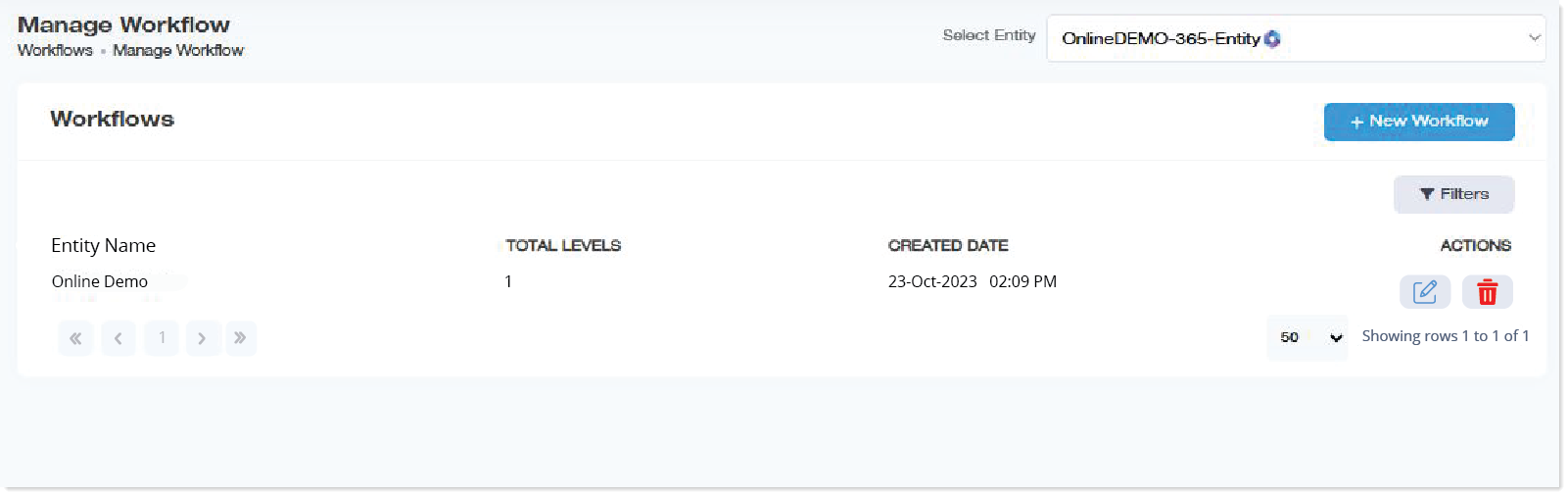
| Column | Shows |
| Entity Name | Which M365 logical entity this workflow applies to |
| Total Levels | How many approval stages this workflow has |
| Created Date | When the workflow was created |
| Actions | Edit or delete |
Creating a Workflow
A single approval workflow can be created for each M365 logical entity if workflows are set at the entity level under System. However, if workflows are set at the organizational level, then each M365 logical entity organization in the entity can have its own workflow.
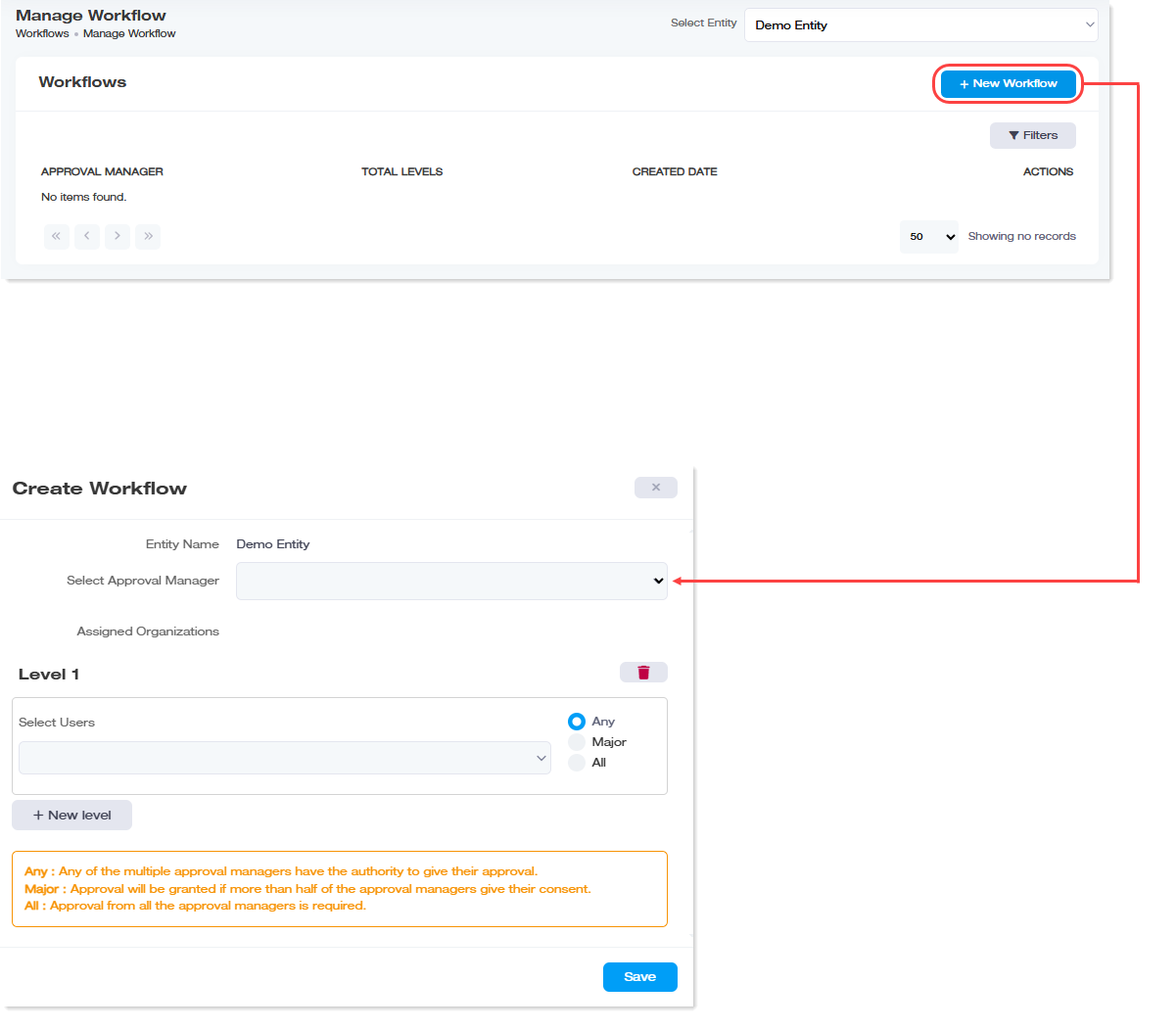
To add a new workflow, click + New Workflow and specify required information.
Adding a New Level
Levels signify the different stages through which a publishing request should pass before it is approved. The request should be approved by some or all approval managers, at each level before it can pass to the next level. The request will not pass to the next level and therefore will not be approved if some or all approval managers withhold their consent at any level. Each level can act as the Approval Managers for an M365 logical entity. There can be 1,2, 3, and so on approval levels. For more information on the number of Approval Managers a M365 logical entity can have, see System.
To add a new level for a workflow, click + New Level.
- Select Users: Select the Approval Managers from the dropdown list for the workflow. There can be one or more than one Approval Managers at each level.
- Any: Select this if approval can be granted by any of the Approval Managers. The publishing request will go to the next level if any of the Approval Managers at this level grant approval.
- Major: Select this if approval must be granted by most of the Approval Managers. The publishing request will go to the next level if more than half of the Approval Managers at this level grant approval.
- All: Select this if approval must be granted by all the Approval Managers. The publishing request will only go to the next level if all the Approval Managers at this level grant approval.
- Final Approval By: Select this checkbox if the final approval must either be granted by the ExSign Admin or the M365 logical entity Admin. Some lacks an M365 logical entity Admin. In such cases, the ExSign Admin (global admin) can grant the final approval.
Deleting a Level
Levels can also be deleted. If an upper level is deleted first the next level is automatically promoted to take its place.
To remove any level for a workflow, click  .
.
Editing a Workflow
To modify a workflow, under Actions column, click  and modify information as required.