
| Product Documentation
ExSign
Adding Entities and Organizations M365
Understanding the Hierarchy
An M365 entity is a logical name for a collection of Microsoft 365 organizations to be stamped; it has no physical existence, unlike an Exchange entity (which is a real forest). A single entity can contain many organizations, each with its own OU Admin(s).
Who Can Do What
| Action | ExSign Admin | Entity Admin | OU Admin |
| Add / edit / delete an entity |  |
 |
|
Viewing an Entity
To view an entity, from the left menu, under the Main section, click Entities.
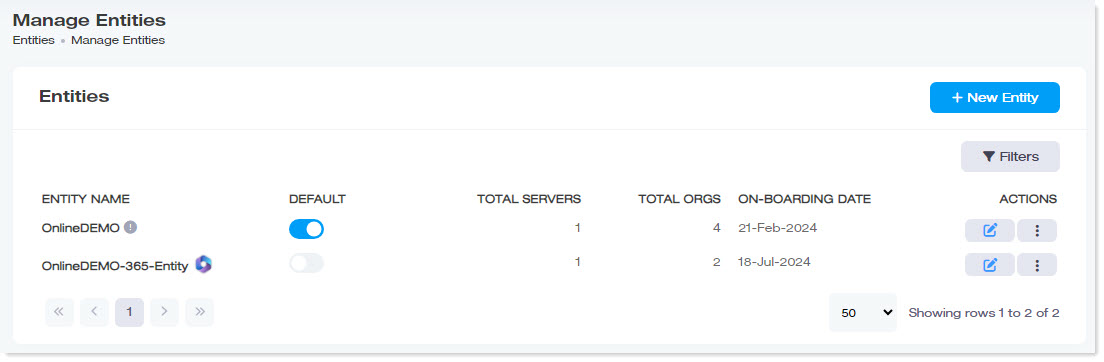
| Column | Shows |
| Entity Name | Name of the entity |
| Default | Whether this is the default entity. If it's the default, all new organizations will land under it |
| Total Servers | Number of servers with the ExSign Microsoft 365 Agent installed |
| Total ORGs |
Number of organizations under this entity |
| On-Boarding Date |
When it was added |
Use Filters to search by name or suffix. To edit or delete an entity, use the Actions menu.
Adding an Entity
Go to the left menu, under Main, and click Entities. Click + New Entity, then New Entity Cloud, and provide:
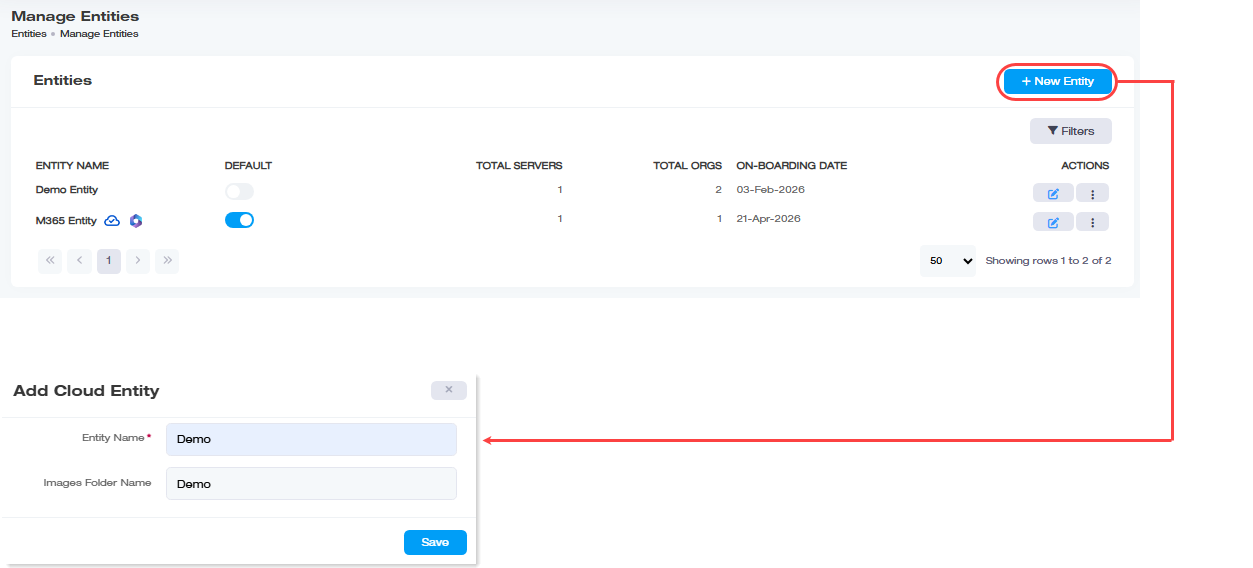
| Field | What to Enter |
| Entity Name | A friendly name for this logical grouping |
| Images Folder Name |
A folder name created on the Portal server to hold this entity's images |
Configuring Entities Further
Controlling how and where signatures get applied.
- Sent Items Settings: Enable Update Sent Items to keep mailboxes' Sent Items folders showing the stamped version of what was sent, optionally with Create Copy to preserve the original.
- Split Message Settings: Apply banners to some organizations/users and exclude others, same mechanism as Exchange.
- Exclude Stamping: Comma-separated addresses to skip during stamping, same as Exchange, including the same entity-overrides-organization precedence rule.
Setting Limits and Quotas
- Max Banners Limit: caps total banners the entity can publish.
- License Quota: allocates mailbox licenses out of your total pool, same mechanism as Exchange.
Keeping License Usage Accurate
- Sync Deleted Items: frees licenses from deleted mailboxes, with Auto Sync (daily at 1:00 AM) or Trigger Now for an immediate sync, identical to Exchange.
Troubleshooting Stamping Placement
Enable Troubleshooting, provide a Sender Email and Test Subject, and review generated .eml diagnostic logs.
M365 Connector Settings
Go to the entity's Actions menu and select M365 Connector Settings. This provides an automated alternative to manually creating connectors in the Exchange Online Admin Portal.
| Field | What to Enter |
| Connectors Flow | Currently shown as Certificate Based, other options may exist but aren't confirmed |
| ExSign Inbound Connector, Certificate Name (required) | Identifies incoming messages from your email server, ensuring the sending server falls within the certificate's defined scope. Likely the automated equivalent of the manually-created "From O365 to ExSign Agent" connector |
| ExSign Outbound Connector, Certificate Name (required) |
Routes email messages through this smart host. Likely the automated equivalent of "From ExSign Agent to O365" |
Click Update to apply.
Deleting an Entity
To remove any entity, under Actions column, click  and then Delete.
Adding an Organization
Go to the left menu, under View by Entities, click Organizations, then + New Organization:
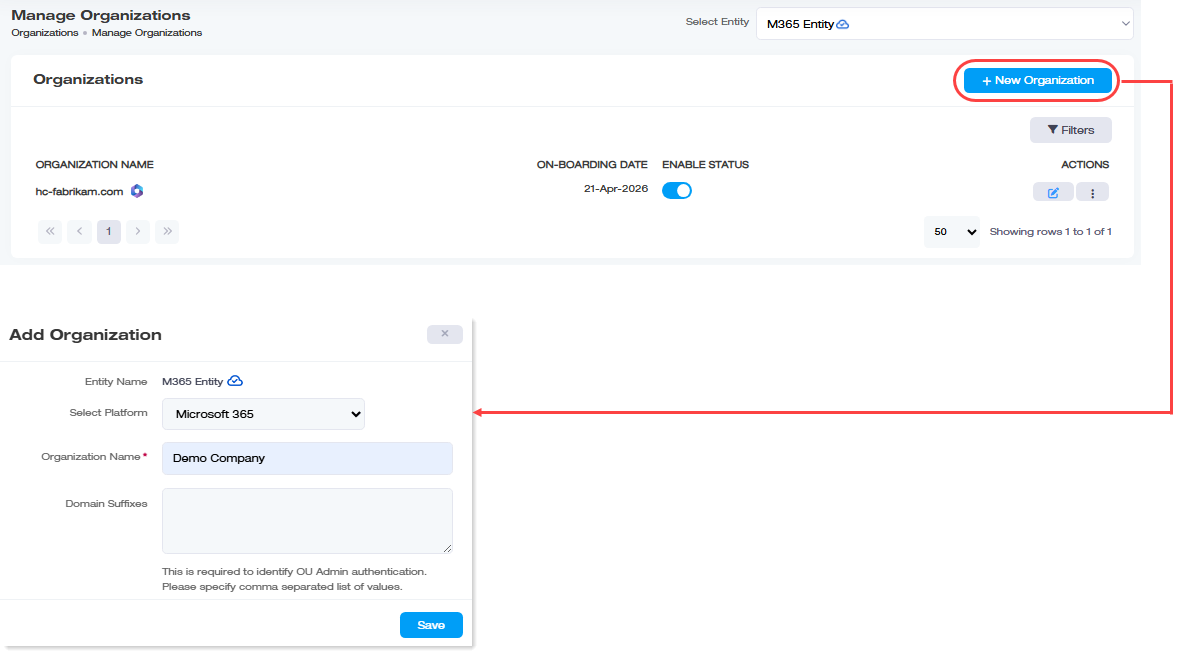
| Field | What to Enter |
| Entity Name | Which entity this organization belongs to |
| Organization Name | A name for this Microsoft 365 tenant/organization |
| Domain Suffixes | UPN suffix(es) for this entity, same login-matching mechanism used everywhere else in ExSign (see Managing Users & Roles). |
Viewing Organizations
The list shows Organization Name, On-Boarding Date, and Actions.
Configuring an Organization Further
QR Codes
Click QR Code under Actions to define a scannable code for the organization's signatures, with Placeholder (which attributes to show), Processing URL, and Width/Height in pixels.
Limits and License Quota
- Set Quota: caps the number of rules and banners this organization can create.
- Plain Text to HTML: same as Exchange: convert plain-text replies/forwards to HTML before stamping, with font family/size and preview.
- Exclude Stamping: comma-separated addresses to skip, with the same entity-overrides-organization precedence rule as Exchange.
- License Quota: only takes effect if Org. License Capacity is enabled (see Configuring Your Environment (M365)); shows the entity's available limit, what this organization has used, and what's assigned to it.
M365 Configurations
To configure M365 organization, Click  under Actions column and then M365 Configurations, this is where the Client ID, Tenant ID, and Client Secret from Registering an Azure AD Application for ExSign actually get entered.
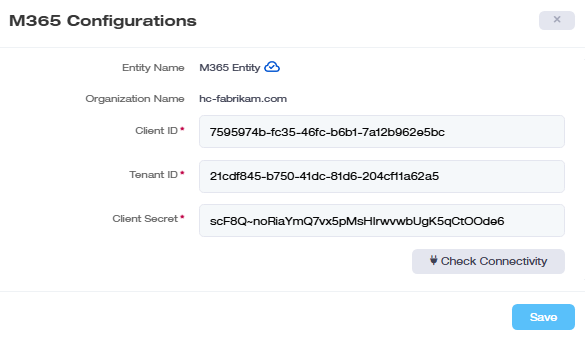
| Field | What It Is |
| Entity Name / Organization Name | Shown for reference |
| Client ID / Tenant ID / Client Secret | From your Azure app registration |
Click Check Connectivity. More fields appear only after this succeeds:
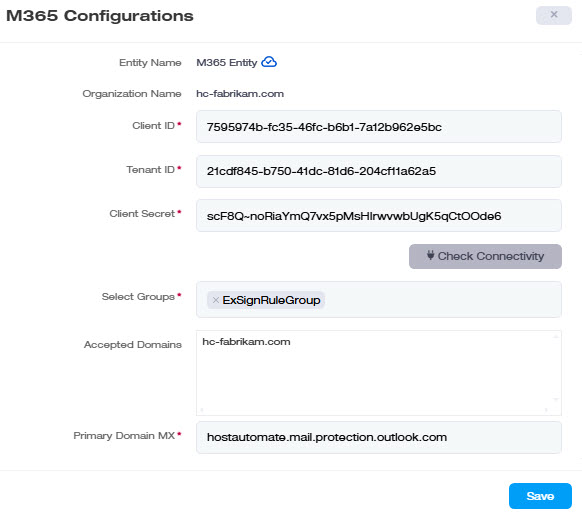
| Field (appears after connection) | What It Is |
| Select Group | The mail-enabled security group whose members get stamped, nobody outside this group is stamped |
| Accepted Domains | This organization's mail domain(s) |
| Primary Domain MX |
Auto-fetched, your domain name plus Microsoft's shared suffix mail.protection.outlook.com |
| Test Mailbox |
The mailbox used to verify impersonation rights |
M365 Sent Items Configurations
Go to the organization's Actions menu and select M365 Sent Items Configurations.
| Field | What It Is |
| Entity Name / Organization Name | Shown for reference |
| Client ID / Tenant ID / Client Secret | Same Azure app registration values as M365 Configurations above |
| EWS URL | Auto-fetched, see the urgent note above |
| Create Copy | Preserves the original, unstamped message before updating Sent Items |
| Test Mailbox |
Same impersonation-rights caveat as above, don't use the app's own registration mailbox |
Sync M365 User Profiles
If a user's Microsoft 365 profile changes (e.g., a name change) and the wrong signature keeps appearing, the scheduled sync between Microsoft 365 and ExSign may not have caught up yet. Use this to pull the latest profile data immediately, rather than waiting for the next scheduled sync. To sync a user profile, Click under Actions column and then Sync Users Profiles.
Deleting an Organization
To remove any organization, Click under Actions column and then Delete.