
| Product Documentation
ExSign
Connecting ExSign Transport Agent
ExSign agent desktop utility presents a configuration interface for the input of various settings. Once it’s installed on the Exchange mailbox server, it authenticates itself with the web portal through an authentication token. After the token is validated, it communicates with the control server through a secure channel.
Before You Begin
- Add the server in the ExSign Web Portal first. Log into the Portal, add this mailbox server, and generate an authentication token for it. The server will show as Disconnected until the token below is validated.
- Have your Domain Controller details ready. The Domain Admin account and password for this entity's domain, and the Root OU under which your Tenant OUs live.
- Decide the security type as LDAP or LDAPS for talking to Active Directory before you start.
Connect Agent to Hub
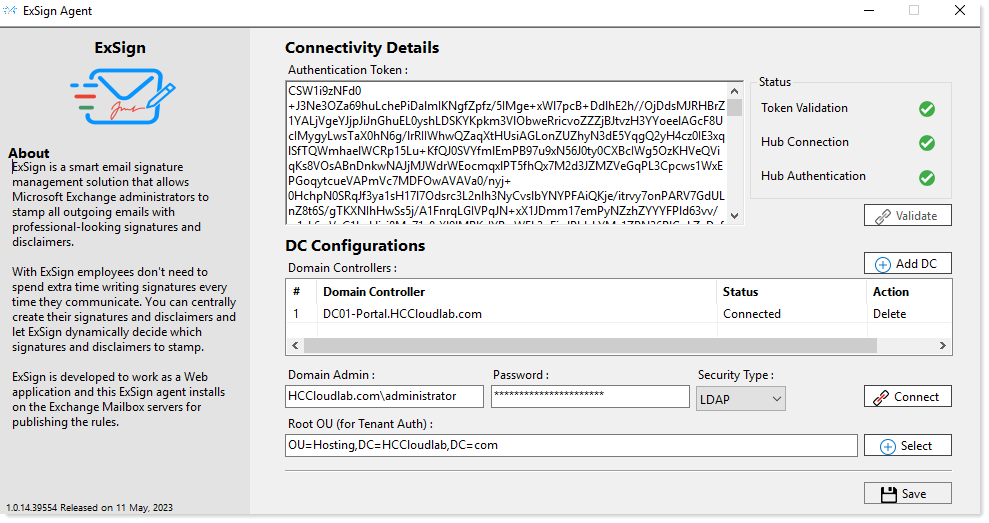
- Open the ExSign Agent desktop application on the mailbox server.
- Paste your authentication token into the Authentication Token box under Connectivity Details.
- Click Validate.
The Status panel updates live with three checks, each shown as a green check (success) or a red mark (failure):
| Check | What it confirms | If it fails |
| Token Validation | The token was decrypted correctly on this server. | The token is likely wrong, expired, or already used — tokens are single-use, so generate a fresh one in the Portal and try again. |
| Hub Connection | The Agent successfully reached the Portal's API Hub. | This points to network/firewall, confirm port 8776 is open between this server and the Portal (see Firewall Ports You'll Need Open). |
| Hub Authentication | The Portal responded and confirmed the connection. | The request got through but no response came back, check the Hub Server Access URL configured in the Portal is correct and reachable from this server. |
Once all three show green, the server's status changes from Disconnected to Connected in the Portal, and it will start receiving rules.
Add and Connect Domain Controller(s)
Under DC Configurations:
- Click + Add DC and enter the Domain Controller's address. It's added as a row in the Domain Controllers table, where you can track each one's connection Status (or remove it later via Delete).
- Enter the Domain Admin account (in
domain\usernameformat, e.g.HCCCloudlab.com\administrator) and its Password. - Choose a Security Type:
- LDAPS (recommended): encrypts traffic to Active Directory over TLS/SSL.
- LDAP: unencrypted; only use this if your network doesn't support LDAPS.
- Click Connect. The DC's row in the table should update to show Connected.
- Set the Root OU (for Tenant Auth) using the + Select button to browse to the correct OU, rather than typing it manually, this is the OU under which this entity's Tenant OUs live.
- Click Save at the bottom of the window to apply everything.
Add more than one Domain Controller if you can, by repeating step 1 for each. If the first one becomes unreachable, ExSign automatically fails over to the next one you've added here.