
| Product Documentation
ExSign
Banners for Microsoft 365
An email signature banner is a graphic or an image right next to or below the contact information in an email signature. Including banners in email signatures is a great marketing strategy. A large part of communication is carried out through email. Company employees regularly communicate with customers through emails. Adding banners to email signatures is a brilliant way of ensuring that new announcements, exclusive offers, achievement awards, etc. are always in front of your customers, and that too totally free of cost.
The recipients are most likely to see these exciting banners at a time when they are most interested in your company. This may greatly increase the visibility of your offers and announcements and may also encourage them to click any call to action that you might want them to see.
ExSign not only allows you to display banners with your email signatures but also allows you to run them for a set period of time and then automatically remove or update them when required. ExSign places the banners below the signatures.
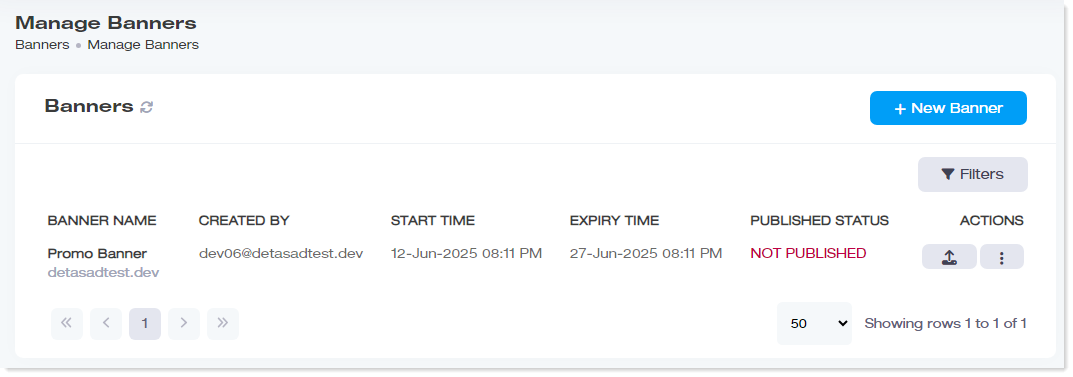
To manage banners, navigate to the left menu, under the Main section, and click Banners.
|
Manage Banners page shows the following information:
|
 icon. It displays the friendly name of the Exchange server on which the banner is published and whether the banner was published successfully once on the server.
Create New Banner
To add a new banner, click + New Banner and specify information.
- Select Organization: Select the Microsoft 365 organization/tenant, for which the banner is being created.
- Banner Name: Type a friendly name for the banner.
- Image URL: Specify a URL for the banner image.
- Upload Image: Upload an image for the banner.
- Width: Specify the width of the banner in pixel.
- Height: Specify the height of the banner in pixels.
- Banner Title: Specify a suitable title for the banner. The title appears when the recipient moves or hovers the pointer over the banner, in an email client.
- Link URL: Specify a clickable link for the banner. This link is particularly important if a call to action is to be placed on the banner. The call to action may point to an exclusive offer, a discount program, a read-more, or an important announcement.
- Start Time: Select the date and time on which the banner should be appended to the signatures and start appearing below them. The start time could be the start of a marketing campaign or the start of an event.
- Expiry Time: Select the date and time on which the banner should be removed and stop appearing below the signatures. The expiry time could be the end of a marketing campaign. The banner automatically expires when its time ends. Expired banners cannot be published, unpublished, or even edited.
- Exceptions: Add case exceptions in which the banner will not be used. Banner will not apply to organizations or users included in these exceptions. However, it will apply to organizations and users not included in the exceptions.
- Field: Select a field for the exception. Some exception fields examine the message header fields such as to and from fields, while others examine the message properties such as the subject field.
- Value: Specify a value to match the exception field such as an email address or an organization name. For example, for an exception that examines the sender's email address, the banner is not applied if the message is sent from a specific email address and the value of the email address matches a certain value such as mike@example.com.
- Preview: This gives a preview of the banner.
Publish a Banner
Once a banner has been created, it does not come into effect until it is published. It remains unpublished. It is implemented only after it is published. Banners can only be published by the ExSign Admin and Exchange Admins. OU Admins cannot publish banners.
Edit a Banner
To modify banner details, click  under Actions column and then Edit. Modify information as required, then click Save.