
| Product Documentation
ExSign
Connecting the Microsoft 365 Agent
The ExSign Microsoft 365 Agent desktop utility provides a configuration interface for entering various settings. This Agent actually makes two separate connections, both configured from the same desktop utility: one to the Portal and one to Microsoft 365 itself (using an SMTP relay).
Before You Begin
- Add the server in the Portal and generate its token first; see Managing Servers.
- Decide your signature mode first (see Choosing a Signature Mode for Microsoft 365); it changes what you need to do on this screen:
- Client-Side only (Outlook Add-in): skip SMTP Server Configurations entirely; it isn't required.
- Server-Side or Hybrid: SMTP Server Configurations are required and need to align carefully with the connectors set up in Configuring Mail Flow Rules and Connectors.
- No other SMTP server should be running on this machine. The Agent installs its own SMTP service on port 25, a second SMTP service on the same machine will conflict with it.
Connect the Agent to the Portal
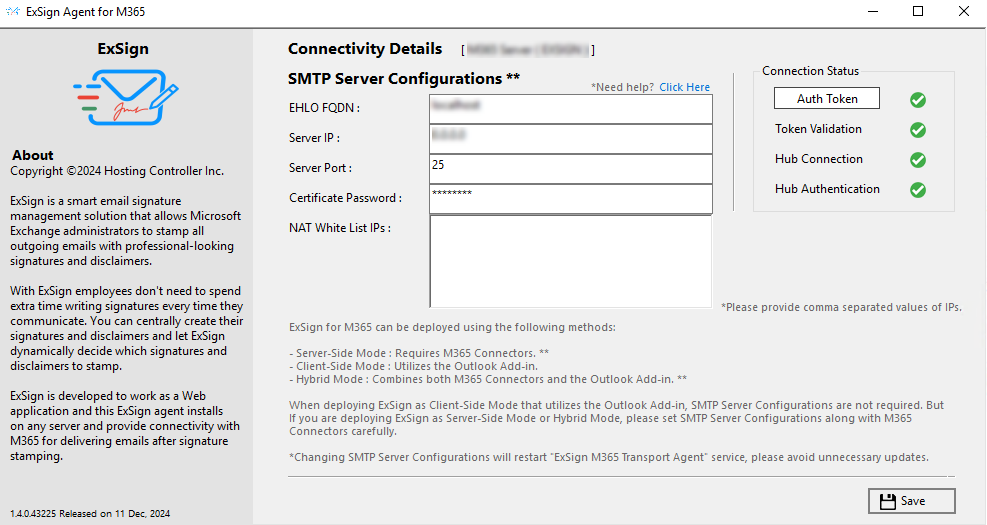
- Open the ExSign Agent for M365 utility on the Agent's machine.
- Enter your authentication token under Auth Token.
- Watch the Connection Status panel; the same three checks used by the Transport Agent apply here:
|
Check |
What It Confirms |
If It Fails |
| Token Validation | The token was decrypted correctly on this server | The token is likely wrong, expired, or already used, generate a fresh one and try again |
| Hub Connection | The Agent reached the Portal's API Hub | Points to network/firewall, confirm port 8776 is open (see Firewall Ports You'll Need Open (M365)) |
| Hub Authentication | The Portal responded and confirmed the connection | Check that the Hub Server Access URL configured in the Portal is correct and reachable from this server |
Configure the SMTP Connection to Microsoft 365
Skip this step entirely if you're running pure Client-Side mode.
|
Field |
What to Enter |
| EHLO FQDN | localhost if the Agent and Portal share a machine; otherwise, the Agent machine's FQDN. Either way, confirm port 25 is telnet-reachable on that hostname. |
| Server IP | The IP address of this Agent machine itself |
| Server Port | 25, the standard SMTP port |
| Certificate Password |
Fetched automatically, find it in Configs\Config.xml under the Agent's install path (C:\Program Files\ExSign M365 Agent\Configs\Config.xml), rather than something you invent yourself. |
| NAT Whitelist IPs | Comma-separated IP address(es) of the client or load balancer allowed to connect to this Agent's SMTP server. |
Changing any of these restarts the "ExSign M365 Transport Agent" service. Avoid updating this screen unnecessarily once it's working, each change causes a brief interruption to stamping.